 TECH GUIDESConvert XLS to XLSX Online Free — Upgrade Old Excel Files in SecondsFlipFileZone · Read Fullopen_in_new
Convert Word to PDF Online Free — Keep Formatting Perfectly
Convert Word to PDF free in seconds with FlipFileZone. No sign-up, no watermarks, no software — fonts, tables & layouts preserved every time.
FlipFileZone · TECH GUIDES
shareShare this post


Convert Word to PDF Online Free — Keep Formatting Perfectly
Have you ever sent a Word document to a client, a professor, or an employer — only to get a reply saying the file looks completely broken on their end? Misaligned tables, substituted fonts, collapsed bullet points. It happens to practically everyone who has ever worked with .docx files across different devices or operating systems. The moment a Word file leaves your computer, you lose control of how it renders for anyone else.
The fix is simple and permanent: convert your Word document to PDF before you send it. A PDF locks your formatting in place. Fonts, spacing, tables, headers, images — everything stays exactly where you put it, whether it opens on a Windows laptop, a Mac, an iPhone, or a Chromebook. No surprises, no embarrassing reformatting disasters.
This guide is for students submitting assignments, professionals sharing proposals, HR teams distributing forms, and anyone who needs their documents to look flawless on delivery. By the end, you will know exactly how to convert Word to PDF online — free, fast, and without installing a single piece of software.
The easiest way to do this is with FlipFileZone's free Word to PDF converter. No account. No watermarks. No strings attached.
⚡ Quick Answer
— Visit flipfilezone.com/word-to-pdf, upload your .doc or .docx file, click Convert to PDF, and download your polished PDF in under 10 seconds. Free, private, and watermark-free.
Word to PDF Conversion — What Actually Changes (and What Doesn't)
When you convert a Word document to PDF, you are not simply renaming a file. The conversion engine renders your document's visual output — exactly as a printer would see it — and bakes that snapshot into a universally readable format. Every text block, image, table, and paragraph is mapped to fixed coordinates on the page. Nothing can shift, reflow, or reformat after that point.
What changes: the file is no longer editable by default in standard PDF readers. What stays the same: every visual element. The key difference between a .docx and a PDF is that a .docx relies on the reader's installed fonts and software version, while a PDF carries everything it needs inside itself. That is why two people can open the same PDF on completely different devices and see an identical result.
FlipFileZone handles the conversion server-side using a professional rendering engine that processes even complex Word features — multi-column layouts, embedded charts, custom fonts, tracked changes, footnotes — and translates them faithfully into PDF output.
Top Reasons Professionals Choose to Convert Word to PDF
- Universal compatibility — PDFs open identically on every device, OS, and PDF reader without needing Microsoft Word installed.
- Locked formatting — Your tables, fonts, margins, and spacing are frozen. Recipients cannot accidentally (or intentionally) reformat the file.
- Professional presentation — Resumes, proposals, and invoices look polished and deliberate in PDF format.
- Smaller file size — A converted PDF is often significantly smaller than the source .docx, making it faster to email and upload.
- Print-ready output — PDFs are designed to print exactly as they appear on screen, eliminating paper layout surprises.
- Legal and compliance requirements — Courts, government agencies, and many enterprises require PDF submissions for archival reliability.
- Prevent unauthorized editing — Unlike Word files, PDFs cannot be easily modified by recipients without specialized software.
- Embedded fonts and images — All visual assets are bundled inside the PDF, so nothing goes missing if a font isn't installed on the reader's machine.
Convert Word to PDF in Under 60 Seconds — Here's How
Step 1 — Open the FlipFileZone Word to PDF Tool
Open your browser and go to flipfilezone.com/word-to-pdf. The page loads instantly — no account creation, no email verification, no subscription prompt. You are one step away from a professional PDF.
Step 2 — Upload Your Word Document
Click the upload area or drag and drop your .doc or .docx file directly onto the page. FlipFileZone accepts both legacy .doc files and modern .docx format. If you have a file already open in Word, just save it first and upload the saved copy. Files are transferred over an encrypted HTTPS connection.
Step 3 — Click "Convert to PDF"
Hit the Convert to PDF button. The engine processes your document server-side in seconds — even for multi-page documents with embedded images and complex tables. A progress indicator confirms the conversion is underway. Most files are ready in under 10 seconds.
Step 4 — Download Your PDF
Click the download button to save your finished PDF to your device. Open it in any PDF viewer — Adobe Acrobat, your browser, or your phone's built-in reader — and you will see every element exactly as you designed it in Word. Your uploaded file is automatically deleted from FlipFileZone's servers after conversion.
✅ Pro Tip
— Before converting, accept all tracked changes in Word and remove any comment balloons. Tracked changes can create visual artifacts or duplicate text in the PDF if left unresolved. Go to Review → Accept All Changes → Delete All Comments before uploading.
Will Your Formatting Survive the Conversion? Yes — Here's Why
The number-one concern people have about converting Word to PDF is losing the formatting they spent hours crafting. FlipFileZone's rendering engine is built to handle the full range of Word's formatting complexity. Here is what is preserved:
- Custom fonts and typography — Font family, size, weight, color, and kerning are all embedded in the output PDF.
- Tables and grids — Cell borders, shading, column widths, merged cells, and nested tables render accurately.
- Images and graphics — Inline images, floating images, SmartArt diagrams, and charts are rasterized at high resolution.
- Headers and footers — Page numbers, document titles, and section markers remain in place on every page.
- Bullet points and numbered lists — Multi-level lists, custom bullets, and indentation levels are preserved exactly.
- Hyperlinks — Clickable links in the Word document remain clickable in the exported PDF.
- Page layout and margins — Margin sizes, column layouts, portrait/landscape orientation, and page breaks are all respected.
- Styles and heading hierarchy — Heading 1, Heading 2, body text, and custom styles are accurately reflected in the visual output.
Need to Go the Other Direction? FlipFileZone Does That Too
Sometimes you receive a PDF and need to edit it — update contract terms, revise a report, or reformat a resume. FlipFileZone's free PDF to Word converter handles the reverse conversion just as cleanly. Upload a PDF and download an editable .docx file that retains the original layout, making it ready for revision in Microsoft Word, Google Docs, or LibreOffice.
Between Word to PDF and PDF to Word, you have a complete, free, round-trip document workflow — all in your browser, all without an account. Whether you are polishing a final deliverable or unlocking a received PDF for editing, FlipFileZone covers both directions in seconds.
Before You Convert — 7 Things That Make Your PDF Look Flawless
- Accept tracked changes — Unresolved redlines can appear as duplicate or struck-through text in the PDF.
- Embed your fonts — If using rare or downloaded fonts in Word, go to File → Options → Save and check "Embed fonts in the file" before exporting.
- Check page margins — Content that bleeds past your margin guides may get clipped in the PDF output.
- Flatten form fields — If your document has fillable Word form fields you want visible but non-editable, fill them before converting.
- Verify image resolution — Images inserted at low DPI will look pixelated in the PDF. Use at least 150 DPI for screen-quality, 300 DPI for print-quality output.
- Remove hidden markup — Delete comments, hidden text layers, and metadata fields you don't want visible in the final document.
- Proofread first — A PDF is difficult to edit after the fact. Do a final spelling and layout check in Word before uploading.
Who Uses a Word to PDF Converter?
Students & Academic Submitters
Universities and online learning platforms almost universally require PDF submissions for essays, dissertations, and lab reports. Converting your Word draft to PDF before submitting guarantees that your formatting — citations, footnotes, figures with captions — looks exactly as your instructor will see it, regardless of what device grades your work.
Corporate Teams & Client-Facing Professionals
Sales decks, project proposals, SOW documents, and executive summaries carry your company's credibility. Sending a .docx to a client is risky — their version of Word might reformat your carefully designed layout. Converting to PDF before delivery ensures your brand identity and document structure survive intact from your desk to the boardroom.
Legal, Compliance & HR Departments
Contracts, NDAs, policy documents, and employee handbooks require a stable, tamper-evident format for distribution and archiving. PDF is the de facto standard for legal document exchange precisely because it cannot be casually edited and renders identically in court-admissible document management systems.
Freelance Writers, Bloggers & Digital Creators
Pitching to editors, delivering ghostwritten content, or sending media kits — all of these look more professional as a PDF than a raw Word file. A PDF signals that you are delivering a finished product, not a draft, and it prevents editors from accidentally overwriting your original formatting during review.
Entrepreneurs & Small Business Owners
Invoices, service agreements, product brochures, and onboarding packets are business documents that represent your brand. Sending a PDF instead of a Word file avoids the amateur impression left by a document that looks different on every recipient's screen, and it makes printing reliable for clients who prefer hard copies.
FlipFileZone vs. Other Word to PDF Tools
| Feature | FlipFileZone | Smallpdf | iLovePDF | Adobe Acrobat Online |
|---|---|---|---|---|
| Free to use | ✅ Always | ⚠️ Limited | ⚠️ Limited | ⚠️ Limited |
| No account needed | ✅ Yes | ❌ Required for some | ❌ Required for some | ❌ Required |
| Files deleted after use | ✅ Auto-deleted | ⚠️ Stored temporarily | ⚠️ Stored temporarily | ⚠️ Stored temporarily |
| No watermarks | ✅ Never | ❌ On free tier | ✅ No watermark | ❌ On free tier |
| Works on mobile | ✅ Yes | ✅ Yes | ✅ Yes | ✅ Yes |
| Batch conversion | ✅ Yes | ❌ Paid only | ❌ Paid only | ❌ Paid only |
Got Questions About Converting Word to PDF? We Have Answers
| Is FlipFileZone's Word to PDF converter really free?Yes — completely free, with no hidden charges, no trial period, and no conversion limit. Every feature available on the page is free for every user, every time. |
| How do I avoid losing formatting during conversion?Accept all tracked changes, remove comments, and verify that any custom fonts are embedded in the Word file before uploading. These three steps eliminate the most common formatting issues. |
| What file formats does FlipFileZone accept?Both .doc (older Word format) and .docx (modern Word format) are supported. The converter handles documents created in Microsoft Word, Google Docs exports, and LibreOffice Writer files saved in .docx format. |
| Is my document safe when I upload it?Yes. Files are uploaded over an encrypted HTTPS connection and are automatically and permanently deleted from FlipFileZone's servers immediately after your conversion is complete. Your documents are never stored, shared, or used for any other purpose. |
| Can I convert PDF back to Word on FlipFileZone?Absolutely. Use the PDF to Word converter at flipfilezone.com/pdf-to-word to turn any PDF into an editable .docx file. Both directions of conversion are free and available without an account. |
| Can I convert multiple Word files at once?Yes — FlipFileZone supports batch conversion, so you can upload and convert multiple .docx files in a single session. This is particularly useful for teams processing large volumes of documents. |
| Does it work on phones and tablets?Yes. FlipFileZone is fully mobile-responsive. You can upload a Word document from your iPhone, Android phone, or tablet and download the finished PDF directly to your device — no desktop required. |
| Do I need to install Microsoft Word to use this tool?No. FlipFileZone processes the conversion entirely in the cloud. You do not need Microsoft Word, Adobe Acrobat, or any other software installed on your device. All you need is a browser and a .docx file. |
Converting Word to PDF used to mean owning expensive software, fighting with printer drivers, or emailing files to yourself across devices. Those days are over. FlipFileZone gives you a clean, fast, browser-based solution that handles the entire process in seconds — no downloads, no sign-ups, no watermarks stamped across your finished document.
Whether you are sending a resume, submitting an academic paper, distributing a legal contract, or delivering a client proposal, the outcome is the same: a pixel-perfect PDF that looks exactly as intended on every screen and every printer in the world. The quality assurance is built in, the privacy is automatic, and the price is always zero.
And when a PDF lands in your inbox that needs editing, the reverse trip back to Word is just as easy. FlipFileZone's PDF to Word converter completes the loop — giving you a fully editable .docx in seconds. Together, these two tools cover every document workflow you will ever encounter.
🚀 Ready to Convert Word to PDF?
— Try FlipFileZone Now!Visit flipfilezone.com/word-to-pdf and convert your Word document to PDF free — no account needed, no software to install, no watermarks ever.
More Free Tools on FlipFileZone
- PDF to Word Converter — Turn any PDF into a fully editable Word document in seconds.
- Compress PDF — Reduce PDF file size without sacrificing visual quality, perfect for email attachments.
- Merge PDF — Combine multiple PDF files into one clean, organized document instantly.
- JPG to PDF Converter — Convert one or more images into a professional, shareable PDF file.
tagTags
shareShare this post
recommendYou may also like
TECH GUIDESConvert XLS to XLSX Online Free — Upgrade Old Excel Files in SecondsFlipFileZone · Read Fullopen_in_new TECH GUIDESConvert PNG to ICO Online Free — Create Favicons and Windows Icons in SecondsFlipFileZone · Read Fullopen_in_new
 TECH GUIDESConvert Markdown to PDF Online Free — Turn .md Files Into PDF in SecondsFlipFileZone · Read Fullopen_in_new
 TECH GUIDESConvert SVG to PNG Online Free — Export Vector Graphics as Images in SecondsFlipFileZone · Read Fullopen_in_new
 TECH GUIDESConvert GIF to MP4 Online Free — Turn Animated GIFs Into Video in SecondsFlipFileZone · Read Fullopen_in_new
 TECH GUIDESConvert WAV to MP3 Online Free — Compress Audio Files in SecondsFlipFileZone · Read Fullopen_in_new
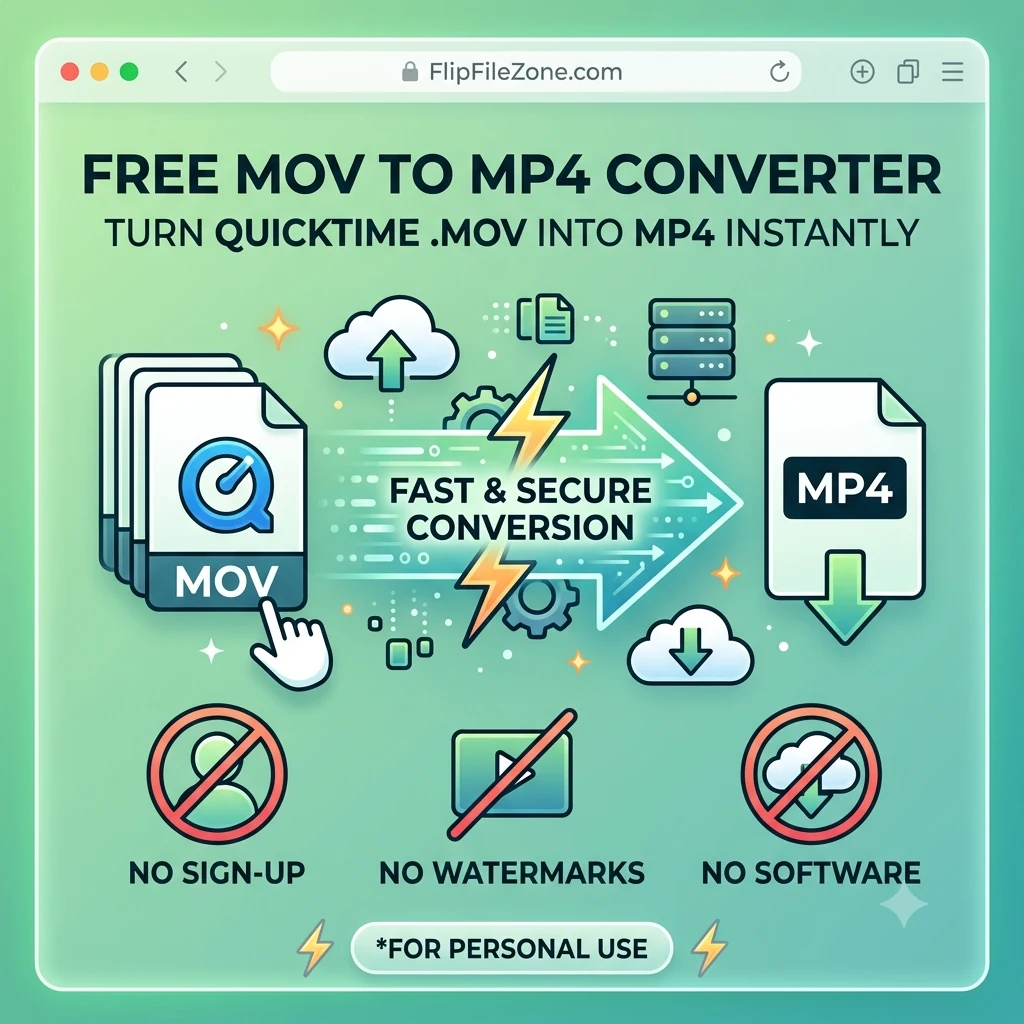 TECH GUIDESConvert MOV to MP4 Online Free — Convert iPhone Videos in SecondsFlipFileZone · Read Fullopen_in_new
chatPost a comment
Comments
0