 TECH GUIDESConvert XLS to XLSX Online Free — Upgrade Old Excel Files in SecondsFlipFileZone · Read Fullopen_in_new
Convert MOV to MP4 Online Free — Convert iPhone Videos in Seconds
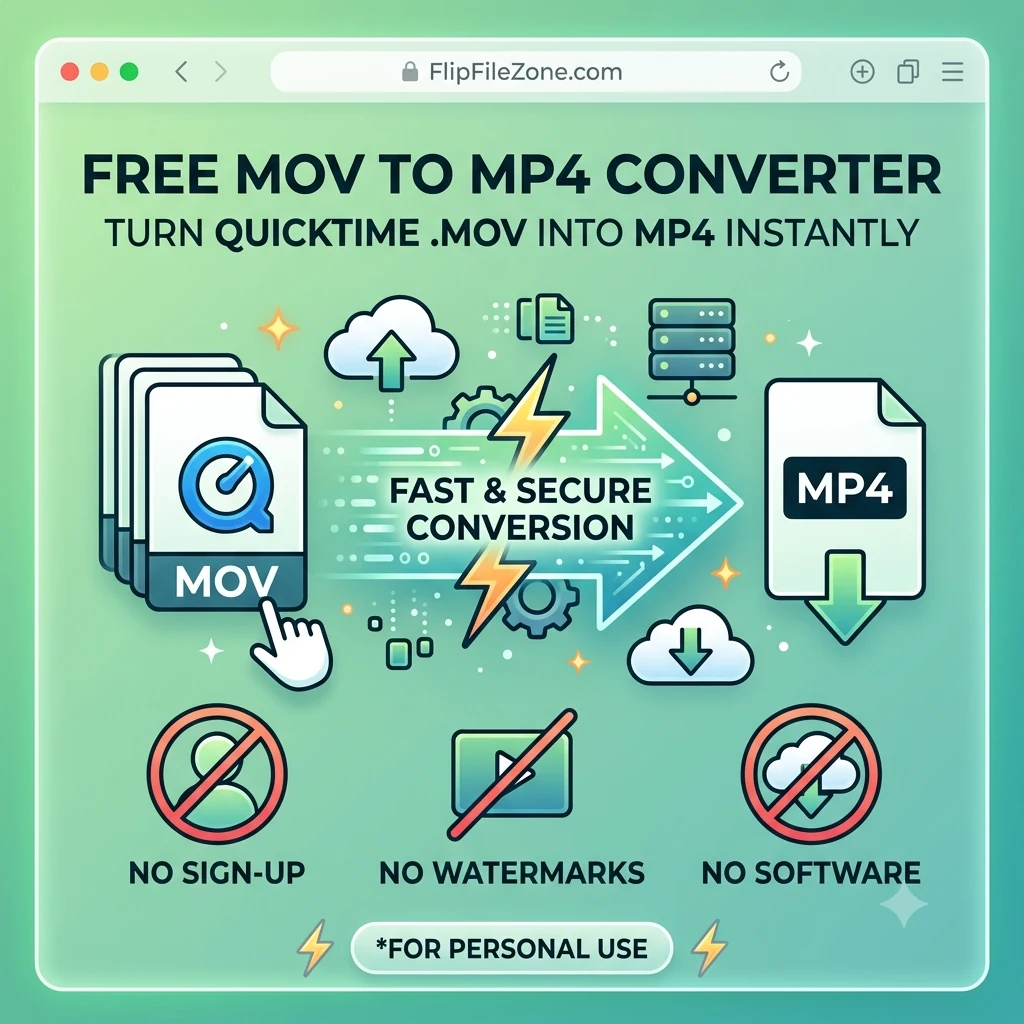
Convert MOV to MP4 free with FlipFileZone. Turn any QuickTime .mov video into a universally compatible MP4 instantly — no sign-up, no watermarks, no software needed.
FlipFileZone · TECH GUIDES
shareShare this post


Convert MOV to MP4 Online Free — Convert iPhone Videos in Seconds
You recorded a video on your iPhone and tried to upload it to Instagram, a client portal, a YouTube channel, or a company intranet — and it was rejected. Or you sent a .mov file to a Windows user and they could not open it without QuickTime installed. Or you are trying to embed a video in a Google Slides presentation, a WordPress site, or a web application, and .mov simply does not work. Or you downloaded a screen recording from a Mac and need it in a format that plays everywhere.
MOV is Apple's native video format, used by iPhones, iPads, and Mac screen recording tools by default. It plays perfectly in the Apple ecosystem — QuickTime, macOS, iOS. Outside that ecosystem, it is one of the most consistently problematic video formats in everyday file sharing. Windows devices without QuickTime cannot open it. Android phones do not play it natively. Most web-based video players do not support it. Upload platforms from Instagram to Vimeo to corporate video portals prefer or require MP4.
Converting MOV to MP4 solves every one of these problems in one step. MP4 is the universal video format — it plays on every device, every operating system, every platform, and every web browser on the planet without requiring special software. FlipFileZone's free MOV to MP4 converter handles the conversion in your browser in minutes. No account. No watermark. No file stored anywhere after your session ends.
⚡ Quick Answer
— Visit flipfilezone.com/mov-to-mp4, upload your MOV file, click Convert to MP4, and download your video instantly. Free, private, and watermark-free.
MOV vs MP4 — Why the Format Difference Matters
Both MOV and MP4 are container formats — they wrap video and audio streams inside a file structure that media players can read. The fundamental difference is in ecosystem support and universal compatibility.
MOV was created by Apple for the QuickTime player and is the native recording format for iPhones, iPads, and Mac cameras. Within Apple's ecosystem it works perfectly. Outside it, compatibility is inconsistent — Windows requires QuickTime or a third-party codec to play MOV files natively, Android devices do not support MOV, and most web and platform video players either reject MOV or handle it poorly.
MP4 is the international standard for digital video, defined under the MPEG-4 standard and adopted universally across every platform, device, and operating system. It plays on Windows, macOS, Android, iOS, Linux, every smart TV, every games console, every streaming platform, and every web browser without requiring any additional software or codecs. When a platform says it accepts video, it almost always means MP4.
Converting MOV to MP4 does not change the video content. The same footage, the same audio, the same duration and quality — repackaged into a container that plays everywhere instead of only within Apple's ecosystem.
Top Reasons to Convert MOV to MP4
- Upload to any video platform — YouTube, Instagram, TikTok, Vimeo, Facebook, LinkedIn, and virtually every other video platform accept MP4. MOV uploads are rejected or require additional processing on many of these platforms.
- Play on Windows without QuickTime — Windows Media Player, VLC, and all standard Windows video players handle MP4 natively. MOV requires QuickTime or a codec pack to open on Windows without third-party software.
- Share with Android users — Android devices play MP4 video natively. MOV files sent to Android phones either cannot be played or require a third-party app to open.
- Embed in websites and presentations — HTML5 video players, Google Slides, PowerPoint, WordPress video blocks, and web-based video embeds all support MP4. MOV is not reliably supported in these contexts.
- Reduce file size — iPhone MOV recordings at high resolutions can be extremely large. Converting to MP4 with appropriate encoding settings often produces a significantly smaller file without visible quality loss at normal playback sizes.
- Use in video editing software — While professional editing tools like Premiere Pro and Final Cut Pro handle MOV, consumer video editors and web-based editing tools frequently support only MP4 input.
- Submit to corporate and client portals — Enterprise video platforms, client submission systems, and employee training portals almost universally specify MP4 as the required format for video uploads.
- Archive in a universally readable format — MP4 is the most widely supported video format for long-term storage. Videos archived as MP4 will be playable by software for decades without dependency on Apple-specific toolchains.
How to Convert MOV to MP4 — Step by Step
Step 1 — Open the FlipFileZone MOV to MP4 Converter
Go to flipfilezone.com/mov-to-mp4 in any browser on any device. No account creation, no subscription prompt, no onboarding flow. The converter is ready the moment the page loads — open it and you are one upload away from a universally compatible video file.
Step 2 — Upload Your MOV File
Click the upload area or drag and drop your .mov file onto the page. FlipFileZone accepts MOV files of any length and any resolution — iPhone video recordings, Mac screen recordings, QuickTime exports, and any other MOV file from any source. All uploads travel over an encrypted HTTPS connection. Note that video files are significantly larger than images or documents, so upload time depends on your file size and internet connection speed.
Step 3 — Click Convert to MP4
Hit the Convert to MP4 button. FlipFileZone transcodes your MOV file into MP4 format using standard H.264 video encoding and AAC audio encoding — the combination that produces the broadest compatibility across all devices and platforms. Processing time varies with file size; short clips convert in seconds while longer recordings may take a few minutes.
Step 4 — Download Your MP4
Click the download button to save your converted MP4. Play it on your device to verify the video and audio quality before uploading or sharing. FlipFileZone permanently and automatically deletes your uploaded MOV and the converted MP4 from its servers once your session ends.
✓ Pro Tip
— iPhone videos recorded in High Efficiency format (HEVC or H.265) may be larger MOV files than expected. If your converted MP4 is still very large after conversion, consider also using FlipFileZone's file compressor or reducing the video resolution before re-uploading. For most sharing and upload purposes, 1080p resolution is more than sufficient — 4K recordings are often unnecessary for social media, client presentations, or web embedding, and produce much larger files at no visible benefit on most screens.
What Happens to Video and Audio Quality During Conversion
Converting MOV to MP4 is a re-encoding process. The video content from the MOV container is decoded and re-encoded into the MP4 container using the target codec settings. Here is what to expect:
- Visual quality — At high quality encoding settings, the MP4 output is visually indistinguishable from the source MOV at normal playback sizes on screens and platforms. FlipFileZone targets a quality level that produces clean, sharp output for sharing and upload purposes.
- Audio quality — The audio track from the MOV is re-encoded as AAC in the MP4 output, preserving speech clarity and ambient sound faithfully for all standard use cases.
- Video duration — The full duration of the source MOV is preserved exactly in the MP4 output. No frames are dropped or trimmed during conversion.
- Resolution — The original video resolution (1080p, 4K, or otherwise) is maintained in the output unless explicitly changed.
- Frame rate — The original frame rate of the MOV recording is preserved in the MP4 output.
Common Use Cases — When MOV to MP4 Conversion Is Essential
iPhone and iPad Users Sharing Videos
An iPhone user records a video at a birthday party, a sports event, a product demonstration, or a business meeting. They try to send it to a Windows colleague or upload it to an Instagram story, a client portal, or a project management platform — and the .mov file is rejected or unplayable at the destination. Converting to MP4 before sharing eliminates the format barrier entirely and ensures the video reaches every recipient in a format they can open and watch immediately on any device.
Content Creators and YouTubers
A creator filming content on an iPhone or Mac produces MOV files that need to be uploaded to YouTube, TikTok, Instagram Reels, or a video hosting platform for their audience. Most of these platforms technically accept MOV but handle it more reliably when it arrives as MP4 — with faster processing, fewer encoding errors, and more consistent quality in the final published output. Converting to MP4 before upload is standard practice in content creation workflows for exactly this reason.
Business Professionals Sharing Recordings
A sales professional records a product demo or client walkthrough using QuickTime Screen Recording on their Mac and gets a .mov file. When they try to share it with a prospect through a client portal, embed it in a proposal document, or send it via a business messaging platform, the MOV format creates friction. Converting to MP4 produces a file that embeds, shares, and plays in every business context without compatibility issues.
Educators and Trainers
An educator records lecture content or training material on a Mac or iPhone and needs to upload it to a learning management system — Moodle, Canvas, Google Classroom, Teachable, or Thinkific. These platforms expect MP4 uploads. MOV files either require additional processing steps or are rejected outright. Converting to MP4 before uploading ensures the content goes live without format-related delays in the publication workflow.
Videographers and Freelancers Delivering to Clients
A videographer who edits on a Mac Final Cut Pro workflow exports finished videos as MOV files by default. Clients on Windows, or clients uploading to social platforms and corporate video systems, need MP4 deliverables. Converting the finished MOV export to MP4 before client delivery is a standard final step that ensures the deliverable works in every context the client needs it for.
FlipFileZone vs Other MOV to MP4 Tools
| Feature | FlipFileZone | CloudConvert | Convertio | Online-Convert |
|---|---|---|---|---|
| Free to use | ✓ Always | ⚠ Limited free | ⚠ Limited free | ⚠ Limited free |
| No account needed | ✓ Yes | ✗ Required for more | ✓ Yes | ✓ Yes |
| Files deleted after use | ✓ Auto-deleted | ⚠ Stored temporarily | ⚠ Stored temporarily | ⚠ Stored temporarily |
| No watermarks | ✓ Never | ✓ No watermark | ✓ No watermark | ✓ No watermark |
| Works on mobile | ✓ Yes | ✓ Yes | ✓ Yes | ✓ Yes |
| Part of full file toolkit | ✓ Yes | ⚠ Partial | ⚠ Partial | ⚠ Partial |
Frequently Asked Questions
| Is FlipFileZone's MOV to MP4 converter really free? |
| Yes — completely free with no usage limits, no trial periods, and no subscription required. Convert as many MOV files as you need, whenever you need, at zero cost. |
| Will converting MOV to MP4 reduce the video quality? |
| At high quality encoding settings, the visual difference between the MOV source and the MP4 output is imperceptible at normal playback sizes. The conversion involves re-encoding, so some theoretical quality reduction occurs, but it is not visible in normal viewing conditions. |
| Why is my MOV file so large? |
| iPhones record video at high resolutions (1080p, 4K) with high bitrates, producing large MOV files. A 1-minute 4K iPhone recording can easily be 400 to 600 MB. Converting to MP4 with standard compression settings typically reduces this significantly while maintaining good visual quality for sharing and upload purposes. |
| Can I convert MOV files recorded in 4K? |
| Yes. FlipFileZone handles MOV files at any resolution including 4K. Processing time for large 4K files is longer than for standard 1080p recordings, depending on file size and your internet connection speed for the upload. |
| Are my video files safe when I upload them? |
| Yes. All uploads are encrypted via HTTPS. Your MOV file and the converted MP4 are permanently and automatically deleted from FlipFileZone servers once your session ends. Your video content is never stored, shared, or accessed for any other purpose. |
| Can I convert other video formats to MP4 as well? |
| Yes. FlipFileZone supports conversion to MP4 from multiple video formats including AVI, MKV, WebM, FLV, WMV, and more. Browse the full video conversion tool list at flipfilezone.com to find the format you are working with. |
| Does it work on iPhone to convert my own videos? |
| Yes. FlipFileZone is fully mobile-responsive. You can open the converter in Safari or any browser on your iPhone, upload a MOV video directly from your camera roll, and download the converted MP4 back to your device — without needing a computer at any point in the process. |
A MOV file that will not upload, will not play, and will not share is a video that cannot do its job. The footage is there. The quality is there. The format is simply wrong for every destination outside the Apple ecosystem — and the fix takes minutes.
FlipFileZone makes the conversion free and frictionless. Upload your MOV, convert, download your MP4. No account to create, no watermark on your video, no file stored anywhere after your session ends. Just a universally compatible video ready to upload to any platform, play on any device, and share with anyone — regardless of what operating system or device they are using.
🚀 Ready to Convert MOV to MP4? Try FlipFileZone Now!
— Visit flipfilezone.com/mov-to-mp4 and convert your MOV video to MP4 free — no account needed, no software to install, no watermarks ever.
More Free Tools on FlipFileZone
- MP4 to MP3 Converter — Extract audio from your converted MP4 video as an MP3 file.
- Compress File — Reduce the size of large video files for easier sharing and uploading.
- MKV to MP4 Converter — Convert MKV video files to the universally compatible MP4 format.
- AVI to MP4 Converter — Convert legacy AVI video files to modern MP4 format instantly.
- Extract Text — Pull text content from any document or image file instantly and free.
tagTags
shareShare this post
recommendYou may also like
TECH GUIDESConvert XLS to XLSX Online Free — Upgrade Old Excel Files in SecondsFlipFileZone · Read Fullopen_in_new TECH GUIDESConvert PNG to ICO Online Free — Create Favicons and Windows Icons in SecondsFlipFileZone · Read Fullopen_in_new
 TECH GUIDESConvert Markdown to PDF Online Free — Turn .md Files Into PDF in SecondsFlipFileZone · Read Fullopen_in_new
 TECH GUIDESConvert SVG to PNG Online Free — Export Vector Graphics as Images in SecondsFlipFileZone · Read Fullopen_in_new
 TECH GUIDESConvert GIF to MP4 Online Free — Turn Animated GIFs Into Video in SecondsFlipFileZone · Read Fullopen_in_new
 TECH GUIDESConvert WAV to MP3 Online Free — Compress Audio Files in SecondsFlipFileZone · Read Fullopen_in_new
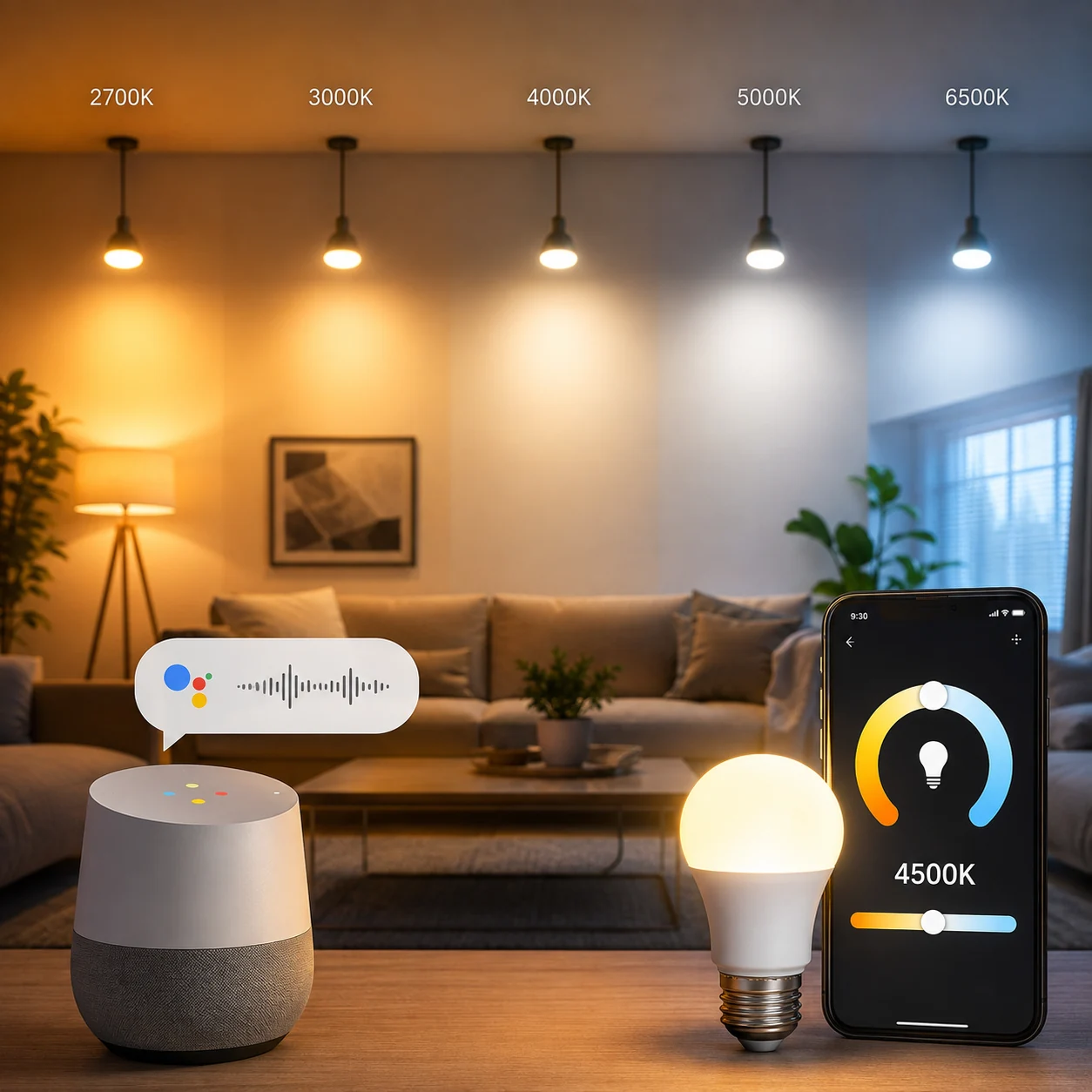 TECH GUIDESControl Light Color Temperature by Voice: Google Home’s New Kelvin FeatureFlipFileZone · Read Fullopen_in_new
chatPost a comment
Comments
0