 TECH GUIDESConvert XLS to XLSX Online Free — Upgrade Old Excel Files in SecondsFlipFileZone · Read Fullopen_in_new
How to Convert PDF to Word Online – Fast, Free & Without Losing Formatting
Looking to convert PDF to Word for free? FlipFileZone's free online PDF to Word converter keeps your formatting intact. No sign-up needed — fast, secure & easy!
FlipFileZone · TECH GUIDES
shareShare this post






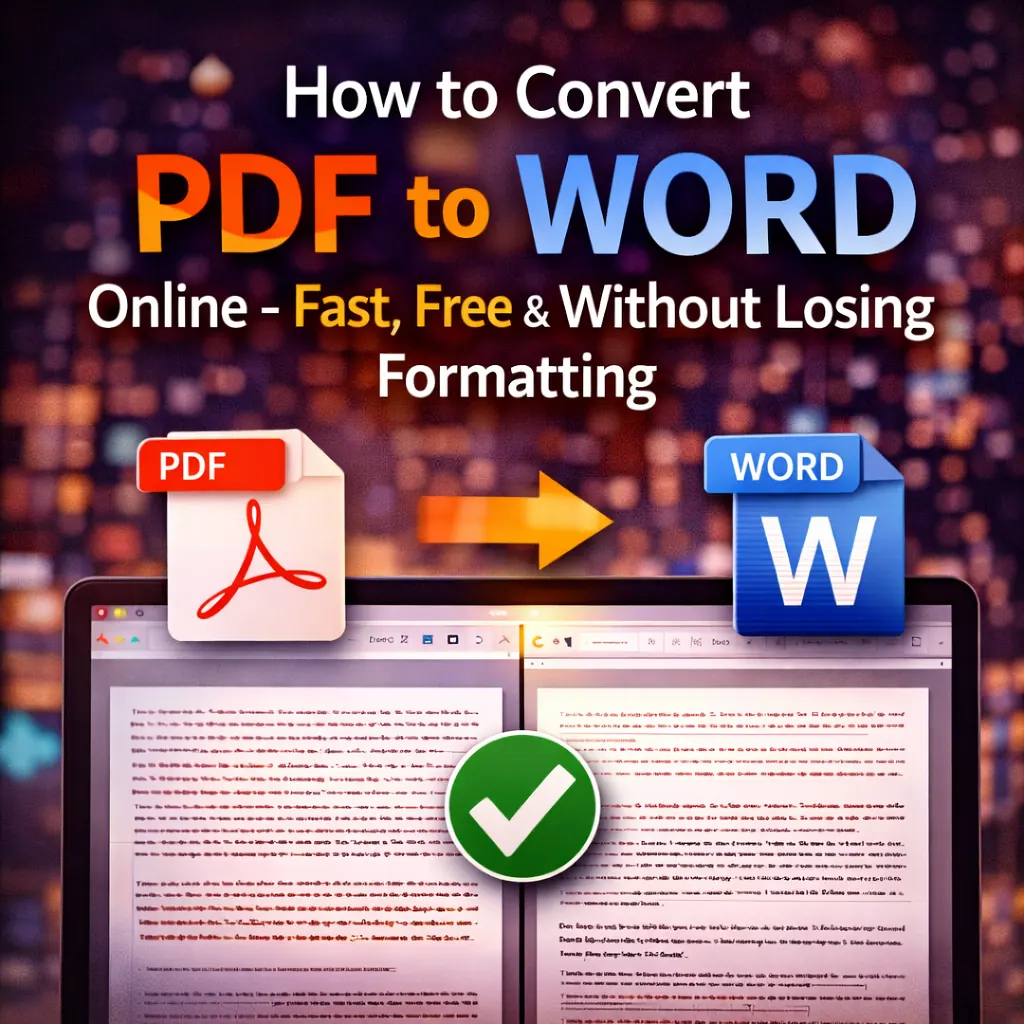
How to Convert PDF to Word Online – Fast, Free & Without Losing Formatting
Have you ever received a PDF file that you needed to edit, but found yourself completely stuck because PDFs simply do not allow direct editing? You are not alone. Millions of people every day search for a reliable way to convert PDF to Word — and for good reason.
Whether you are a student trying to edit a research paper, a professional who needs to update a contract, or someone who just wants to reuse content from a PDF document, having the right PDF to Word converter can save you hours of frustration.
In this comprehensive guide, we will walk you through everything you need to know about PDF and Word conversion — what it is, why it matters, how to do it for free, and how to keep your formatting intact using FlipFileZone's powerful online tool.
⚡ Quick Answer
To convert PDF to Word free, visit FlipFileZone.com → Upload your PDF → Click Convert → Download your editable .docx file. No sign-up. No watermarks. 100% free.
What Does It Mean to Convert PDF to Word?
When you convert PDF to Word format, you are transforming a fixed-layout document (PDF) into an editable Microsoft Word file (.docx). PDFs are designed to look the same on every device — which makes them great for sharing but terrible for editing.
A Word format to PDF converter (and vice versa) essentially bridges this gap. It extracts the text, images, tables, and layout from a PDF and recreates them in a fully editable Word document.
Key difference: A PDF is like a printed photo of a document. A Word file is the editable original. Converting between them is like turning that photo back into a document you can type in.
Why Do You Need a PDF to Word Converter?
Here are the most common reasons people need to convert PDF to Word format:
-
Editing contracts, reports, or legal documents received as PDFs
-
Updating outdated PDFs where the original Word file is lost
-
Repurposing PDF content for new documents or presentations
-
Extracting text from PDFs to use in emails or articles
-
Translating PDF documents (Word files are easier to work with in translation tools)
-
Filling in forms that were accidentally saved as PDFs
In all these scenarios, a reliable PDF converter PDF to Word is not just useful — it's essential.
How to Convert PDF to Word Using FlipFileZone (Step-by-Step)
FlipFileZone offers one of the fastest and most accurate online tools to convert PDF to Word free. Here's exactly how to use it:
Step 1: Open FlipFileZone
Go to FlipFileZone.com and navigate to the PDF to Word converter tool. No account creation or software download is required.
Step 2: Upload Your PDF File
Click the "Upload" button and select the PDF file from your device. You can also drag and drop the file directly onto the tool. FlipFileZone supports PDFs of all sizes — from single-page documents to large multi-page reports.
Step 3: Start the Conversion
Click "Convert." FlipFileZone's powerful engine will begin converting your PDF to Word format immediately. The process typically takes just a few seconds, even for large files.
Step 4: Download Your Word File
Once the conversion is complete, click "Download" to save your .docx file. Your document is now fully editable in Microsoft Word, Google Docs, LibreOffice, or any other word processor.
✅ Pro Tip
For the best results when you convert PDF to Word, make sure your PDF is text-based (not a scanned image). Text-based PDFs produce near-perfect conversions with formatting fully preserved.
How to Convert Word to PDF Using FlipFileZone
Need to go the other direction? FlipFileZone also makes it easy to convert Word to PDF in just a few clicks. Here's how:
-
Visit FlipFileZone.com and select the Word to PDF converter
-
Upload your .docx or .doc file
-
Click "Convert to PDF"
-
Download your polished, shareable PDF file
Using a Word format to PDF converter is especially useful when you want to share a document that looks identical on every device — preventing others from accidentally (or intentionally) editing your content.
Does FlipFileZone Preserve Formatting During PDF to Word Conversion?
This is the most common concern people have when using a PDF and Word converter — and rightfully so. Poor converters can destroy your document's layout, turning a beautifully formatted report into a mess of misaligned text and broken tables.
FlipFileZone uses advanced OCR (Optical Character Recognition) and layout detection technology to preserve:
-
Fonts, font sizes, and font styles (bold, italic, underline)
-
Paragraph spacing and indentation
-
Tables and their cell structure
-
Images and their placement within the document
-
Headers, footers, and page numbers
-
Columns and multi-column layouts
The result is a Word file that looks virtually identical to your original PDF — ready to edit without any manual clean-up.
7 Expert Tips to Get the Best Results When Converting PDF to Word
- Use text-based PDFs whenever possible. Scanned PDFs converted to Word require OCR, which may introduce minor errors.
- Check the original PDF quality. Blurry or low-resolution PDFs will produce lower-quality Word files.
- Split large PDFs before converting. If you only need a few pages, extract them first to speed up the process.
- Review the converted Word file before editing. Check tables, images, and headers to ensure everything transferred correctly.
- Use "Keep Source Formatting" in Word when pasting converted content into other documents.
- For sensitive documents, always use a secure tool. FlipFileZone auto-deletes your files after conversion to protect your privacy.
- Convert Word to PDF when sharing final documents to prevent unwanted edits.
Common Use Cases for PDF and Word Conversion
For Students & Academics
Convert research papers, journal articles, and lecture slides from PDF to Word format for annotation, citation extraction, and editing.
For Business Professionals
Update contracts, proposals, and reports originally sent as PDFs. Convert Word to PDF when submitting final versions to clients or stakeholders.
For Legal & HR Teams
Edit and update legal templates, employment contracts, and compliance documents that arrive as PDFs.
For Content Writers & Bloggers
Extract content from PDF whitepapers or eBooks into Word for repurposing into blog posts, articles, or social media content.
For Small Business Owners
Convert invoices, product catalogs, and brochures between PDF and Word formats easily — without expensive software.
Frequently Asked Questions About PDF to Word Conversion
|
Is FlipFileZone's PDF to Word converter really free?
Yes! FlipFileZone allows you to convert PDF to Word free — no hidden charges, no subscriptions, and no watermarks on your converted file.
|
|
How do I convert PDF to Word without losing formatting?
Use FlipFileZone's advanced converter which preserves fonts, tables, images, and layout. Ensure your PDF is text-based (not a scanned image) for best results.
|
|
Can I convert a scanned PDF to Word?
Yes. FlipFileZone supports OCR technology that can recognize text in scanned PDF files and convert them into editable Word documents.
|
|
Is it safe to upload my PDF to FlipFileZone?
Absolutely. FlipFileZone uses secure HTTPS connections and automatically deletes your uploaded files after conversion to protect your privacy.
|
|
Can I convert Word to PDF on FlipFileZone?
Yes! FlipFileZone supports both directions — you can convert PDF to Word and also convert Word to PDF using the same platform.
|
|
What is the difference between a PDF converter PDF to Word and a PDF editor?
A PDF converter transforms your PDF into an editable Word file. A PDF editor lets you make limited changes directly in the PDF. For full editing, converting to Word is almost always the better choice.
|
|
Does the converted Word file look exactly like the original PDF?
In most cases, yes — especially for text-based PDFs. Minor differences may occur in complex layouts, but FlipFileZone's engine minimizes these differences significantly.
|
|
Can I convert multiple PDFs to Word at once?
Yes, FlipFileZone supports batch conversion, allowing you to convert multiple PDFs to Word in a single session.
|
Conclusion: The Smartest Way to Convert PDF to Word Online
Whether you need to convert PDF to Word for editing, repurposing content, or updating an old document, FlipFileZone offers the fastest, most reliable, and completely free solution available online.
With no sign-up required, no watermarks, and industry-leading formatting preservation, FlipFileZone stands out as the go-to PDF and Word converter for students, professionals, and businesses alike.
And when you're done editing, don't forget — you can also use FlipFileZone to convert Word to PDF in seconds, ensuring your final document looks polished and professional on every device.
🚀 Ready to Convert? Try FlipFileZone Now!
Visit FlipFileZone.com and convert your PDF to Word free — no account needed, no software to install. Fast, secure, and accurate every time.
tagTags
shareShare this post
recommendYou may also like
TECH GUIDESConvert XLS to XLSX Online Free — Upgrade Old Excel Files in SecondsFlipFileZone · Read Fullopen_in_new TECH GUIDESConvert PNG to ICO Online Free — Create Favicons and Windows Icons in SecondsFlipFileZone · Read Fullopen_in_new
 TECH GUIDESConvert Markdown to PDF Online Free — Turn .md Files Into PDF in SecondsFlipFileZone · Read Fullopen_in_new
 TECH GUIDESConvert SVG to PNG Online Free — Export Vector Graphics as Images in SecondsFlipFileZone · Read Fullopen_in_new
 TECH GUIDESConvert GIF to MP4 Online Free — Turn Animated GIFs Into Video in SecondsFlipFileZone · Read Fullopen_in_new
 TECH GUIDESConvert WAV to MP3 Online Free — Compress Audio Files in SecondsFlipFileZone · Read Fullopen_in_new
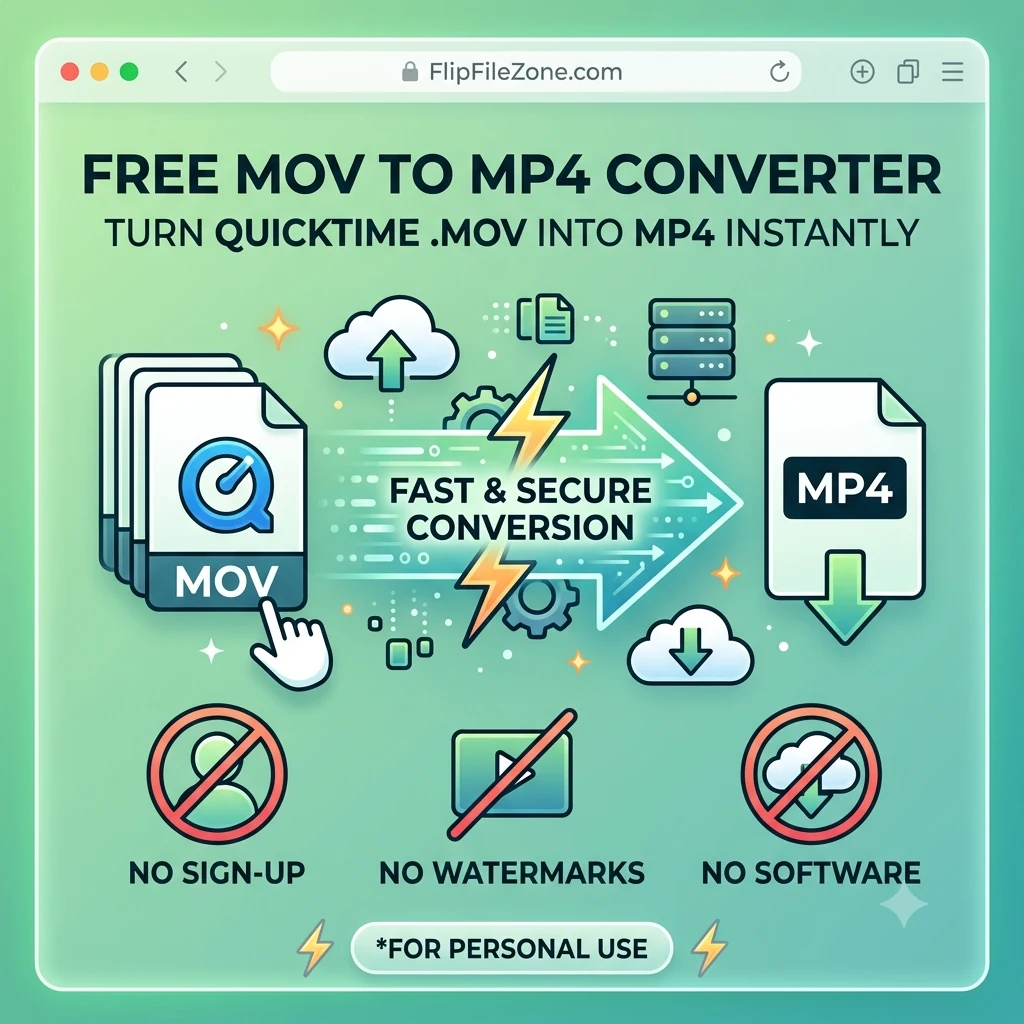 TECH GUIDESConvert MOV to MP4 Online Free — Convert iPhone Videos in SecondsFlipFileZone · Read Fullopen_in_new
chatPost a comment
Comments
0