 TECH GUIDESConvert XLS to XLSX Online Free — Upgrade Old Excel Files in SecondsFlipFileZone · Read Fullopen_in_new
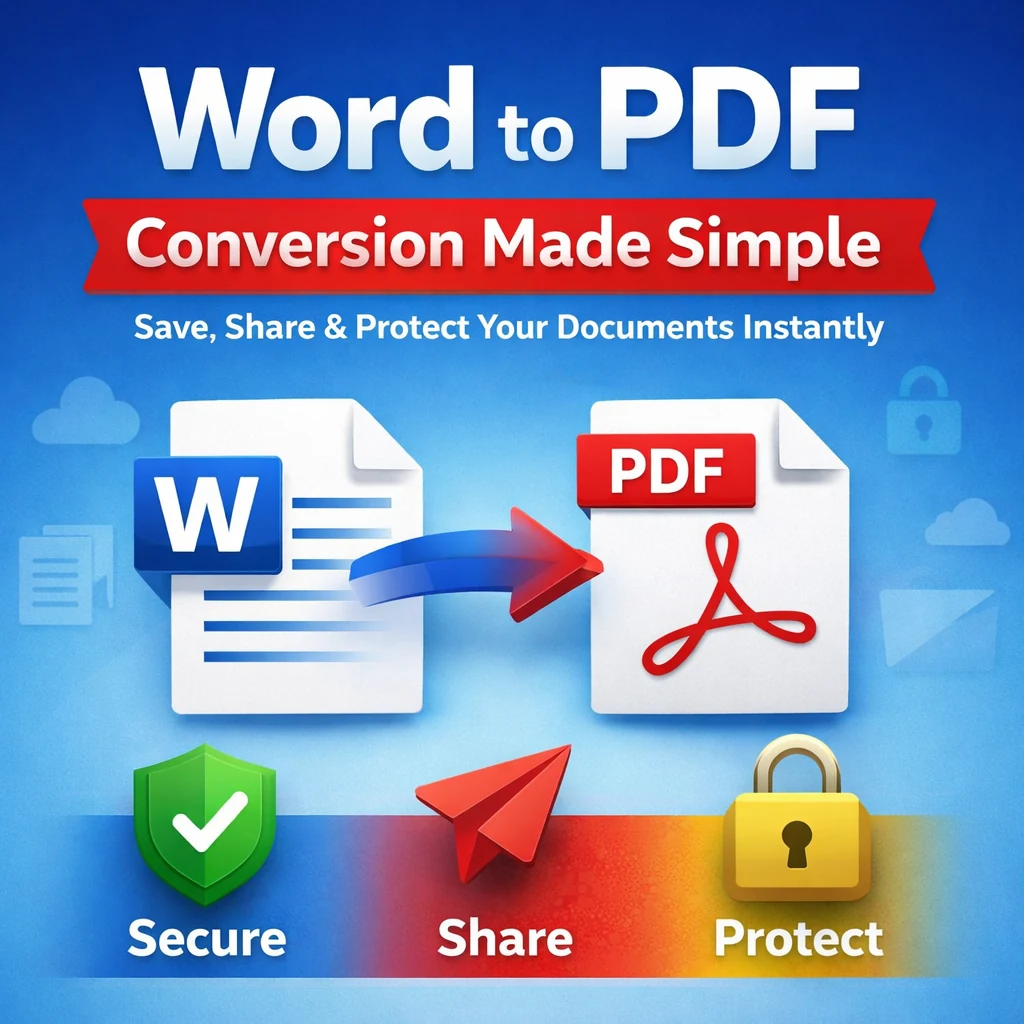
Word to PDF Conversion Made Simple – Save, Share & Protect Your Documents Instantly
Need to convert Word to PDF instantly? FlipFileZone locks in your fonts, tables & layout — free, no sign-up, no watermarks. Share polished PDFs in seconds!
FlipFileZone · TECH GUIDES
shareShare this post






Word to PDF Conversion Made Simple – Save, Share & Protect Your Documents Instantly
Have you ever spent hours perfecting a Word document — the fonts, the layout, the tables — only to send it off and have it look completely different on the recipient's screen? You are not alone. Converting Word to PDF is one of the most searched tasks on the internet, and for very good reason.
Whether you are a student submitting an assignment, a professional sharing a polished proposal, or a business owner distributing a product catalog, knowing how to convert Word to PDF — and do it correctly — can save you time, protect your formatting, and give your documents a professional edge.
In this in-depth guide, we will cover everything you need to know about converting Word documents to PDF format, why it matters, how to do it for free online, and how FlipFileZone makes the entire process effortless.
⚡ Quick Answer
To convert Word to PDF free, visit flipfilezone.com/word-to-pdf → Upload your .docx or .doc file → Click Convert → Download your perfectly formatted PDF. No sign-up. No watermarks. 100% free
Word Files vs. PDF Files — What Actually Changes When You Convert?
When you convert Word to PDF format, you are transforming an editable Microsoft Word file (.docx or .doc) into a fixed-layout PDF document. While Word files are perfect for drafting and editing, PDFs are the gold standard for sharing — they look identical on every device, operating system, and screen size.
A Word to PDF converter bridges this gap seamlessly. It takes your Word document — complete with fonts, images, tables, headers, and layout — and locks it into a PDF format that cannot be accidentally altered.
Key difference: A Word file is a living, editable document. A PDF is the final, polished version you share with the world. Converting Word to PDF is the last step in any professional document workflow.
Top Reasons Professionals Choose to Lock Their Documents as PDFs
Here are the most common reasons professionals, students, and businesses need to convert Word to PDF format:
-
Sharing final versions of reports, proposals, and presentations without editable access
-
Submitting assignments, applications, or forms that must look consistent across devices
-
Sending invoices, contracts, and legal documents in a tamper-resistant format
-
Ensuring fonts and layouts do not change when others open the document
-
Creating print-ready documents with precise formatting
-
Protecting intellectual property — PDFs are far harder to edit than Word files
-
Meeting submission requirements that specify PDF format (job applications, tenders, academic submissions)
In all these scenarios, a reliable Word to PDF converter is not just convenient — it is essential.
Turn Any Word Document Into a PDF in Under 60 Seconds — Here's How
FlipFileZone offers one of the fastest and most accurate online tools to convert Word to PDF free. Here's exactly how to use it:
Step 1: Head to the FlipFileZone Word to PDF Tool
Go to flipfilezone.com/word-to-pdf and open the Word to PDF converter tool directly. No account creation, no software installation, and no hidden fees required.
Step 2: Drop In Your Word File
Click the "Upload" button and select your .docx or .doc file from your device. You can also drag and drop the file directly onto the tool. FlipFileZone supports Word files of all sizes — from one-page cover letters to 200-page reports.
Step 3: Hit Convert and Let FlipFileZone Do the Work
Click "Convert to PDF." FlipFileZone's powerful conversion engine will begin processing your file immediately. The process typically takes just a few seconds, even for large documents with complex formatting.
Step 4: Grab Your Finished PDF
Once the conversion is complete, click "Download" to save your PDF file. Your document is now a professional, share-ready PDF — with all your fonts, images, tables, and formatting perfectly intact.
✅ Pro Tip
For the best results when you convert Word to PDF, make sure your Word document uses standard fonts like Arial, Times New Roman, or Calibri. Embedded fonts and standard layouts always convert most accurately.
Will Your Tables, Fonts & Images Survive the Conversion? Yes — Here's Why
This is the most common concern when using any Word to PDF converter — and it's a completely valid one. Poor converters can destroy your carefully crafted document, misaligning text, breaking tables, and stripping out images.
FlipFileZone uses advanced rendering and layout detection technology to preserve every element of your Word document:
-
Fonts, font sizes, bold, italic, and underline styles
-
Paragraph spacing, indentation, and alignment
-
Tables and their cell structures, borders, and shading
-
Images and their exact placement within the document
-
Headers, footers, and page numbers
-
Multi-column layouts and text boxes
-
Bulleted lists, numbered lists, and nested structures
-
Hyperlinks and bookmarks
The result is a PDF that looks virtually identical to your original Word document — pixel-perfect and ready to share.
Need to Edit a PDF Instead? FlipFileZone Converts It Back to Word Too
Need to go the other direction? FlipFileZone also makes it easy to convert PDF to Word in just a few clicks. Here's how:
-
Visit FlipFileZone.com and select the PDF to Word converter
-
Upload your PDF file
-
Click "Convert to Word"
-
Download your editable .docx file
Using a PDF to Word converter is especially useful when you receive documents as PDFs that you need to edit, update, or repurpose — without starting from scratch.
Before You Convert — 7 Things That Make Your PDF Look Flawless
-
Use standard fonts in your Word document. Custom or rare fonts may not embed correctly and can affect the final PDF output.
-
Check your page margins and layout before converting. What you see in Word is what you'll get in the PDF.
-
Embed images directly in the document rather than linking to external files to ensure they appear correctly in the PDF.
-
Review the converted PDF before sharing. Open it on a different device to confirm the formatting looks as expected.
-
Use page breaks intentionally in Word to control how content flows in the final PDF.
-
For sensitive documents, always use a secure tool. FlipFileZone auto-deletes your files after conversion to protect your privacy.
-
Convert Word to PDF as the final step — make all edits in the Word file first, then convert once you're completely satisfied.
Who Actually Uses Word to PDF Conversion — and Why It Matters to Them
Students & Academic Submitters
Convert essays, thesis documents, research papers, and assignments from Word to PDF before submission. Most institutions and professors require PDF format for consistent formatting across all student submissions.
Corporate Teams & Client-Facing Professionals
Convert proposals, reports, presentations, and business plans from Word to PDF before sending to clients, managers, or stakeholders. PDFs ensure your document looks exactly as intended, regardless of the recipient's software.
Legal, Compliance & HR Departments
Convert employment contracts, policy documents, NDAs, and compliance forms to PDF before distribution. PDFs protect document integrity and provide a tamper-evident format for official records.
Freelance Writers, Bloggers & Digital Creators
Convert Word-drafted whitepapers, eBooks, and long-form content guides to PDF for distribution as downloadable resources or lead magnets on websites.
Entrepreneurs & Small Business Owners
Convert invoices, quotes, product catalogs, and brochures from Word to PDF for professional client-facing documents — without expensive desktop software.
Got Questions About Word to PDF? We Have Answers
|
Is FlipFileZone's Word to PDF converter really free?
Yes! FlipFileZone allows you to convert Word to PDF free — no hidden charges, no subscriptions, and no watermarks on your converted file.
|
|
How do I convert Word to PDF without losing formatting?
Use FlipFileZone's advanced converter at flipfilezone.com/word-to-pdf, which preserves fonts, tables, images, and layout. Ensure your Word document uses standard fonts for best results.
|
|
Can I convert a .doc file (not just .docx) to PDF?
Yes. FlipFileZone supports both .docx and legacy .doc file formats, converting them accurately to PDF.
|
|
Is it safe to upload my Word document to FlipFileZone?
Absolutely. FlipFileZone uses secure HTTPS connections and automatically deletes your uploaded files after conversion to protect your privacy.
|
|
Can I convert PDF to Word on FlipFileZone?
Yes! FlipFileZone supports both directions — you can convert Word to PDF and also convert PDF to Word using the same platform.
|
|
What is the difference between a Word to PDF converter and a PDF printer?
A Word to PDF converter produces a fully standards-compliant PDF with embedded fonts, metadata, and searchable text. A PDF printer creates a visual representation that may lack these features. For professional documents, always use a proper converter.
|
|
Does the converted PDF look exactly like my Word document?
In virtually all cases, yes — especially for documents using standard fonts and layouts. FlipFileZone's engine minimizes any differences significantly.
|
|
Can I convert multiple Word files to PDF at once?
Yes, FlipFileZone supports batch conversion, allowing you to convert multiple Word documents to PDF in a single session.
|
Stop Worrying About Broken Formatting — Just Convert and Share
Whether you need to convert Word to PDF for a job application, a client proposal, a legal document, or an academic submission, FlipFileZone offers the fastest, most reliable, and completely free solution available online.
With no sign-up required, no watermarks, and industry-leading formatting preservation, FlipFileZone stands out as the go-to Word to PDF converter for students, professionals, and businesses alike.
And when you need to go the other direction, FlipFileZone also lets you convert PDF to Word in seconds — giving you complete flexibility for all your document conversion needs.
🚀 Ready to Convert? Try FlipFileZone Now!
Visit flipfilezone.com/word-to-pdf and convert your Word file to PDF free — no account needed, no software to install. Fast, secure, and accurate every time
tagTags
shareShare this post
recommendYou may also like
TECH GUIDESConvert XLS to XLSX Online Free — Upgrade Old Excel Files in SecondsFlipFileZone · Read Fullopen_in_new TECH GUIDESConvert PNG to ICO Online Free — Create Favicons and Windows Icons in SecondsFlipFileZone · Read Fullopen_in_new
 TECH GUIDESConvert Markdown to PDF Online Free — Turn .md Files Into PDF in SecondsFlipFileZone · Read Fullopen_in_new
 TECH GUIDESConvert SVG to PNG Online Free — Export Vector Graphics as Images in SecondsFlipFileZone · Read Fullopen_in_new
 TECH GUIDESConvert GIF to MP4 Online Free — Turn Animated GIFs Into Video in SecondsFlipFileZone · Read Fullopen_in_new
 TECH GUIDESConvert WAV to MP3 Online Free — Compress Audio Files in SecondsFlipFileZone · Read Fullopen_in_new
 TECH GUIDESConvert MOV to MP4 Online Free — Convert iPhone Videos in SecondsFlipFileZone · Read Fullopen_in_new
chatPost a comment
Comments
0