 TECH GUIDESConvert XLS to XLSX Online Free — Upgrade Old Excel Files in SecondsFlipFileZone · Read Fullopen_in_new
Convert Excel to PDF Online Free — Turn Spreadsheets Into PDF in Seconds
Convert Excel to PDF free with FlipFileZone. Turn any .xls or .xlsx spreadsheet into a perfectly formatted PDF instantly — no sign-up, no watermarks, no software needed.
FlipFileZone · TECH GUIDES
shareShare this post






Convert Excel to PDF Online Free — Turn Spreadsheets Into PDF in Seconds
You built a financial model that looks perfect in Excel — clean columns, colour-coded rows, formatted currency values, a summary chart at the top. The moment you email the .xlsx file to a client, it opens on their machine with broken column widths, missing fonts, and a chart that has shifted three rows down because their version of Excel handles spacing differently. Or they do not have Excel at all and cannot open the file. Or it opens in Google Sheets and half the formulas display as errors.
Spreadsheets are built for calculation. PDFs are built for communication. The moment a spreadsheet leaves your hands and needs to be read — not edited, not recalculated, just read — it belongs in PDF format. A PDF of your spreadsheet looks identical on every device, in every PDF reader, on every operating system. The columns stay where you put them. The fonts render correctly. The chart sits exactly where it should. Nobody needs Excel installed to open it, and nobody can accidentally overwrite your formulas.
FlipFileZone's free Excel to PDF converter handles the conversion in seconds. Upload your .xls or .xlsx file, convert, and download a clean, professionally formatted PDF. No account required. No watermark on your output. No spreadsheet sitting on a server after your session ends.
⚡ Quick Answer
— Visit flipfilezone.com, upload your Excel file, click Convert to PDF, and download your formatted PDF instantly. Free, private, and watermark-free.
Why Convert Excel to PDF — The Core Problem It Solves
Excel spreadsheets are dynamic documents. They recalculate, reformat, and reflow depending on the software version, screen resolution, installed fonts, and regional settings of the device opening them. What looks perfect on your machine can look completely different on someone else's. Column widths collapse. Text wraps unexpectedly. Charts detach from their data. Conditional formatting fails silently. A recipient using an older version of Excel, LibreOffice, or Google Sheets may see something that bears little resemblance to what you intended to send.
Converting to PDF eliminates every one of these variables. A PDF is a fixed-format document. Every element — every cell, every value, every chart, every colour fill — is locked in place at the exact position it occupied in your spreadsheet at the moment of conversion. The PDF renders identically on a Windows laptop, a Mac, an iPhone, a Chromebook, and a Linux workstation. Nobody needs Excel. Nobody needs any particular software version. Just a PDF reader, which is built into every modern operating system and browser by default.
Beyond rendering consistency, PDF is also the expected format for a wide range of professional, legal, and financial workflows. Invoices, financial summaries, budget reports, data exports, and compliance filings are almost always required or preferred as PDF rather than editable spreadsheet files — both for presentation professionalism and to prevent recipients from modifying the figures you have submitted.
Top Reasons Professionals Convert Excel to PDF
- Consistent rendering across devices — A PDF looks identical regardless of what device, operating system, or software version opens it. Your carefully formatted spreadsheet reaches every recipient exactly as you designed it.
- No Excel required for recipients — Clients, partners, and stakeholders who do not have Microsoft Excel can open and read your PDF without installing anything. PDFs open natively in every browser and every modern device.
- Prevent unauthorised editing — Unlike .xlsx files, PDFs cannot be casually edited by recipients. Financial figures, data tables, and contractual numbers remain exactly as you submitted them.
- Professional invoice and report delivery — Invoices, expense reports, financial summaries, and budget breakdowns are universally delivered as PDFs in professional contexts. Converting Excel output to PDF before sending signals professionalism and attention to detail.
- Portal and compliance submissions — Government agencies, regulatory bodies, accounting platforms, and enterprise procurement systems routinely require PDF submissions. An Excel file will be rejected where a PDF is accepted.
- Email attachment reliability — A PDF attachment opens correctly for every recipient without compatibility warnings, enable-editing prompts, or protected view banners that undermine the reader experience.
- Archiving financial records — PDF is the archival standard for financial documentation. Converting Excel reports to PDF before storing them ensures they will be readable in years or decades without dependency on specific spreadsheet software versions.
- Print-ready output — PDFs print exactly as they appear on screen, with consistent page breaks, margins, and column widths. Printing an .xlsx file directly often produces inconsistent page breaks and unexpected layout changes.
How to Convert Excel to PDF — Step by Step
Step 1 — Open the FlipFileZone Excel to PDF Converter
Navigate to flipfilezone.com in any browser on any device. No account creation screen, no subscription prompt, no free trial barrier. The converter loads immediately and is ready to use the moment you arrive.
Step 2 — Upload Your Excel File
Click the upload area or drag and drop your spreadsheet file onto the page. FlipFileZone accepts both .xls (legacy Excel format) and .xlsx (modern Excel format). Files created in Microsoft Excel, Google Sheets exported as .xlsx, or LibreOffice Calc saved in Excel format are all supported. All uploads are encrypted in transit via HTTPS.
Step 3 — Click Convert to PDF
Hit the Convert to PDF button. FlipFileZone processes the spreadsheet using a professional rendering engine that handles the full range of Excel formatting — merged cells, colour fills, borders, charts, conditional formatting, and multi-sheet workbooks. Most files are converted in under 15 seconds.
Step 4 — Download Your PDF
Click the download button to save your converted PDF. Open it to verify the layout and formatting before sending or submitting. FlipFileZone permanently and automatically deletes your uploaded spreadsheet and the converted PDF from its servers once your session ends.
✓ Pro Tip
— Before converting, set your print area in Excel to define exactly which cells appear in the PDF output. Go to Page Layout, select the cells you want included, and click Print Area then Set Print Area. This prevents blank columns, overflow data outside your intended table, or multiple worksheets you did not mean to include from appearing in the converted PDF. Also set your column widths and row heights to values that display cleanly at the page size you want — what looks right on screen at zoom level does not always translate directly to a printed page layout.
What Gets Preserved When You Convert Excel to PDF
FlipFileZone uses a high-fidelity rendering engine to translate your spreadsheet into PDF output. The following formatting elements are preserved in the conversion:
- Cell values and formulas output — The calculated results of all formulas are captured in the PDF exactly as they appeared in your spreadsheet. Formula logic is not carried over (a PDF cannot calculate), but every displayed value is accurately preserved.
- Column widths and row heights — The dimensions of every column and row are respected in the PDF layout, so tables and grids maintain their proportions and spacing.
- Cell formatting — Font choices, sizes, bold and italic styling, text colour, cell background colour, and number formatting (currency, percentage, date formats) are all rendered in the output.
- Borders and gridlines — Cell borders applied in Excel appear in the PDF. If you have chosen to hide gridlines in your spreadsheet view, they will not appear in the output.
- Merged cells — Cells merged across columns or rows for header spans and layout purposes are rendered correctly in the converted PDF.
- Charts and graphs — Bar charts, line charts, pie charts, scatter plots, and other Excel chart types are rendered as visual elements in the PDF at the position and size they occupy in the spreadsheet.
- Conditional formatting — Colour scales, data bars, icon sets, and rule-based cell highlighting applied through conditional formatting are captured in the PDF output as static visual formatting.
- Images and shapes — Images inserted into the spreadsheet and drawing shapes or text boxes are included in the PDF at their original positions.
Common Use Cases — When Excel to PDF Conversion Is Essential
Finance Teams and Accountants
Monthly financial reports, budget variance summaries, cash flow forecasts, and management accounts are built in Excel and delivered to stakeholders, boards, and auditors as PDF documents. Converting the final version of each report to PDF before distribution ensures the numbers, formatting, and charts arrive exactly as prepared — without the risk of formula errors surfacing in a recipient's different Excel version, or figures being altered before a meeting where they will be discussed.
Sales Teams and Account Managers
Pricing tables, product comparison sheets, commission summaries, and deal breakdown models built in Excel need to reach clients and prospects in a format that presents professionally and opens without friction. A PDF proposal or pricing document looks deliberate and polished. An .xlsx file with enable-editing warnings and potential formatting issues looks like an internal working document — not a client deliverable.
Small Business Owners and Freelancers
Invoices built in Excel are one of the most common small business document types in the world. Sending an invoice as a .xlsx file is an amateur signal that most professional clients notice immediately. Sending it as a PDF — with columns aligned, totals formatted correctly, and the document looking exactly the same in every inbox — signals that you operate professionally and take your billing seriously. Converting your Excel invoice to PDF before sending is one of the smallest changes with the most visible impact on client perception.
HR and Operations Teams
Headcount reports, compensation summaries, shift schedules, and resource allocation tables built in Excel need to be shared with managers, executives, and external consultants who should be able to read the data but not modify it. PDF delivery of HR spreadsheet data is standard practice in most organisations precisely because it separates the read-only snapshot from the editable working file — protecting data integrity while enabling wide distribution.
Researchers and Academics
Data tables, statistical output, and experiment result spreadsheets need to be included in reports, papers, and presentations in a fixed, reproducible format. Converting Excel data tables to PDF before embedding them in academic documents or submitting them as supplementary materials ensures the formatting, values, and structure are preserved exactly as intended — without dependency on the reviewer having a compatible version of Excel to open the attachment.
FlipFileZone vs Other Excel to PDF Tools
| Feature | FlipFileZone | Smallpdf | iLovePDF | Adobe Acrobat Online |
|---|---|---|---|---|
| Free to use | ✓ Always | ⚠ 2 tasks/day | ⚠ Limited free | ⚠ Limited free |
| No account needed | ✓ Yes | ✗ Required for more | ✗ Required for more | ✗ Required |
| Files deleted after use | ✓ Auto-deleted | ⚠ Stored temporarily | ⚠ Stored temporarily | ⚠ Stored temporarily |
| No watermarks | ✓ Never | ✗ On free tier | ✓ No watermark | ✗ On free tier |
| Supports .xls and .xlsx | ✓ Yes | ✓ Yes | ✓ Yes | ✓ Yes |
| Works on mobile | ✓ Yes | ✓ Yes | ✓ Yes | ✓ Yes |
Frequently Asked Questions
| Is FlipFileZone's Excel to PDF converter really free? |
| Yes — completely free with no usage limits, no trial periods, and no subscription required. Convert as many Excel files as you need, whenever you need, at zero cost. |
| Does it support both .xls and .xlsx files? |
| Yes. FlipFileZone accepts both legacy .xls files and modern .xlsx format. Spreadsheets created in Microsoft Excel, exported from Google Sheets as .xlsx, or saved from LibreOffice Calc in Excel format are all supported. |
| Will my charts and formatting be preserved in the PDF? |
| Yes. Charts, colour fills, borders, merged cells, conditional formatting, and font styling are all rendered in the PDF output using a high-fidelity conversion engine. The PDF reflects the visual state of your spreadsheet at the time of conversion. |
| Will all worksheets in a multi-sheet workbook be converted? |
| This depends on your print area settings in Excel. By default, all visible sheets with content may be included. To control exactly which sheets and cell ranges appear in the PDF, set your print area in Excel before uploading — this is the most reliable way to get the precise output you want. |
| Are my files safe when I upload them? |
| Yes. All uploads are encrypted via HTTPS. Your spreadsheet and the converted PDF are permanently and automatically deleted from FlipFileZone servers once your session ends. Your financial data is never stored, shared, or accessed for any other purpose. |
| Can I convert Excel to PDF on my phone? |
| Yes. FlipFileZone is fully mobile-responsive. Open the tool in your phone browser, upload an .xlsx file from your files app, and download the converted PDF directly to your device — no desktop or app installation required. |
| Do I need Microsoft Excel installed to use this tool? |
| No. FlipFileZone processes the conversion entirely in the cloud. You do not need Microsoft Excel, Google Sheets, or any spreadsheet software installed on your device. All you need is a browser and your .xls or .xlsx file. |
| What if my spreadsheet has many columns that go off the page? |
| Wide spreadsheets with many columns can overflow the PDF page width. Before converting, set a print area in Excel that covers only the columns you want included, or adjust column widths and use landscape page orientation in your Excel print settings to fit the content to the page correctly. |
A spreadsheet that stays in .xlsx format is a spreadsheet that looks different in every inbox. A spreadsheet converted to PDF is a document — fixed, consistent, professional, and readable by anyone on any device without installing a single piece of software. That distinction matters every time a financial report goes to a board, an invoice goes to a client, or a data table goes to a regulator.
FlipFileZone makes the conversion instant and free. Upload your Excel file, convert, download your PDF. No account to create, no watermark on your output, no file sitting anywhere after you are done. Just a clean, correctly formatted PDF ready to represent your work the way it deserves to be presented.
And when that PDF needs to be compressed for email, merged into a larger document package, or split into individual sections — the full FlipFileZone toolkit is right there, equally free, equally fast, and always account-free.
🚀 Ready to Convert Excel to PDF?
— Try FlipFileZone Now!Visit flipfilezone.com/excel-to-pdf and convert your spreadsheet to PDF free — no account needed, no software to install, no watermarks ever.
More Free Tools on FlipFileZone
- Word to PDF Converter — Convert any Word document to a perfectly formatted PDF for free.
- Compress PDF — Reduce the size of your converted PDF for easy email and upload.
- Merge PDF — Combine your Excel PDF with other documents into one unified file.
- Split PDF — Extract specific pages from any PDF file instantly and free.
- Extract Text — Pull plain text from any PDF, Word file, or image instantly and free.
tagTags
shareShare this post
recommendYou may also like
TECH GUIDESConvert XLS to XLSX Online Free — Upgrade Old Excel Files in SecondsFlipFileZone · Read Fullopen_in_new TECH GUIDESConvert PNG to ICO Online Free — Create Favicons and Windows Icons in SecondsFlipFileZone · Read Fullopen_in_new
 TECH GUIDESConvert Markdown to PDF Online Free — Turn .md Files Into PDF in SecondsFlipFileZone · Read Fullopen_in_new
 TECH GUIDESConvert SVG to PNG Online Free — Export Vector Graphics as Images in SecondsFlipFileZone · Read Fullopen_in_new
 TECH GUIDESConvert GIF to MP4 Online Free — Turn Animated GIFs Into Video in SecondsFlipFileZone · Read Fullopen_in_new
 TECH GUIDESConvert WAV to MP3 Online Free — Compress Audio Files in SecondsFlipFileZone · Read Fullopen_in_new
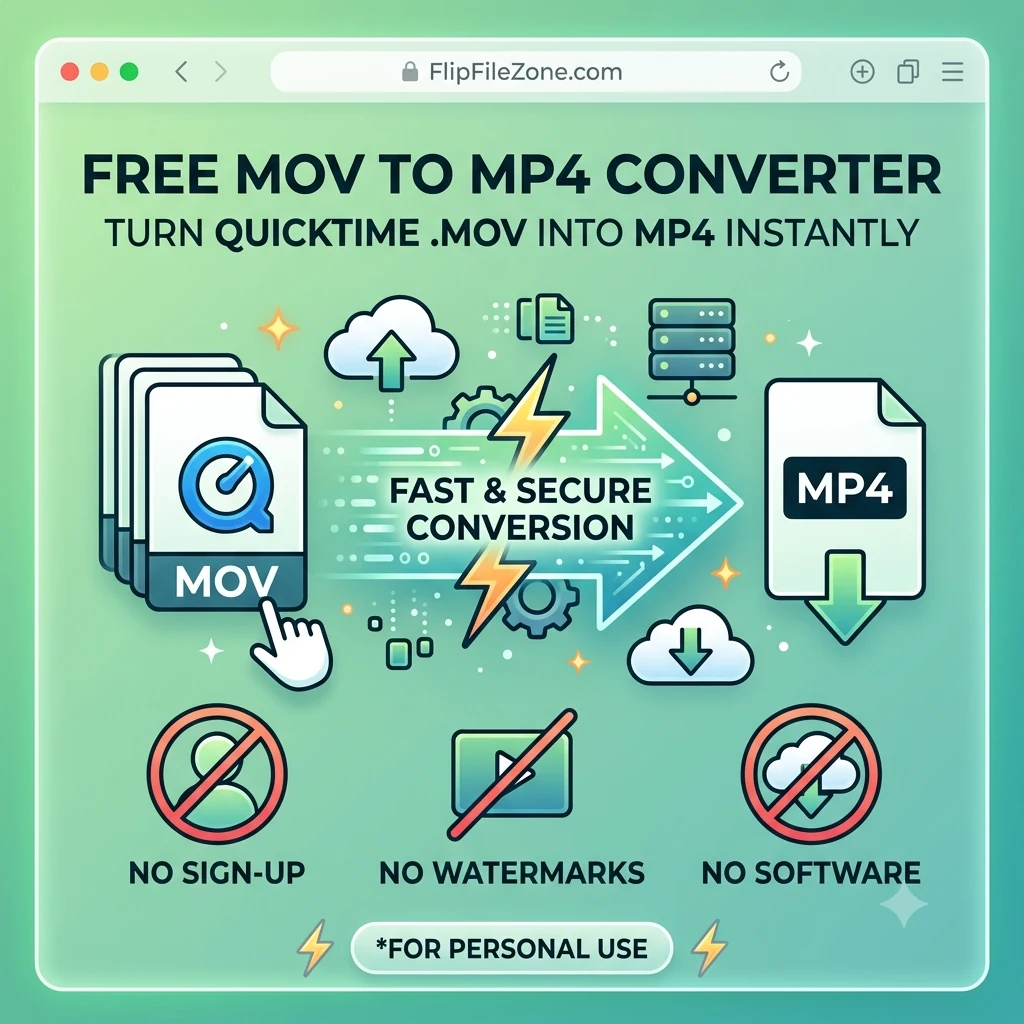 TECH GUIDESConvert MOV to MP4 Online Free — Convert iPhone Videos in SecondsFlipFileZone · Read Fullopen_in_new
chatPost a comment
Comments
0