 TECH GUIDESConvert XLS to XLSX Online Free — Upgrade Old Excel Files in SecondsFlipFileZone · Read Fullopen_in_new
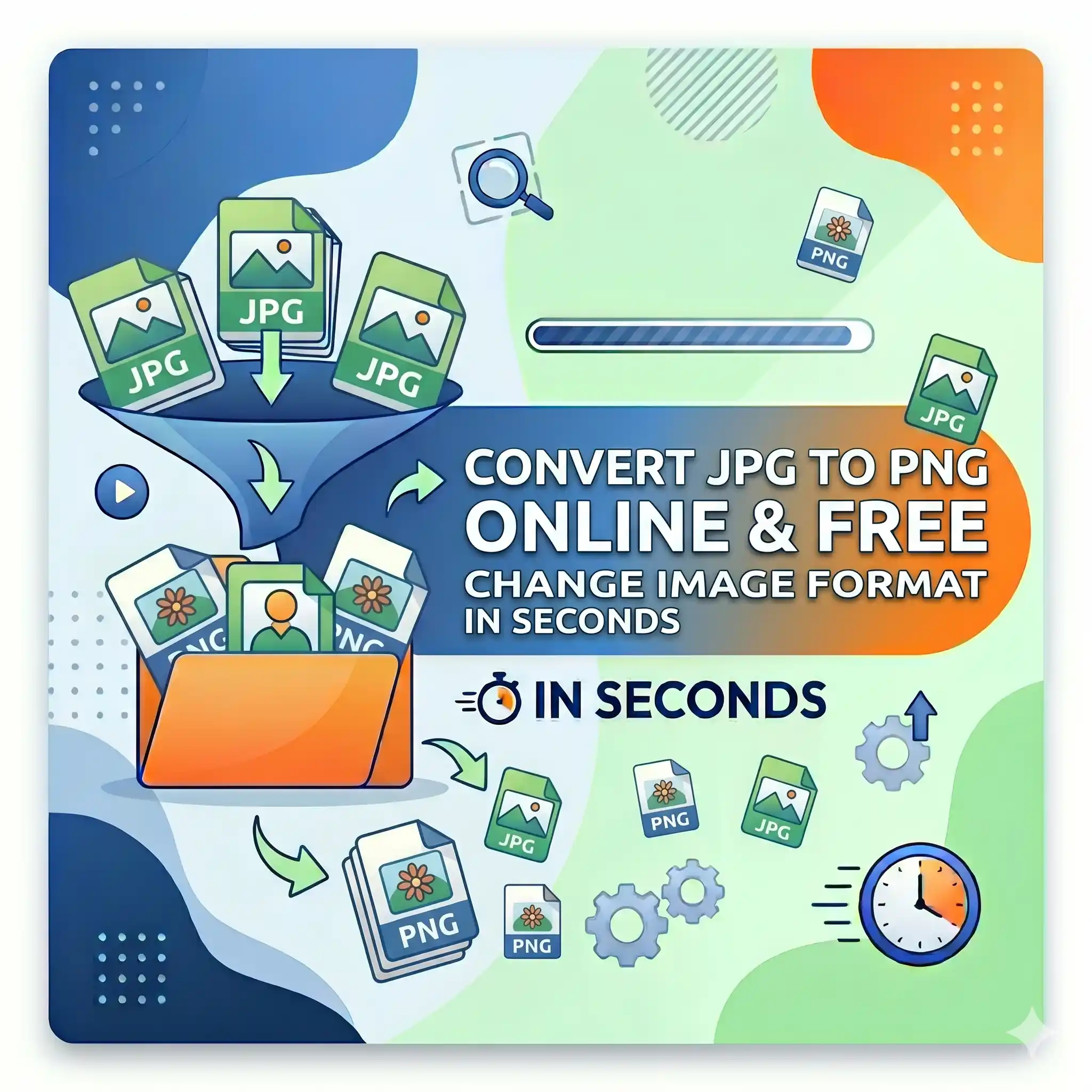
Convert JPG to PNG Online Free — Change Image Format in Seconds
Convert JPG to PNG free with FlipFileZone. Turn any JPG or JPEG file into a high-quality PNG instantly — no sign-up, no watermarks, no software needed.
FlipFileZone · TECH GUIDES
shareShare this post






Convert JPG to PNG Online Free — Change Image Format in Seconds
A developer asks for your logo as a PNG so it can sit on a coloured background without a white box around it. A designer needs a product photo in PNG format to composite it into a layered Photoshop file. A website template requires PNG assets for its icon set but your images are all saved as JPG. A client spec sheet calls for PNG delivery and your camera exports everything as JPEG.
JPG to PNG conversion is one of those tasks that sounds trivial but blocks real work constantly. You have the image. You have the right content. The format is simply wrong for the destination — and every tool that could fix it seems to require installing software, creating an account, or sitting through an upload queue with a daily limit.
FlipFileZone's free JPG to PNG converter removes all of that friction. Upload your JPG or JPEG file, convert it to PNG, and download the result in seconds. No account required. No watermark on your output. No file stored on any server after your session ends. Just your image, in the format you actually need, ready to use immediately.
⚡ Quick Answer
— Visit flipfilezone.com/jpg-to-png, upload your JPG or JPEG file, click Convert to PNG, and download your image instantly. Free, private, and watermark-free.
JPG vs PNG — Why the Format Matters and When to Switch
JPG and PNG are both raster image formats — grids of coloured pixels — but they handle compression, quality, and transparency in fundamentally different ways. Understanding the difference helps you know exactly when converting from JPG to PNG makes sense for your specific situation.
JPG uses lossy compression. It achieves small file sizes by discarding pixel data the human eye is unlikely to notice at normal viewing distances. This works beautifully for photographs and complex real-world images with smooth colour gradations. The trade-off is that some image detail is permanently lost during compression, and JPG does not support transparency — every JPG has a solid background, even if that background is white and the subject appears to be isolated.
PNG uses lossless compression. Every pixel is stored exactly as-is, with no data discarded. This makes PNG ideal for images requiring absolute precision — logos, icons, text-heavy graphics, UI screenshots, and any image that needs to sit on a transparent background. PNG files are generally larger than JPG files, but they preserve quality completely and support full alpha channel transparency.
When converting JPG to PNG makes sense: when you need to place the image on a non-white background and want to remove the background cleanly, when you are importing the image into a layered design workflow that requires lossless source assets, when a platform or tool specification requires PNG format, or when you need to make further edits to the image and want to preserve maximum quality through the editing process.
Top Reasons Professionals Convert JPG to PNG
- Transparency and background removal — PNG supports alpha channel transparency, making it the required format for images that will have their backgrounds removed or made transparent in a design tool.
- Design and compositing workflows — Layered design files in Photoshop, Illustrator, Figma, and similar tools work best with PNG source assets that preserve full quality without compression artifacts.
- Platform and tool requirements — App stores, web frameworks, icon sets, and many design systems specify PNG as the required format for UI assets, icons, and graphic elements.
- Lossless editing pipeline — When an image will go through multiple rounds of editing and re-saving, starting with PNG prevents the quality degradation that accumulates when a JPG is saved and re-compressed repeatedly.
- Screenshot and UI documentation — Interface screenshots and UI documentation images are sharper and more legible as PNGs, where text edges and interface elements remain crisp without compression blur.
- Web graphics and icons — Small web graphics, favicons, button images, and icon sets typically look cleaner as PNGs, where flat colours and sharp edges are rendered without visible compression artifacts.
- Client and agency deliverables — Design agencies and creative teams commonly specify PNG in their asset delivery requirements to ensure downstream use without format-related quality issues.
- E-learning and presentation assets — Course materials, slide decks, and educational graphics that include overlaid text or graphics on images benefit from PNG format for maximum clarity.
How to Convert JPG to PNG — Step by Step
Step 1 — Open the FlipFileZone JPG to PNG Converter
Go to flipfilezone.com/jpg-to-png in any browser on any device. No account creation, no subscription screen, no free trial gate. The tool is ready immediately when the page loads.
Step 2 — Upload Your JPG or JPEG File
Click the upload area or drag and drop your image file onto the page. FlipFileZone accepts both .jpg and .jpeg file extensions — the two are identical formats, just different naming conventions. Upload from your desktop, a downloads folder, a camera import, or directly from your phone. All uploads travel over an encrypted HTTPS connection.
Step 3 — Click Convert to PNG
Hit the Convert to PNG button. FlipFileZone converts the JPG to PNG using lossless output encoding — the pixel data from your JPG is written into the PNG container without any additional compression or quality reduction beyond what was already applied when the JPG was originally saved. Processing completes in seconds.
Step 4 — Download Your PNG
Click the download button and save your converted PNG file. It is ready to use immediately — drop it into a design tool, upload it to a platform, or pass it to a developer. FlipFileZone permanently and automatically deletes both your uploaded JPG and the converted PNG from its servers once your session ends.
✓ Pro Tip
— Converting JPG to PNG does not recover quality that was lost when the original JPG was compressed. A PNG produced from a JPG is lossless from that point forward — no further quality is lost through additional saves or edits — but the compression artifacts already present in the JPG are preserved in the PNG output. For the cleanest PNG results, always start from the highest-quality JPG version available, ideally the original camera or export file rather than a copy that has already been resized or re-saved multiple times.
What Changes and What Stays the Same After Conversion
Converting JPG to PNG is a format change, not an image edit. Here is exactly what happens to your image during the process:
- File format — The image is re-encoded from JPG (lossy) to PNG (lossless). From this point forward, the image can be saved and re-opened without any further quality loss.
- Image dimensions — Pixel dimensions are preserved exactly. A 1920 x 1080 JPG produces a 1920 x 1080 PNG with no cropping, padding, or scaling.
- Colours and tone — Colour values are faithfully carried over from the JPG source. No adjustments to brightness, contrast, or saturation are applied.
- Compression artifacts — Any artifacts already present in the JPG — the subtle blocky patterns that appear around sharp edges in heavily compressed images — are preserved in the PNG output. Converting to PNG does not remove or smooth these artifacts.
- File size — PNG files are typically larger than the equivalent JPG. A 500 KB JPG may become a 1.5 to 3 MB PNG, depending on image complexity. This is expected behaviour — PNG stores more data per pixel than JPG by design.
- Transparency — JPG has no transparency layer, so the converted PNG will not automatically have a transparent background. The background of the original JPG — whatever colour it was — appears as a solid opaque fill in the PNG. To achieve transparency, the background must be removed using an image editor after conversion.
Common Use Cases — When JPG to PNG Conversion Is the Right Move
Graphic Designers and Creative Teams
A photographer delivers product shots as JPGs — standard for photographic content. A designer needs to place those product images into a layered Canva, Figma, or Photoshop composition where they will be masked, colour-graded, and combined with text overlays. Converting to PNG first ensures the source asset enters the design workflow at maximum fidelity and can be worked on without accumulating save-cycle quality loss through the editing and revision process.
Web and App Developers
A front-end developer receives a UI design that includes icon assets, button graphics, and illustration elements — all specified as PNG in the design system documentation. The design handoff includes some of these assets as JPG due to an export oversight. Converting them to PNG before integrating into the codebase ensures format consistency across the asset library and avoids the compression artifacts that make flat-colour UI elements look slightly blurry or banded when rendered as JPG.
Marketing Teams and Brand Managers
A brand manager maintains the company logo and brand asset library. New team members frequently request logo files and receive JPG versions from shared drives that accumulated over years of informal sharing. Converting those JPG logos to PNG before passing them to designers, printers, or agency partners ensures the assets arrive in the format that design tools expect — particularly important when the logo will be placed on coloured or dark backgrounds where a white JPG background would be immediately visible.
Educators and Course Builders
An instructional designer building an e-learning course needs diagram images, process flow graphics, and annotated screenshots as PNG files for the course platform. Source materials arrive as JPG exports from presentation software or screen capture tools that default to JPEG output. Converting each asset to PNG before uploading ensures crisp text, sharp diagram lines, and clean graphic edges throughout the course — particularly noticeable on high-resolution displays where JPG compression on text-heavy graphics becomes visually obvious.
Developers Building Image Processing Pipelines
A developer working on an image processing pipeline that accepts user uploads needs to normalise incoming image formats before processing. Users upload JPG files that need to pass through a workflow requiring PNG input — background removal, transparency compositing, or lossless intermediate storage. A fast, reliable format conversion step at the pipeline entry point handles the JPG-to-PNG normalisation cleanly before the images enter format-sensitive processing stages.
FlipFileZone vs Other JPG to PNG Tools
| Feature | FlipFileZone | CloudConvert | Convertio | Squoosh |
|---|---|---|---|---|
| Free to use | ✓ Always | ⚠ Limited free | ⚠ Limited free | ✓ Yes |
| No account needed | ✓ Yes | ✗ Required for more | ✓ Yes | ✓ Yes |
| Files deleted after use | ✓ Auto-deleted | ⚠ Stored temporarily | ⚠ Stored temporarily | ✓ Local only |
| No watermarks | ✓ Never | ✓ No watermark | ✓ No watermark | ✓ No watermark |
| Works on mobile | ✓ Yes | ✓ Yes | ✓ Yes | ✓ Yes |
| Part of full PDF and image toolkit | ✓ Yes | ⚠ Partial | ⚠ Partial | ✗ Image only |
Frequently Asked Questions
| Is FlipFileZone's JPG to PNG converter really free? |
| Yes — completely free with no usage limits, no trial periods, and no subscription required. Convert as many JPG files as you need, whenever you need, at zero cost. |
| Does converting JPG to PNG improve image quality? |
| Converting to PNG stops any further quality loss from occurring in future saves. It does not recover quality that was already lost when the original JPG was compressed. The PNG output is lossless from that point forward, but compression artifacts already in the JPG are preserved in the converted file. |
| Will the converted PNG have a transparent background? |
| No. JPG files do not carry transparency information, so the converted PNG will have a solid opaque background matching the original JPG. To achieve a transparent background, the background needs to be removed using an image editor such as Photoshop, Canva, or a dedicated background removal tool after conversion. |
| Why is the PNG file larger than my original JPG? |
| PNG uses lossless compression, which stores more data per pixel than JPG. A larger file size is normal and expected — it reflects the fact that PNG preserves all pixel information rather than discarding data to achieve a smaller footprint. This is the format trade-off that gives PNG its quality and transparency advantages. |
| Are my files safe when I upload them? |
| Yes. All uploads are encrypted via HTTPS. Your JPG and the converted PNG are permanently and automatically deleted from FlipFileZone servers once your session ends. Your files are never stored, shared, or used for any other purpose. |
| Can I convert multiple JPG files at once? |
| Yes. FlipFileZone supports batch conversion so you can upload and convert multiple JPG files in a single session — useful for standardising an asset library or processing a design handoff with many image files. |
| Can I go the other direction and convert PNG to JPG? |
| Yes. Use FlipFileZone's free PNG to JPG converter to switch back whenever you need a smaller file size or JPG format compatibility. Both directions are free and account-free. |
| Does it work on iPhone and Android? |
| Yes. FlipFileZone is fully mobile-responsive. Open the converter in your phone browser, upload a JPG from your camera roll or files app, and download the converted PNG directly to your device — no app installation required. |
Format requirements should not stop work from moving forward. When a developer, a platform, or a client spec calls for PNG and you have JPG files, the gap between what you have and what is needed is a single conversion step — and that step should take seconds, not a trip to an image editor or a subscription sign-up screen.
FlipFileZone makes the conversion instant and free. Upload your JPG, convert, download your PNG. No account, no watermark, no file kept anywhere after your session ends. Your image in the format it needs to be in, ready to go wherever it needs to go.
And when the workflow continues — resizing the PNG, turning it into a PDF, or switching back to JPG for a different destination — the full FlipFileZone toolkit is right there, equally free and equally fast.
🚀 Ready to Convert JPG to PNG?
— Try FlipFileZone Now! Visit flipfilezone.com/jpg-to-png and convert your JPG to PNG free — no account needed, no software to install, no watermarks ever.
More Free Tools on FlipFileZone
- PNG to JPG Converter — Switch back to JPG format for smaller file sizes and wider platform compatibility.
- Image Resizer — Resize your converted PNG to exact pixel dimensions instantly and free.
- JPG to PDF Converter — Turn any image into a professional PDF document in seconds.
- PDF to JPG Converter — Extract any PDF page as a high-quality image instantly and free.
- Compress PDF — Reduce PDF file size without losing quality for email and uploads.
tagTags
shareShare this post
recommendYou may also like
TECH GUIDESConvert XLS to XLSX Online Free — Upgrade Old Excel Files in SecondsFlipFileZone · Read Fullopen_in_new TECH GUIDESConvert PNG to ICO Online Free — Create Favicons and Windows Icons in SecondsFlipFileZone · Read Fullopen_in_new
 TECH GUIDESConvert Markdown to PDF Online Free — Turn .md Files Into PDF in SecondsFlipFileZone · Read Fullopen_in_new
 TECH GUIDESConvert SVG to PNG Online Free — Export Vector Graphics as Images in SecondsFlipFileZone · Read Fullopen_in_new
 TECH GUIDESConvert GIF to MP4 Online Free — Turn Animated GIFs Into Video in SecondsFlipFileZone · Read Fullopen_in_new
 TECH GUIDESConvert WAV to MP3 Online Free — Compress Audio Files in SecondsFlipFileZone · Read Fullopen_in_new
 TECH GUIDESConvert MOV to MP4 Online Free — Convert iPhone Videos in SecondsFlipFileZone · Read Fullopen_in_new
chatPost a comment
Comments
0