 TECH GUIDESConvert XLS to XLSX Online Free — Upgrade Old Excel Files in SecondsFlipFileZone · Read Fullopen_in_new
Convert PDF to Excel Online Free — Extract Tables Into a Spreadsheet in Seconds
Convert PDF to Excel free with FlipFileZone. Turn PDF tables and data into an editable spreadsheet instantly — no sign-up, no watermarks, no software needed.
FlipFileZone · TECH GUIDES
shareShare this post






Convert PDF to Excel Online Free — Extract Tables Into a Spreadsheet in Seconds
A bank statement arrives as a PDF and you need the transaction data in a spreadsheet to reconcile against your accounting system. A supplier sends a pricing sheet as a PDF and you need to compare it line by line against last quarter's numbers in Excel. A government report publishes statistics as a PDF table and you need that data to build a chart. In every one of these situations, the numbers you need are sitting in front of you — but locked inside a format that will not let you calculate, sort, filter, or chart them.
Retyping a PDF table into Excel by hand is slow, tedious, and a reliable source of transcription errors — especially with financial data where a single misplaced decimal point can cause real problems. The alternative is converting the PDF directly into a working Excel file, where every row, column, and number lands in the right cell automatically, ready for the formulas, pivot tables, and analysis you actually need to do.
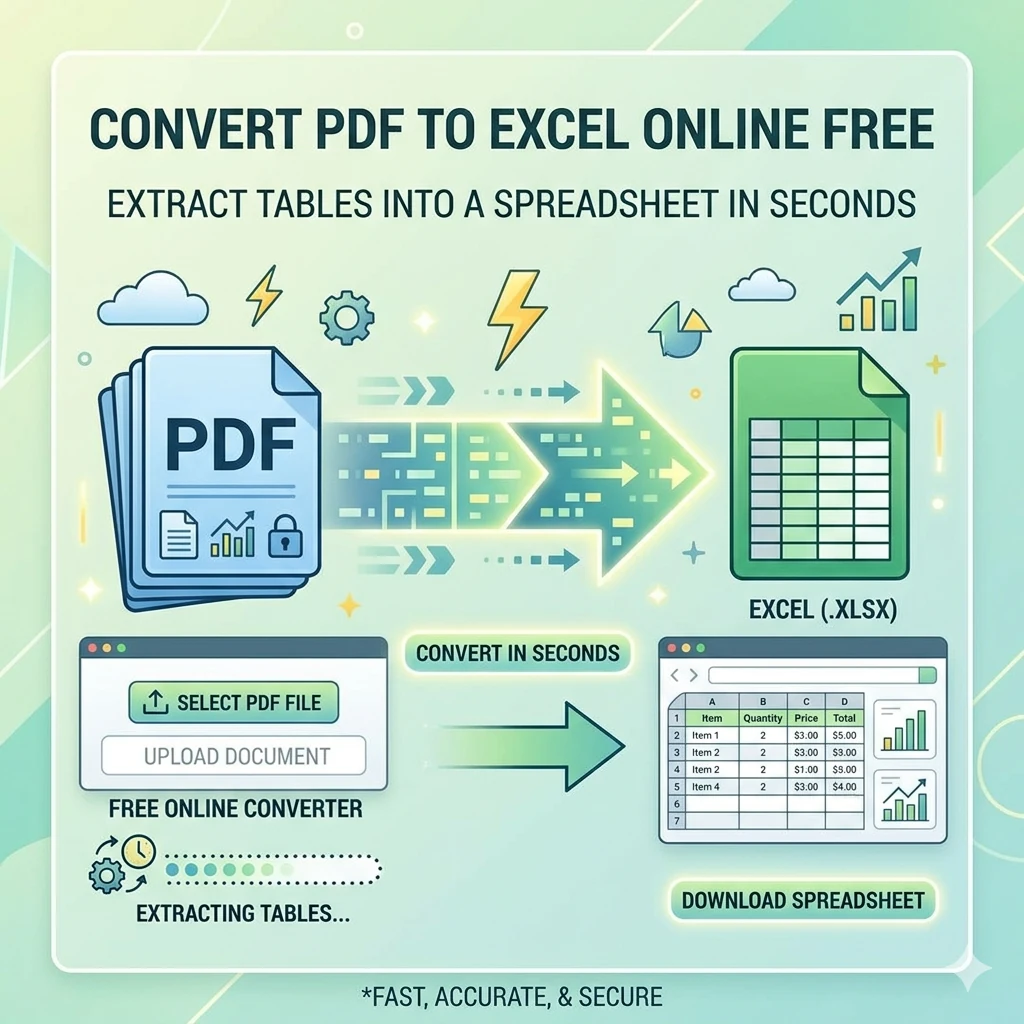
FlipFileZone's free PDF to Excel converter does exactly that. Upload your PDF, and the tool extracts tables and data into a structured .xlsx spreadsheet you can open directly in Excel, Google Sheets, or LibreOffice Calc. No account required. No watermark on your output. No file stored on a server after your session ends.
⚡ Quick Answer
— Visit <a href="http://flipfilezone.com/pdf-to-excel">flipfilezone.com/pdf-to-excel</a>, upload your PDF, click Convert to Excel, and download your editable spreadsheet instantly. Free, private, and watermark-free.
How PDF to Excel Conversion Works
A PDF stores visual layout information — where text sits on a page, what size it is, how it is aligned — but it does not store the underlying structure of a table the way a spreadsheet does. There are no rows, columns, or cells in a PDF, only positioned text and lines that visually resemble a grid. Converting PDF to Excel means analysing that visual layout, detecting where the table boundaries, rows, and columns actually are, and reconstructing them as a genuine spreadsheet structure where each value sits in its own properly aligned cell.
FlipFileZone's conversion engine identifies table structures within your PDF — using cues like aligned columns of numbers, consistent row spacing, and grid lines where present — and maps that detected structure onto an .xlsx spreadsheet. For PDFs with a native, selectable text layer, this process is highly accurate. For scanned PDFs with no text layer, OCR is applied first to recognise the characters, and then the same table-structure detection is applied to the recognised text.
The result is not a picture of a table pasted into Excel — it is a real spreadsheet with values in actual cells, ready to be sorted, filtered, summed, and referenced in formulas exactly like any spreadsheet you built from scratch.
Top Reasons Professionals Convert PDF to Excel
- Financial reconciliation — Bank statements, transaction histories, and expense reports delivered as PDFs need to be matched against accounting records. Converting to Excel makes that reconciliation process dramatically faster than manual entry.
- Data analysis and reporting — Statistics, survey results, and research data published as PDF tables become usable for charting, pivot tables, and statistical analysis only once converted into spreadsheet format.
- Price list and catalogue comparison — Supplier price sheets and product catalogues distributed as PDFs need to be compared, filtered, and sorted — tasks that are only practical in a spreadsheet, not a static document.
- Invoice and order processing — Accounts payable and receivable teams processing PDF invoices benefit from extracting line items into Excel for batch processing, validation, and entry into accounting software.
- Eliminate manual transcription errors — Retyping numbers from a PDF into Excel by hand introduces transcription errors, especially across large tables. Automated extraction removes that risk entirely.
- Research data extraction — Academic papers, government reports, and industry studies that publish data exclusively as PDF tables become usable for further analysis once extracted into a spreadsheet.
- Inventory and asset tracking — Inventory lists and asset registers received as PDFs need to be merged with existing spreadsheet-based tracking systems, which requires the data to be in spreadsheet format first.
- Time savings at scale — A 10-page PDF with dense tables that would take an hour to retype manually can be converted to a working spreadsheet in under a minute.
How to Convert PDF to Excel — Step by Step
Step 1 — Open the FlipFileZone PDF to Excel Converter
Navigate to flipfilezone.com/pdf-to-excel in any browser on any device. No account creation, no subscription prompt, no onboarding flow. The converter is ready the moment the page loads.
Step 2 — Upload Your PDF
Click the upload area or drag and drop your PDF onto the page. FlipFileZone accepts both native digital PDFs with a selectable text layer and scanned PDFs that require OCR processing. Upload bank statements, reports, price lists, invoices, or any PDF containing tabular data. All uploads travel over an encrypted HTTPS connection.
Step 3 — Click Convert to Excel
Hit the Convert to Excel button. FlipFileZone analyses the document, detects table structures, and maps the data into spreadsheet rows and columns. For native PDFs, this typically completes in under 15 seconds. Scanned PDFs requiring OCR processing first may take slightly longer depending on page count.
Step 4 — Download Your Spreadsheet
Click the download button to save your converted .xlsx file. Open it in Excel, Google Sheets, or LibreOffice Calc to verify the data landed in the correct cells. FlipFileZone permanently and automatically deletes your uploaded PDF and the converted spreadsheet from its servers once your session ends.
✓ Pro Tip
— After conversion, always review the first and last rows of each extracted table carefully. Table detection is highly accurate for clean, well-structured PDF tables, but headers, footnotes, and summary rows positioned just above or below the main table data occasionally get pulled into the spreadsheet alongside the table itself. A quick scan of the top and bottom of each converted sheet catches this in seconds and ensures your data is clean before you start building formulas on top of it.
What to Expect From the Conversion
Conversion accuracy depends primarily on the structure and quality of the source PDF. Here is what to expect across different scenarios:
- Native digital PDFs with clear table structure — Reports and statements exported directly from accounting or database software with clean grid lines and consistent column alignment convert with very high accuracy. Values land in the correct cells with minimal cleanup needed.
- Native PDFs without visible grid lines — Tables that rely on whitespace and alignment rather than visible borders still convert well, though occasional column merging can occur with closely spaced columns. A quick visual check after conversion catches this.
- Scanned PDFs (image-based) — OCR is applied automatically to recognise the text before table structure detection runs. Accuracy is strong for clean, high-resolution scans of printed tables, and decreases for low-quality scans, skewed pages, or handwritten content.
- Complex multi-level tables — Tables with merged header cells, nested sub-tables, or irregular structures may require minor manual adjustment after conversion to achieve a perfectly clean spreadsheet layout.
For the cleanest results, native digital PDFs with simple, consistent table structures convert with the highest accuracy. Scanned documents and complex layouts will still convert successfully, but a brief review pass after download is always a good practice before using the data for critical calculations.
Common Use Cases — When PDF to Excel Conversion Saves Real Time
Accountants and Finance Teams
Monthly bank statements, credit card statements, and vendor invoices arrive as PDFs from dozens of different institutions, each with a different layout. Converting each one to Excel allows finance teams to pull transaction data into a unified reconciliation spreadsheet without retyping a single number — a task that, done manually across multiple accounts every month, consumes hours that converting reduces to minutes.
Procurement and Purchasing Teams
Supplier price lists distributed as PDF catalogues need to be compared against current contracts, checked for price increases, and merged into master pricing spreadsheets used for purchasing decisions. Converting each supplier's PDF price list to Excel turns a static document into an active comparison tool — sortable by item, filterable by category, and ready to be cross-referenced against historical pricing data.
Researchers and Data Analysts
Government statistical releases, industry reports, and academic papers frequently publish their underlying data exclusively as PDF tables, with no accompanying spreadsheet download. Converting these tables to Excel is often the only practical way to bring that data into an analysis workflow — enabling charting, statistical testing, and integration with other datasets that would be impossible working directly from a static PDF.
HR and Payroll Administrators
Payroll providers and benefits administrators often deliver employee data, compensation summaries, and benefits enrolment information as PDF reports. HR teams that need this data in a working spreadsheet — to merge with internal headcount tracking, to build compensation analysis, or to import into HRIS systems — save substantial time converting rather than manually re-entering every employee record.
Small Business Owners and Bookkeepers
Sales reports, expense summaries, and tax documents received as PDFs from point-of-sale systems, payment processors, or accountants regularly need to be brought into a working spreadsheet for budgeting, tax preparation, or financial planning. Converting these documents to Excel gives small business owners and bookkeepers a fast path from static PDF report to actionable financial spreadsheet without manual data entry.
FlipFileZone vs Other PDF to Excel Tools
| Feature | FlipFileZone | Smallpdf | iLovePDF | Adobe Acrobat Online |
|---|---|---|---|---|
| Free to use | ✓ Always | ⚠ 2 tasks/day | ⚠ Limited free | ⚠ Limited free |
| No account needed | ✓ Yes | ✗ Required for more | ✗ Required for more | ✗ Required |
| Files deleted after use | ✓ Auto-deleted | ⚠ Stored temporarily | ⚠ Stored temporarily | ⚠ Stored temporarily |
| No watermarks | ✓ Never | ✗ On free tier | ✓ No watermark | ✗ On free tier |
| Supports scanned PDFs (OCR) | ✓ Yes | ⚠ Paid only | ⚠ Paid only | ✓ Yes |
| Works on mobile | ✓ Yes | ✓ Yes | ✓ Yes | ✓ Yes |
Frequently Asked Questions
| Is FlipFileZone's PDF to Excel converter really free? |
| Yes — completely free with no usage limits, no trial periods, and no subscription required. Convert as many PDFs as you need, whenever you need, at zero cost. |
| Can it convert a scanned PDF to Excel? |
| Yes. FlipFileZone automatically applies OCR to scanned PDFs before detecting table structure, allowing data from image-based documents to be extracted into a spreadsheet. For best accuracy, use a high-resolution, well-lit scan. |
| Will the data land in the correct rows and columns? |
| For clean, well-structured PDF tables, accuracy is very high. Complex tables with merged cells, nested sub-tables, or unusual layouts may require minor manual cleanup after conversion. Always review the output before relying on it for critical calculations. |
| Does it preserve formulas from the original document? |
| No. A PDF does not contain formulas — only the calculated, displayed values. The converted Excel file contains those displayed values as static numbers, ready for you to build new formulas on top of in your spreadsheet. |
| Are my files safe when I upload them? |
| Yes. All uploads are encrypted via HTTPS. Your PDF and the converted spreadsheet are permanently and automatically deleted from FlipFileZone servers once your session ends. Your financial and personal data is never stored, shared, or accessed for any other purpose. |
| Can I convert multiple PDFs at once? |
| Yes. FlipFileZone supports batch conversion so you can upload and convert multiple PDF files in a single session, useful when processing several monthly statements or reports at once. |
| Does it work on my phone? |
| Yes. FlipFileZone is fully mobile-responsive. Open the tool in your phone browser, upload a PDF from your files app, and download the converted spreadsheet directly to your device. |
| What if I need to go the other direction and convert Excel to PDF? |
| Use FlipFileZone's free Excel to PDF converter to turn any spreadsheet into a clean, shareable PDF document whenever you need it. Both directions of conversion are free and account-free. |
Data trapped inside a PDF table is data you cannot calculate, sort, filter, or chart. Whether it is a bank statement that needs reconciling, a supplier price list that needs comparing, or a research dataset that needs analysing, the gap between a static PDF and a working spreadsheet is the only thing standing between you and the task you actually need to complete.
FlipFileZone closes that gap in under a minute. Upload your PDF, convert, download your spreadsheet. No account to create, no watermark, no file stored anywhere after your session ends. Just your data, in real Excel cells, ready to work with.
And when the workflow runs in reverse — turning a finished spreadsheet back into a polished PDF for distribution — FlipFileZone's Excel to PDF converter completes the loop just as quickly and just as freely.
🚀 Ready to Convert PDF to Excel?
— Try FlipFileZone Now! Visit <a href="http://flipfilezone.com/pdf-to-excel">flipfilezone.com/pdf-to-excel</a> and turn your PDF tables into a working spreadsheet free — no account needed, no software to install, no watermarks ever.
More Free Tools on FlipFileZone
- Excel to PDF Converter — Turn any spreadsheet back into a clean, shareable PDF document instantly.
- Extract Text — Pull plain text from any PDF, Word file, or image instantly and free.
- Compress PDF — Reduce PDF file size without losing quality before or after conversion.
- Split PDF — Extract specific pages from a large PDF before converting them to Excel.
- Merge PDF — Combine multiple PDF reports into one document before extracting the data.
tagTags
shareShare this post
recommendYou may also like
TECH GUIDESConvert XLS to XLSX Online Free — Upgrade Old Excel Files in SecondsFlipFileZone · Read Fullopen_in_new TECH GUIDESConvert PNG to ICO Online Free — Create Favicons and Windows Icons in SecondsFlipFileZone · Read Fullopen_in_new
 TECH GUIDESConvert Markdown to PDF Online Free — Turn .md Files Into PDF in SecondsFlipFileZone · Read Fullopen_in_new
 TECH GUIDESConvert SVG to PNG Online Free — Export Vector Graphics as Images in SecondsFlipFileZone · Read Fullopen_in_new
 TECH GUIDESConvert GIF to MP4 Online Free — Turn Animated GIFs Into Video in SecondsFlipFileZone · Read Fullopen_in_new
 TECH GUIDESConvert WAV to MP3 Online Free — Compress Audio Files in SecondsFlipFileZone · Read Fullopen_in_new
 TECH GUIDESConvert MOV to MP4 Online Free — Convert iPhone Videos in SecondsFlipFileZone · Read Fullopen_in_new
chatPost a comment
Comments
0