 TECH GUIDESConvert XLS to XLSX Online Free — Upgrade Old Excel Files in SecondsFlipFileZone · Read Fullopen_in_new
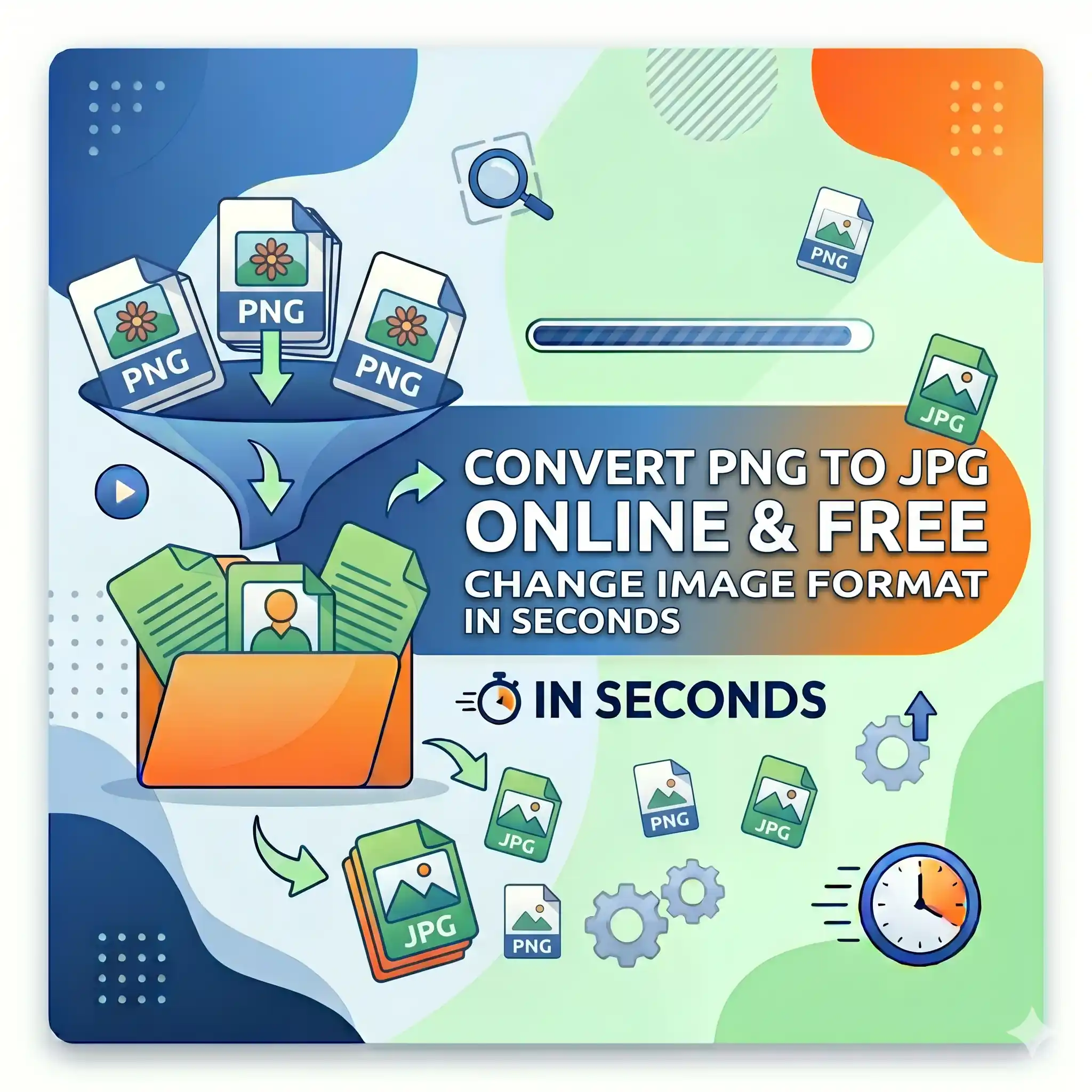
Convert PNG to JPG Online Free — Change Image Format in Seconds
Convert PNG to JPG free with FlipFileZone. Turn any PNG file into a high-quality JPG instantly — no sign-up, no watermarks, no software needed.
FlipFileZone · TECH GUIDES
shareShare this post






Convert PNG to JPG Online Free — Change Image Format in Seconds
You exported a logo from Figma as a PNG. A job application portal rejects it because it only accepts JPG. You took a screenshot of a report and the file is 4 MB — too large to attach to an email that has a 2 MB limit. You downloaded a product image from a supplier and the e-commerce platform you are uploading to flags the PNG format as incompatible. You have a folder of design assets all saved as PNG and you need JPG versions for a web project that optimises for file size.
PNG to JPG conversion comes up constantly in design, marketing, development, and administrative work. PNG is an excellent format — lossless compression, transparency support, crisp edges on text and graphics. But it is not always the right format for every destination. JPG is smaller, more universally accepted across upload forms, platforms, and legacy systems, and natively expected by dozens of tools, portals, and workflows that were built around photographic image formats rather than design exports.
Converting PNG to JPG used to mean opening an image editor, waiting for it to load, navigating an export menu, and choosing the right quality setting. With FlipFileZone's free PNG to JPG converter, the whole process takes under 15 seconds in your browser. Upload your PNG, convert, download your JPG. No account. No watermark. No file kept on a server after you are done.
⚡ Quick Answer
— Visit flipfilezone.com/png-to-jpg, upload your PNG file, click Convert to JPG, and download your image instantly. Free, private, and watermark-free.
PNG vs JPG — What Is the Actual Difference?
Both PNG and JPG are raster image formats — grids of pixels that together form a picture. The difference is in how they store and compress that pixel data, and those differences have real consequences for when each format is the right choice.
PNG uses lossless compression. Every pixel is stored exactly as-is, with no quality reduction. This makes PNG ideal for images with sharp edges, flat colours, text, logos, and graphics — anything where precision matters and even slight blurring would be noticeable. PNG also supports transparency, which is why it is the standard for logos, icons, and design assets that need to sit on top of different backgrounds. The trade-off is file size: lossless compression produces larger files, especially for complex, full-colour images.
JPG uses lossy compression. It analyses the image and discards pixel data that the human eye is unlikely to notice, achieving dramatically smaller file sizes. For photographs and complex real-world images with smooth colour gradations, this works extremely well — a high-quality JPG looks virtually identical to the original at a fraction of the file size. JPG does not support transparency, and it is not ideal for text-heavy graphics or flat-colour logos where compression artifacts become visible. But for most photographic and web content, JPG is the dominant, most widely accepted format.
When to convert PNG to JPG: when you need a smaller file, when a platform or form only accepts JPG, when you are working with photographic content where transparency is not needed, or when you need to reduce storage and bandwidth usage across a large image library.
Top Reasons to Convert PNG to JPG
- Reduce file size for email and upload — A PNG screenshot or export can be 3 to 5 times larger than the equivalent JPG. Converting brings the file well within email attachment limits and upload caps without visibly reducing image quality.
- Platform and form compatibility — Many job portals, government forms, e-commerce platforms, and legacy systems only accept JPG uploads. Converting your PNG meets the format requirement instantly.
- Faster website load times — JPG files are smaller than PNGs of the same image, which means faster page load times, better Core Web Vitals scores, and improved SEO rankings for image-heavy pages.
- E-commerce product images — Most e-commerce platforms and marketplaces process and store product images as JPG. Uploading PNG versions often triggers automatic conversion anyway — converting beforehand gives you control over the output quality.
- Social media uploads — Many social platforms compress PNG uploads aggressively on their end, often producing worse results than a pre-converted JPG. Converting first gives you a cleaner, more predictable final image.
- Standardise image libraries — Design and media teams working with large image libraries benefit from a consistent JPG format across all assets, simplifying storage, naming, and delivery workflows.
- Print preparation — Many print service portals and desktop publishing workflows expect JPG input. Converting PNG assets to JPG before submission avoids format compatibility errors at the print stage.
- Storage and bandwidth savings — For businesses storing thousands of product, content, or archive images, switching from PNG to JPG significantly reduces storage costs and CDN bandwidth consumption.
How to Convert PNG to JPG — Step by Step
Step 1 — Open the FlipFileZone PNG to JPG Converter
Go to flipfilezone.com/png-to-jpg in any browser on any device. The converter is ready instantly — no sign-up screen, no free trial countdown, no account creation required before you can use the tool.
Step 2 — Upload Your PNG File
Click the upload area or drag and drop your PNG file onto the page. FlipFileZone accepts PNG files of any size — screenshots, design exports, product photos, scanned images, or any other PNG from any source. All uploads are encrypted in transit via HTTPS.
Step 3 — Convert to JPG
Click the Convert to JPG button. FlipFileZone processes the conversion server-side, applying high-quality compression settings that produce a sharp, clean JPG output. Processing completes in seconds for virtually any file size.
Step 4 — Download Your JPG
Click the download button to save your converted JPG file. The output is ready to use immediately — upload it, email it, or drop it into your workflow. FlipFileZone permanently and automatically deletes both your uploaded PNG and the converted JPG from its servers once your session ends.
✓ Pro Tip
— If your PNG contains transparency — a logo on a clear background, for example — converting to JPG will replace the transparent areas with a solid colour, typically white, since JPG does not support transparency. If you need the image to sit on a non-white background, fill the transparent areas with the correct background colour in an image editor before converting, or keep the PNG format for that specific use case where transparency is required.
What Happens to Your Image During Conversion
Converting PNG to JPG involves one meaningful visual change: transparent areas in the PNG become opaque in the JPG output, filled with a solid background colour (typically white). Every other visual element in the image is preserved at high quality:
- Colours and tone — RGB colour values are faithfully represented in the JPG output. Colour accuracy is maintained throughout the conversion.
- Detail and sharpness — At high quality settings, JPG compression is perceptually lossless for most photographic and design content. The output looks sharp and clean at normal viewing sizes.
- Image dimensions — The pixel dimensions of your PNG are preserved exactly in the JPG output. A 1200 x 800 PNG produces a 1200 x 800 JPG.
- Aspect ratio — No cropping, stretching, or padding is applied. The image geometry is identical between input and output.
- Brightness and contrast — No automatic adjustments are applied to exposure, contrast, or colour balance. The output reflects the source image faithfully.
What changes: transparency is removed. What stays the same: everything else. For the overwhelming majority of PNG files — screenshots, product photos, design exports without transparent backgrounds — the JPG output is visually indistinguishable from the original PNG at the sizes where the image will actually be used.
Common Use Cases — When PNG to JPG Conversion Makes Everything Simpler
Designers and Creative Teams
Design tools export in PNG by default. Figma, Sketch, Adobe XD, and Canva all produce PNG files for UI screenshots, mockup exports, and asset deliverables. When clients need those files as JPGs for a website CMS, a presentation tool, or a print service that does not accept PNG input, a quick conversion removes the format barrier without going back into the design tool to re-export.
E-commerce Sellers and Product Managers
Supplier product images frequently arrive as PNG files. Marketplaces and e-commerce platforms — Shopify, Amazon, Etsy, WooCommerce — all work optimally with JPG product images for faster load times and smaller storage footprints. Converting supplier PNGs to JPG before upload standardises the product catalogue and avoids platform-side compression surprises.
Content Marketers and Bloggers
Blog posts, landing pages, and content articles filled with PNG screenshots load slower than the same pages using JPG images. Every extra second of load time costs SEO ranking and conversion rate. Converting screenshot PNGs to JPG before uploading to a WordPress, Webflow, or Squarespace site is a straightforward optimisation that compounds across hundreds of images over time.
HR, Admin, and Operations Teams
Job application forms, government portals, vendor registration systems, and compliance platforms frequently specify JPG as the only accepted image format for photo uploads, document scans, and identity verification images. An employee or applicant with only a PNG version of their photo needs a fast, simple conversion tool — not an image editor subscription.
Developers and Technical Teams
Front-end developers building image-heavy web applications standardise on JPG for photographic and complex visual content to keep page payloads lean. When design handoffs include PNG files that belong in JPG format per the project spec, a fast browser-based converter handles the format alignment without adding a build step or pulling an image processing library into the codebase.
FlipFileZone vs Other PNG to JPG Tools
| Feature | FlipFileZone | CloudConvert | Convertio | Squoosh |
|---|---|---|---|---|
| Free to use | ✓ Always | ⚠ Limited free | ⚠ Limited free | ✓ Yes |
| No account needed | ✓ Yes | ✗ Required for more | ✓ Yes | ✓ Yes |
| Files deleted after use | ✓ Auto-deleted | ⚠ Stored temporarily | ⚠ Stored temporarily | ✓ Local only |
| No watermarks | ✓ Never | ✓ No watermark | ✓ No watermark | ✓ No watermark |
| Works on mobile | ✓ Yes | ✓ Yes | ✓ Yes | ✓ Yes |
| Part of full PDF and image toolkit | ✓ Yes | ⚠ Partial | ⚠ Partial | ✗ Image only |
Frequently Asked Questions
| Is FlipFileZone's PNG to JPG converter really free? |
| Yes — completely free with no usage limits, no trial periods, and no subscription required. Convert as many PNG files as you need, whenever you need, at zero cost. |
| Will converting PNG to JPG reduce image quality? |
| At high quality settings, the difference is imperceptible for most images. JPG uses lossy compression, which means some pixel data is discarded — but at the quality level FlipFileZone applies, the output looks sharp and clean at normal viewing sizes. For photographic images, quality loss is effectively invisible. For flat-colour logos and text-heavy graphics, PNG remains the better format. |
| What happens to transparent areas in my PNG? |
| JPG does not support transparency. Any transparent areas in your PNG will be filled with a solid background colour — typically white — in the JPG output. If you need transparency preserved, keep the file in PNG format for that specific use case. |
| Will the image dimensions change? |
| No. The pixel dimensions of your PNG are preserved exactly in the JPG output. No cropping, resizing, or padding is applied during conversion. If you also need to resize the image, use FlipFileZone's free image resizer before or after converting. |
| Are my files safe when I upload them? |
| Yes. All uploads are encrypted via HTTPS. Your PNG and the converted JPG are permanently and automatically deleted from FlipFileZone servers once your session ends. Your files are never stored, shared, or accessed for any other purpose. |
| Can I convert multiple PNG files at once? |
| Yes. FlipFileZone supports batch conversion so you can upload and convert multiple PNG files in a single session — useful for standardising image libraries or processing design handoffs with many assets. |
| Can I convert JPG back to PNG? |
| Yes. FlipFileZone supports both directions. Use the JPG to PNG converter to switch back to PNG format whenever you need lossless quality or transparency support for a specific use case. |
| Does it work on iPhone and Android? |
| Yes. FlipFileZone is fully mobile-responsive. Open the tool in your phone browser, upload a PNG from your files or camera roll, and download the converted JPG directly to your device — no app installation needed. |
PNG and JPG are not interchangeable — but switching between them should not require image editing software, export menus, or a paid subscription. Most PNG to JPG conversions are a practical necessity driven by platform requirements, file size constraints, or workflow standardisation. The conversion itself takes seconds. The barrier should be equally small.
FlipFileZone removes the barrier entirely. Upload your PNG, convert, download your JPG. No account, no watermark, no file stored anywhere after your session ends. The output is a clean, high-quality JPG ready for every platform, portal, and workflow that needs it.
And when the next step in your workflow involves resizing that JPG, turning it into a PDF, or compressing it further — the rest of FlipFileZone's image and PDF toolkit is right there, free and ready.
🚀 Ready to Convert PNG to JPG?
— Try FlipFileZone Now!Visit flipfilezone.com/png-to-jpg and convert your PNG to JPG free — no account needed, no software to install, no watermarks ever.
More Free Tools on FlipFileZone
- Image Resizer — Resize your converted JPG to exact pixel dimensions instantly and free.
- JPG to PDF Converter — Turn your JPG image into a professional PDF document in seconds.
- Compress PDF — Reduce PDF file size without losing quality for email and uploads.
- PDF to JPG Converter — Extract any PDF page as a high-quality JPG image instantly.
- Extract Text — Pull plain text from any image, PDF, or Word file free.
tagTags
shareShare this post
recommendYou may also like
TECH GUIDESConvert XLS to XLSX Online Free — Upgrade Old Excel Files in SecondsFlipFileZone · Read Fullopen_in_new TECH GUIDESConvert PNG to ICO Online Free — Create Favicons and Windows Icons in SecondsFlipFileZone · Read Fullopen_in_new
 TECH GUIDESConvert Markdown to PDF Online Free — Turn .md Files Into PDF in SecondsFlipFileZone · Read Fullopen_in_new
 TECH GUIDESConvert SVG to PNG Online Free — Export Vector Graphics as Images in SecondsFlipFileZone · Read Fullopen_in_new
 TECH GUIDESConvert GIF to MP4 Online Free — Turn Animated GIFs Into Video in SecondsFlipFileZone · Read Fullopen_in_new
 TECH GUIDESConvert WAV to MP3 Online Free — Compress Audio Files in SecondsFlipFileZone · Read Fullopen_in_new
 TECH GUIDESConvert MOV to MP4 Online Free — Convert iPhone Videos in SecondsFlipFileZone · Read Fullopen_in_new
chatPost a comment
Comments
0