 TECH GUIDESConvert XLS to XLSX Online Free — Upgrade Old Excel Files in SecondsFlipFileZone · Read Fullopen_in_new
Convert PowerPoint to PDF Online Free — Turn Slides Into PDF in Seconds
Convert PowerPoint to PDF free with FlipFileZone. Turn any .ppt or .pptx presentation into a perfectly formatted PDF instantly — no sign-up, no watermarks, no software needed.
FlipFileZone · TECH GUIDES
shareShare this post






Convert PowerPoint to PDF Online Free — Turn Slides Into PDF in Seconds
You spent hours building a presentation. Every slide is polished — custom fonts, brand colours, aligned graphics, a clean layout that communicates exactly what it needs to. Then you send the .pptx file to a client and they open it in an older version of PowerPoint. The fonts substitute. The text boxes shift. The background images disappear. The slide that looked sharp on your screen looks like something assembled in five minutes on someone else's machine.
Or they open it on a phone that does not have PowerPoint installed and all they see is a download prompt. Or your speaker notes accidentally go with the file when you meant to share a clean version. Or the conference venue's laptop does not have your custom fonts and the entire visual identity of your deck collapses in the moment it matters most.
Converting your PowerPoint presentation to PDF before sharing eliminates every one of these risks in one step. A PDF of your slides looks identical on every device, in every viewer, on every operating system. Custom fonts are embedded. Layouts are locked. Images stay exactly where you placed them. Anyone can open it — in a browser, on a phone, on a laptop that has never had PowerPoint installed — and see exactly what you built.
FlipFileZone's free PowerPoint to PDF converter handles the conversion in seconds. Upload your .ppt or .pptx file, convert, and download a clean, pixel-accurate PDF of your presentation. No account required. No watermark. No file stored anywhere after your session ends.
⚡ Quick Answer
— Visit flipfilezone.com/ppt-to-pdf, upload your PowerPoint file, click Convert to PDF, and download your formatted PDF instantly. Free, private, and watermark-free.
Why Convert PowerPoint to PDF — The Problem It Solves Permanently
A .pptx file is a set of instructions. It tells PowerPoint how to build each slide using the fonts, images, and layout rules defined in the file. When those instructions are interpreted by a different version of PowerPoint, a different application like LibreOffice or Google Slides, or a mobile viewer app, the result can differ significantly from what the author intended. Custom fonts that are not installed on the viewer's device get substituted with defaults. Animations that depend on specific transitions render incorrectly or not at all. Text boxes that were precisely sized for a specific font overflow when a fallback font has slightly different character spacing.
A PDF is not a set of instructions. It is a fixed visual record. Every slide is rendered exactly as it appeared at the moment of conversion and stored as a precise layout that any PDF reader reproduces identically. Fonts are embedded in the file. Images are locked to their positions. The visual output is the same whether the PDF is opened on a five-year-old Windows laptop, a brand-new MacBook, or an Android phone.
Beyond rendering reliability, PDF is simply the expected delivery format in many professional, academic, and event contexts. Conference organisers who collect presenter slides require PDF. Universities accepting coursework presentations require PDF. Investors receiving pitch decks prefer PDF. Clients reviewing proposals read PDF. Converting your PowerPoint to PDF before sharing is not just a technical fix — it is a professional standard.
Top Reasons Professionals Convert PowerPoint to PDF
- Consistent rendering on every device — Custom fonts, layouts, backgrounds, and graphics look identical in PDF regardless of what software or operating system opens the file.
- No PowerPoint required for recipients — Anyone can open and read your PDF in a browser, on a phone, or on any device without installing PowerPoint, Keynote, or any other presentation software.
- Protect your design from editing — A PDF cannot be casually edited by recipients. Your slide design, messaging, and visual identity remain exactly as you delivered them.
- Share without speaker notes — Converting to PDF produces a clean slide-only document, keeping your speaker notes private when sharing the deck with an audience.
- Smaller, faster file for sharing — PDF presentations are typically significantly smaller than .pptx files, making them faster to email, upload, and download for recipients on any connection speed.
- Conference and event submissions — Most conference organisers, academic venues, and event platforms require slide submissions in PDF format to ensure consistent display across all speaker presentations.
- Investor and client deliverables — Pitch decks, capability decks, and proposal presentations sent to investors, clients, and partners are universally delivered as PDFs in professional contexts.
- Long-term archiving — PDF is the archival standard for document storage. A PDF of your presentation will be readable in ten years without dependency on a specific version of PowerPoint being available.
How to Convert PowerPoint to PDF — Step by Step
Step 1 — Open the FlipFileZone PowerPoint to PDF Converter
Go to flipfilezone.com in any browser on any device. No account creation screen, no subscription prompt, no onboarding sequence between you and your converted file. The converter is ready the moment the page loads.
Step 2 — Upload Your PowerPoint File
Click the upload area or drag and drop your presentation file onto the page. FlipFileZone accepts both .ppt (legacy PowerPoint format) and .pptx (modern PowerPoint format). Presentations created in Microsoft PowerPoint, exported from Google Slides as .pptx, or saved from Keynote in PowerPoint format are all supported. All uploads are encrypted in transit via HTTPS.
Step 3 — Click Convert to PDF
Hit the Convert to PDF button. FlipFileZone processes the presentation through a high-fidelity rendering engine that handles the full range of PowerPoint formatting — custom slide layouts, master slides, embedded fonts, images, shapes, charts, and text formatting. Every slide is rendered as a PDF page at the original slide dimensions. Most presentations are converted in under 20 seconds.
Step 4 — Download Your PDF
Click the download button to save your converted PDF. Scroll through it to verify the slide rendering before sending or submitting. FlipFileZone permanently and automatically deletes your uploaded PowerPoint file and the converted PDF from its servers once your session ends.
✓ Pro Tip
— Before converting, review your presentation in Slide Sorter view to catch any slides with content that overflows text boxes, animations that depend on click sequences, or embedded videos — none of these translate to PDF. Animations are flattened to their final state in the PDF output. Embedded videos are replaced by a still image of the video frame. If specific slides have animation-dependent layouts that look incomplete without the animation sequence, consider adjusting those slides to display cleanly as static content before converting.
What Gets Preserved When You Convert PowerPoint to PDF
FlipFileZone renders each slide of your presentation into a PDF page using a high-fidelity conversion engine. The following elements are preserved in the output:
- Slide layouts and master design — Background colours, background images, slide master elements, and branded layout components are rendered exactly as they appear in your presentation.
- All text content — Every text box, title, subtitle, bullet point, and caption is rendered with the correct font, size, weight, colour, and alignment. Custom fonts are embedded in the conversion process.
- Images and graphics — Photos, illustrations, icons, and graphic elements placed on slides are rendered at high resolution in the PDF output.
- Shapes and lines — Drawing objects, connector lines, arrows, and custom shapes created in PowerPoint are faithfully reproduced in the PDF.
- Charts and data visualisations — Bar charts, pie charts, line graphs, and other PowerPoint chart objects are rendered as vector or high-resolution raster elements in the PDF output.
- Tables — Data tables with cell formatting, borders, and colour fills are rendered clearly in the PDF, preserving the visual structure of the original table design.
- SmartArt diagrams — Process flows, hierarchy charts, cycle diagrams, and other SmartArt objects are captured in the PDF as rendered visual elements.
- Slide numbers and footer text — Page numbering, date fields, and footer text enabled in the presentation are included in the PDF output on each slide.
What does not transfer to PDF: animations and transitions (flattened to final state), embedded video and audio (replaced by still frames), and hyperlink interactivity within the presentation (links to other slides do not function in PDF, though external URL links are preserved as clickable links in the output).
Common Use Cases — When PowerPoint to PDF Conversion Makes the Difference
Business Professionals and Consultants
A management consultant delivers a 40-slide strategy deck to a client boardroom. The deck uses custom brand fonts, complex diagram layouts, and a dark-background design that looks sharp in the original file. Converting to PDF before delivery guarantees the deck looks identical on the client's conference room display — regardless of whether that room is running an older version of PowerPoint, a connected MacBook, or a smart TV that opens PDFs natively. The visual impact of the presentation is preserved completely, without last-minute font substitution disasters five minutes before the meeting starts.
Students and Academic Presenters
University coursework, thesis defences, and academic conference presentations are routinely submitted and displayed as PDFs rather than live PowerPoint files. Submitting a .pptx file to a coursework portal that expects PDF, or presenting from a lecture theatre computer that may not have your custom fonts installed, are risks that a PDF conversion eliminates completely. Converting to PDF before any academic submission is a baseline habit that prevents avoidable technical problems at high-stakes moments.
Startup Founders and Pitch Presenters
An investor pitch deck sent as a .pptx file invites the recipient to edit it, share the editable version, and potentially see the file in a degraded state when fonts substitute on their machine. A PDF pitch deck arrives as a finished, intentional document — immutable, visually consistent, and displaying exactly the narrative arc and design language the founder intended. Converting the pitch to PDF before sending to investors, accelerators, and VCs is standard practice in startup fundraising for good reason.
Teachers and Educators
Teaching presentations shared with students through a learning management system need to be accessible on every device a student might use — a school-issued Chromebook, a personal phone, a home laptop with no Microsoft Office licence. PDF presentations open in every browser and on every device without software requirements or compatibility warnings. Converting lesson slides to PDF before uploading to Google Classroom, Moodle, or Canvas ensures every student accesses the same clean, readable version of the material.
Marketing and Creative Teams
Brand decks, campaign proposals, creative briefs, and media kits built in PowerPoint are delivered to clients, agencies, and media partners as PDF documents. A PDF preserves the visual design integrity of marketing materials in a way that a .pptx file — which can be accidentally modified, reformatted by a different version of PowerPoint, or stripped of its fonts in transit — cannot. For any presentation that represents a brand visually, PDF delivery is the professional standard.
FlipFileZone vs Other PowerPoint to PDF Tools
| Feature | FlipFileZone | Smallpdf | iLovePDF | Adobe Acrobat Online |
|---|---|---|---|---|
| Free to use | ✓ Always | ⚠ 2 tasks/day | ⚠ Limited free | ⚠ Limited free |
| No account needed | ✓ Yes | ✗ Required for more | ✗ Required for more | ✗ Required |
| Files deleted after use | ✓ Auto-deleted | ⚠ Stored temporarily | ⚠ Stored temporarily | ⚠ Stored temporarily |
| No watermarks | ✓ Never | ✗ On free tier | ✓ No watermark | ✗ On free tier |
| Supports .ppt and .pptx | ✓ Yes | ✓ Yes | ✓ Yes | ✓ Yes |
| Works on mobile | ✓ Yes | ✓ Yes | ✓ Yes | ✓ Yes |
Frequently Asked Questions
| Is FlipFileZone's PowerPoint to PDF converter really free? |
| Yes — completely free with no usage limits, no trial periods, and no subscription required. Convert as many presentations as you need, whenever you need, at zero cost. |
| Will my custom fonts be preserved in the PDF? |
| Yes. The conversion engine embeds font rendering into the PDF output so each slide displays with the correct typography regardless of what fonts are installed on the viewer's device. The visual appearance of your text is locked in at the point of conversion. |
| Will animations and transitions appear in the PDF? |
| Animations are flattened to their final state in the PDF output — animated elements appear as they would look after the animation completes, as static content on the slide. Slide transitions do not carry over to PDF. If your slide design depends visually on animation sequences, review those slides before converting and adjust the static layout if needed. |
| Will my speaker notes be included in the PDF? |
| By default, the PDF output contains slide content only — speaker notes are not included. This makes the converter ideal for sharing a clean, audience-facing version of your deck while keeping your speaker notes private. |
| Does it support both .ppt and .pptx files? |
| Yes. FlipFileZone accepts both legacy .ppt files and modern .pptx format. Presentations created in Microsoft PowerPoint, exported from Google Slides as .pptx, or saved from Keynote in PowerPoint format are all supported. |
| Are my files safe when I upload them? |
| Yes. All uploads are encrypted via HTTPS. Your PowerPoint file and the converted PDF are permanently and automatically deleted from FlipFileZone servers once your session ends. Your presentation content is never stored, shared, or accessed for any other purpose. |
| Do I need Microsoft PowerPoint installed to use this tool? |
| No. FlipFileZone processes the conversion entirely in the cloud. You do not need PowerPoint, Keynote, LibreOffice, or any presentation software installed on your device. All you need is a browser and your .ppt or .pptx file. |
| Can I convert PowerPoint to PDF on my phone? |
| Yes. FlipFileZone is fully mobile-responsive. Open the converter in your phone browser, upload a .pptx file from your files app, and download the converted PDF directly to your device — no desktop or app installation required. |
A presentation that stays in .pptx format is a presentation that looks different on every screen it opens on. A presentation converted to PDF is a document — fixed, consistent, professionally delivered, and readable by anyone on any device without software requirements or font substitution surprises. That difference matters every time a deck goes to a client, an investor, a conference organiser, or a student audience on a hundred different devices.
FlipFileZone makes the conversion instant and free. Upload your PowerPoint file, convert, download your PDF. No account to create, no watermark on your slides, no file stored anywhere after you are done. Just a clean, pixel-accurate PDF of your presentation, ready to represent your work the way it deserves to be seen.
And when that PDF needs to be compressed for sharing, merged into a proposal package, or split into individual sections — the full FlipFileZone toolkit is right there, equally free, equally fast, and always account-free.
🚀 Ready to Convert PowerPoint to PDF?
— Try FlipFileZone Now!Visit flipfilezone.com/ppt-to-pdf and convert your presentation to PDF free — no account needed, no software to install, no watermarks ever.
More Free Tools on FlipFileZone
- Word to PDF Converter — Convert any Word document to a perfectly formatted PDF for free.
- Excel to PDF Converter — Turn any spreadsheet into a clean, shareable PDF instantly.
- Compress PDF — Reduce the size of your converted PDF for easy email and upload.
- Merge PDF — Combine your presentation PDF with other documents into one unified file.
- Split PDF — Extract specific slides or pages from any PDF instantly and free.
tagTags
shareShare this post
recommendYou may also like
TECH GUIDESConvert XLS to XLSX Online Free — Upgrade Old Excel Files in SecondsFlipFileZone · Read Fullopen_in_new TECH GUIDESConvert PNG to ICO Online Free — Create Favicons and Windows Icons in SecondsFlipFileZone · Read Fullopen_in_new
 TECH GUIDESConvert Markdown to PDF Online Free — Turn .md Files Into PDF in SecondsFlipFileZone · Read Fullopen_in_new
 TECH GUIDESConvert SVG to PNG Online Free — Export Vector Graphics as Images in SecondsFlipFileZone · Read Fullopen_in_new
 TECH GUIDESConvert GIF to MP4 Online Free — Turn Animated GIFs Into Video in SecondsFlipFileZone · Read Fullopen_in_new
 TECH GUIDESConvert WAV to MP3 Online Free — Compress Audio Files in SecondsFlipFileZone · Read Fullopen_in_new
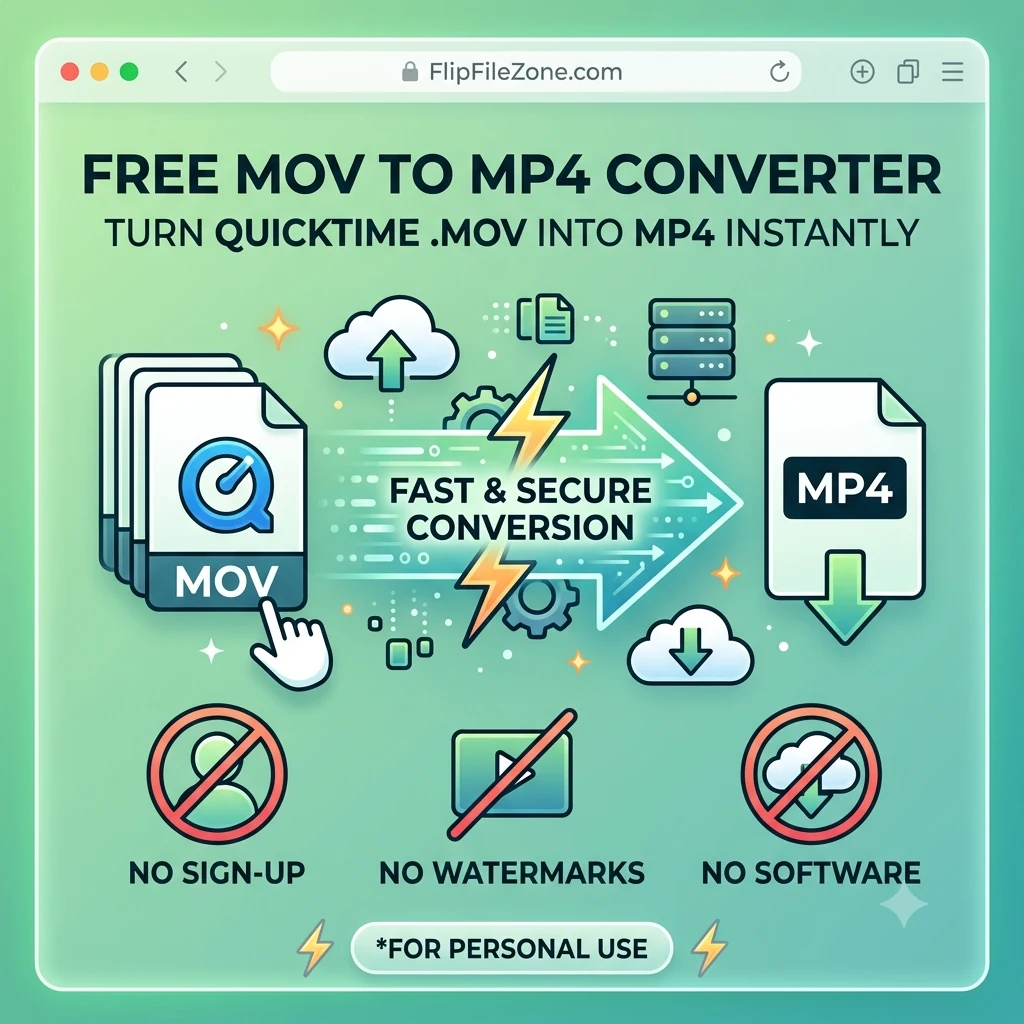 TECH GUIDESConvert MOV to MP4 Online Free — Convert iPhone Videos in SecondsFlipFileZone · Read Fullopen_in_new
chatPost a comment
Comments
0