 TECH GUIDESConvert XLS to XLSX Online Free — Upgrade Old Excel Files in SecondsFlipFileZone · Read Fullopen_in_new
Convert WebP to JPG Online Free — Change WebP Images to JPEG in Seconds
Convert WebP to JPG free with FlipFileZone. Turn any WebP image into a universally compatible JPEG instantly — no sign-up, no watermarks, no software needed.
FlipFileZone · TECH GUIDES
shareShare this post


Convert WebP to JPG Online Free — Change WebP Images to JPEG in Seconds
You saved an image from a website and it downloaded as a .webp file. You tried to open it in an older photo viewer and got an error. You tried to upload it to a platform that only accepts JPG and it was rejected. You tried to open it in a design tool that was built before WebP existed and it would not import. You sent it to a colleague and they could not open it at all.
WebP is a modern image format developed by Google that delivers excellent compression and quality. Most modern browsers display WebP images perfectly. But the moment a WebP file leaves the browser — saved to a desktop, sent to a colleague, uploaded to an older platform, or opened in legacy software — its compatibility drops sharply. Dozens of image editors, upload portals, operating system photo viewers, and professional tools either do not support WebP or handle it poorly.
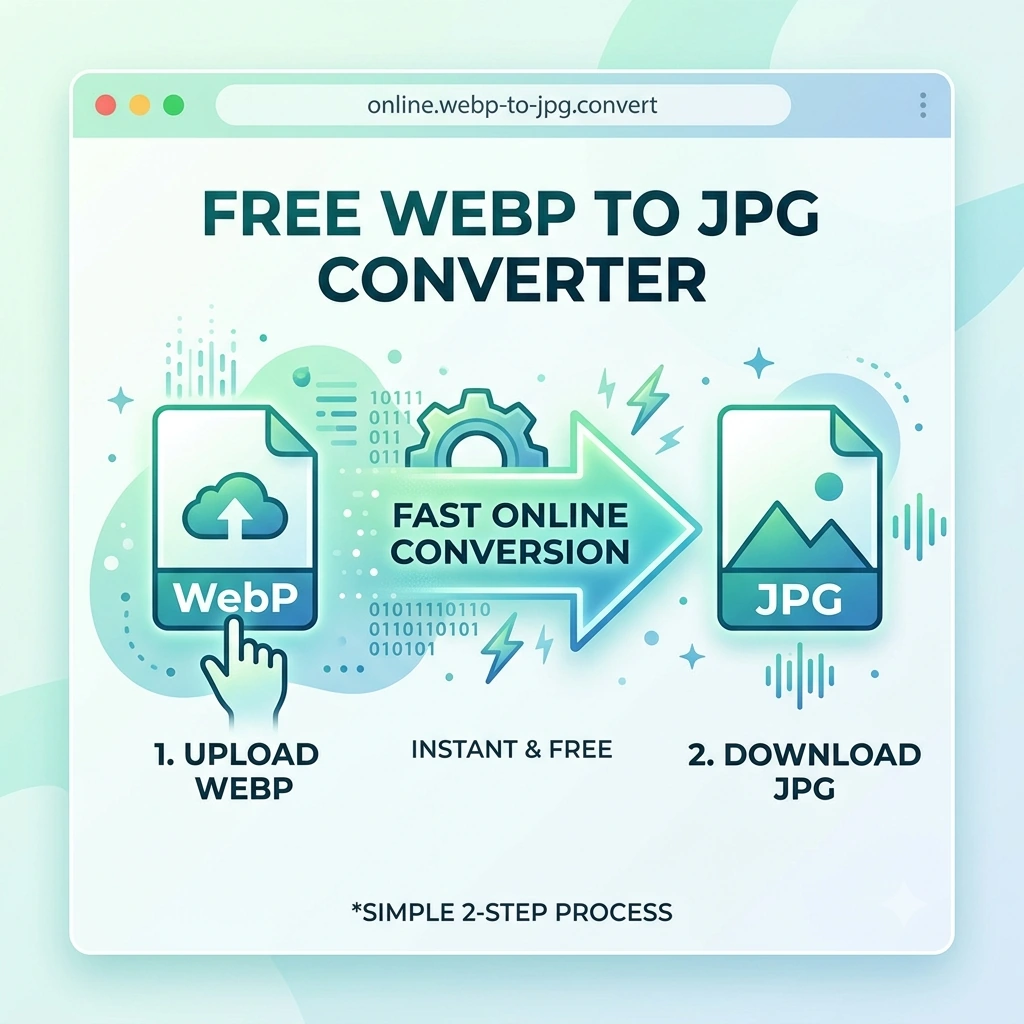
The fix is simple: convert the WebP file to JPG. JPG is the most universally compatible image format on the planet. It opens in every photo viewer, every image editor, every upload form, and every device manufactured in the last three decades. FlipFileZone's free WebP to JPG converter handles the conversion in seconds. Upload your WebP file, convert, and download a clean, high-quality JPG ready to use anywhere. No account. No watermark. No file stored anywhere after your session.
⚡ Quick Answer
— Visit flipfilezone.com/webp-to-jpg, upload your WebP file, click Convert to JPG, and download your image instantly. Free, private, and watermark-free.
What Is WebP and Why Does It Cause Compatibility Problems?
WebP is an image format created by Google in 2010, designed specifically for the web. It uses advanced compression algorithms that produce smaller file sizes than JPG or PNG at equivalent visual quality — often 25 to 35 percent smaller than a comparable JPG. This makes WebP highly attractive for web performance: faster page loads, lower bandwidth consumption, better Core Web Vitals scores.
As a result, WebP is now the default image delivery format for Google Images, most modern e-commerce platforms, social media image processing pipelines, and the majority of high-traffic websites. When you right-click and save an image from almost any major website today, there is a good chance it downloads as a .webp file.
The compatibility problem is that WebP was designed for the browser, not for general-purpose image use. Support outside the browser is inconsistent. Older versions of Windows Photo Viewer, Paint, and many professional image editors do not open WebP natively. Legacy upload forms on government portals, job application systems, e-commerce backends, and print services frequently reject WebP outright. Apple devices added WebP support relatively late, and many iOS apps and macOS tools still do not handle it cleanly.
JPG, by contrast, has been universally supported across every device, operating system, and application for over 30 years. Converting WebP to JPG removes every compatibility barrier at once.
Top Reasons to Convert WebP to JPG
- Open in any photo viewer or image editor — JPG opens in Windows Photo Viewer, Apple Photos, Adobe Photoshop, GIMP, Paint, and every other image application without compatibility errors or plugin requirements.
- Upload to any platform or form — Job portals, government forms, e-commerce backends, print services, and legacy upload systems that reject WebP all accept JPG without issue.
- Share without compatibility worries — Sending a WebP file to a colleague, client, or family member runs the risk they cannot open it. Sending a JPG guarantees they can.
- Use in any design tool — Older versions of Photoshop, Illustrator, InDesign, and many other professional design tools do not support WebP import. Converting to JPG before import removes the format barrier entirely.
- Print compatibility — Print services and print-to-file workflows expect JPG or TIFF input. WebP is not supported by most print software and professional printing workflows.
- Email and messaging compatibility — Some email clients and messaging apps display WebP images inconsistently or not at all. JPG displays reliably in every email client and messaging platform.
- Embed in documents and presentations — Microsoft Word, PowerPoint, Google Docs, and older versions of presentation software do not support WebP image insertion. JPG embeds cleanly in all of them.
- Archive images in a stable format — JPG has been an ISO standard since 1994 and will remain readable by software for decades. WebP long-term archival support is less certain outside browser contexts.
How to Convert WebP to JPG — Step by Step
Step 1 — Open the FlipFileZone WebP to JPG Converter
Navigate to flipfilezone.com/webp-to-jpg in any browser on any device. No account creation, no subscription prompt, no onboarding flow. The converter is ready the moment the page loads.
Step 2 — Upload Your WebP File
Click the upload area or drag and drop your .webp file onto the page. You can upload a WebP image saved from a website, exported from a design tool, or received from any other source. All uploads travel over an encrypted HTTPS connection.
Step 3 — Click Convert to JPG
Hit the Convert to JPG button. FlipFileZone decodes the WebP image and re-encodes it as a high-quality JPG. The conversion preserves the image dimensions and colour accuracy of the original. Processing completes in seconds for virtually any file size.
Step 4 — Download Your JPG
Click the download button to save your converted JPG. Open it in any image viewer or editor to verify the quality, then upload, share, or print it wherever it needs to go. FlipFileZone permanently and automatically deletes your uploaded WebP and the converted JPG from its servers once your session ends.
✓ Pro Tip
— If your WebP image has a transparent background — some WebP files support alpha channel transparency, similar to PNG — converting to JPG will replace the transparent areas with a solid white background, since JPG does not support transparency. If you need to preserve transparency after converting from WebP, consider converting to PNG instead using FlipFileZone's WebP to PNG converter. For most photographs and opaque images, JPG conversion works perfectly.
What Changes and What Stays the Same
Converting WebP to JPG produces a clean, high-quality image with the following characteristics:
- Image dimensions — Pixel width and height are preserved exactly. A 1200 x 800 WebP produces a 1200 x 800 JPG.
- Colour accuracy — RGB colour values from the WebP source are faithfully reproduced in the JPG output. No colour shift or tonal adjustment is applied.
- Visual sharpness — At high quality settings, the JPG output is visually indistinguishable from the WebP source at normal viewing sizes.
- File size — The JPG may be slightly larger than the WebP source, since WebP typically achieves better compression ratios than JPG. This is expected and normal.
- Transparency — Transparent areas in a WebP image are filled with a solid background colour in the JPG output, since JPG does not support alpha channel transparency.
- Metadata — EXIF metadata embedded in the WebP (camera settings, GPS data, timestamps) may or may not be carried over depending on the source file.
Common Use Cases — When WebP to JPG Conversion Removes the Friction
Content Marketers and Bloggers
A blogger downloading reference images, product screenshots, or stock photos from websites frequently receives WebP files. Their WordPress or Squarespace CMS, image editing workflow, or social media scheduling tool may not handle WebP natively. Converting every downloaded WebP to JPG before it enters the content production pipeline eliminates format errors at every downstream step — from upload to publication to social sharing.
Graphic Designers and Creative Professionals
A designer pulling reference images, texture assets, or client-supplied photos from the web frequently encounters WebP files that do not import cleanly into Adobe Photoshop (older versions), Illustrator, InDesign, or Affinity products. Converting to JPG before import removes the format barrier and allows the image to enter the design workflow exactly like any other photographic asset.
HR Teams and Job Applicants
Profile photos and ID images downloaded from social platforms or document scans saved via browser are sometimes in WebP format. Job application portals, HR onboarding systems, and government identity verification platforms that require JPG profile photo uploads reject WebP files outright. Converting to JPG before uploading removes that rejection barrier in seconds.
Developers and QA Teams
A developer testing an application against real-world image inputs may receive test images in WebP format from browser screenshots or web-scraped content. Converting to JPG produces a standardised input format compatible with image processing libraries and testing pipelines that were built around the JPEG standard rather than WebP.
FlipFileZone vs Other WebP to JPG Tools
| Feature | FlipFileZone | CloudConvert | Convertio | Squoosh |
|---|---|---|---|---|
| Free to use | ✓ Always | ⚠ Limited free | ⚠ Limited free | ✓ Yes |
| No account needed | ✓ Yes | ✗ Required for more | ✓ Yes | ✓ Yes |
| Files deleted after use | ✓ Auto-deleted | ⚠ Stored temporarily | ⚠ Stored temporarily | ✓ Local only |
| No watermarks | ✓ Never | ✓ No watermark | ✓ No watermark | ✓ No watermark |
| Works on mobile | ✓ Yes | ✓ Yes | ✓ Yes | ✓ Yes |
| Part of full file toolkit | ✓ Yes | ⚠ Partial | ⚠ Partial | ✗ Image only |
Frequently Asked Questions
| Is FlipFileZone's WebP to JPG converter really free? |
| Yes — completely free with no usage limits, no trial periods, and no subscription required. Convert as many WebP files as you need, whenever you need, at zero cost. |
| Why did my image download as WebP when I saved it from a website? |
| Most modern websites serve images in WebP format because it produces smaller file sizes and faster load times than JPG or PNG. Your browser renders WebP perfectly, but the saved file is in WebP format. Converting to JPG makes it compatible with all software and platforms outside the browser. |
| Will converting WebP to JPG reduce image quality? |
| At high quality output settings, the JPG is visually indistinguishable from the WebP source at normal viewing sizes. JPG uses lossy compression, so some pixel data is discarded during encoding, but at FlipFileZone's quality level this is imperceptible for photographs and most real-world images. |
| What if my WebP image has a transparent background? |
| Transparent areas in the WebP will be filled with a solid white background in the JPG output, since JPG does not support transparency. If you need to preserve the transparent background, convert to PNG instead using FlipFileZone's WebP to PNG converter. |
| Are my files safe when I upload them? |
| Yes. All uploads are encrypted via HTTPS. Your WebP file and the converted JPG are permanently and automatically deleted from FlipFileZone servers once your session ends. Your images are never stored, shared, or accessed for any other purpose. |
| Can I convert multiple WebP files at once? |
| Yes. FlipFileZone supports batch conversion so you can upload and convert multiple WebP images in a single session without repeating the process for each file. |
| Does it work on my phone? |
| Yes. FlipFileZone is fully mobile-responsive. Open the converter in your phone browser, upload a WebP image from your files app, and download the converted JPG directly to your device — no app installation required. |
| Can I also convert WebP to PNG? |
| Yes. Use FlipFileZone's free WebP to PNG converter to produce a lossless PNG output with transparency support whenever you need it. Both conversions are free and account-free. |
A WebP file that will not open, upload, or import is a file that cannot do its job. The format is excellent for the web but falls short everywhere else — and the gap between where WebP works and where it does not is exactly where most real file workflows happen. Converting to JPG removes that gap permanently and instantly.
FlipFileZone makes the conversion free and frictionless. Upload your WebP, convert, download your JPG. No account, no watermark, no file stored anywhere after you are done. Just a universally compatible image ready to open, upload, share, and use in every tool, platform, and workflow that WebP could not reach.
🚀 Ready to Convert WebP to JPG?
— Try FlipFileZone Now! Visit flipfilezone.com/webp-to-jpg and convert your WebP image to JPG free — no account needed, no software to install, no watermarks ever.
More Free Tools on FlipFileZone
- WebP to PNG Converter — Convert WebP to PNG to preserve transparency and lossless quality.
- PNG to JPG Converter — Convert PNG images to JPG for smaller file sizes and wider compatibility.
- JPG to PNG Converter — Switch to PNG format for lossless quality and design workflows.
- Compress Image — Reduce your JPG file size without visible quality loss after converting.
- Image Resizer — Resize your converted JPG to exact pixel dimensions instantly and free.
tagTags
shareShare this post
recommendYou may also like
TECH GUIDESConvert XLS to XLSX Online Free — Upgrade Old Excel Files in SecondsFlipFileZone · Read Fullopen_in_new TECH GUIDESConvert PNG to ICO Online Free — Create Favicons and Windows Icons in SecondsFlipFileZone · Read Fullopen_in_new
 TECH GUIDESConvert Markdown to PDF Online Free — Turn .md Files Into PDF in SecondsFlipFileZone · Read Fullopen_in_new
 TECH GUIDESConvert SVG to PNG Online Free — Export Vector Graphics as Images in SecondsFlipFileZone · Read Fullopen_in_new
 TECH GUIDESConvert GIF to MP4 Online Free — Turn Animated GIFs Into Video in SecondsFlipFileZone · Read Fullopen_in_new
 TECH GUIDESConvert WAV to MP3 Online Free — Compress Audio Files in SecondsFlipFileZone · Read Fullopen_in_new
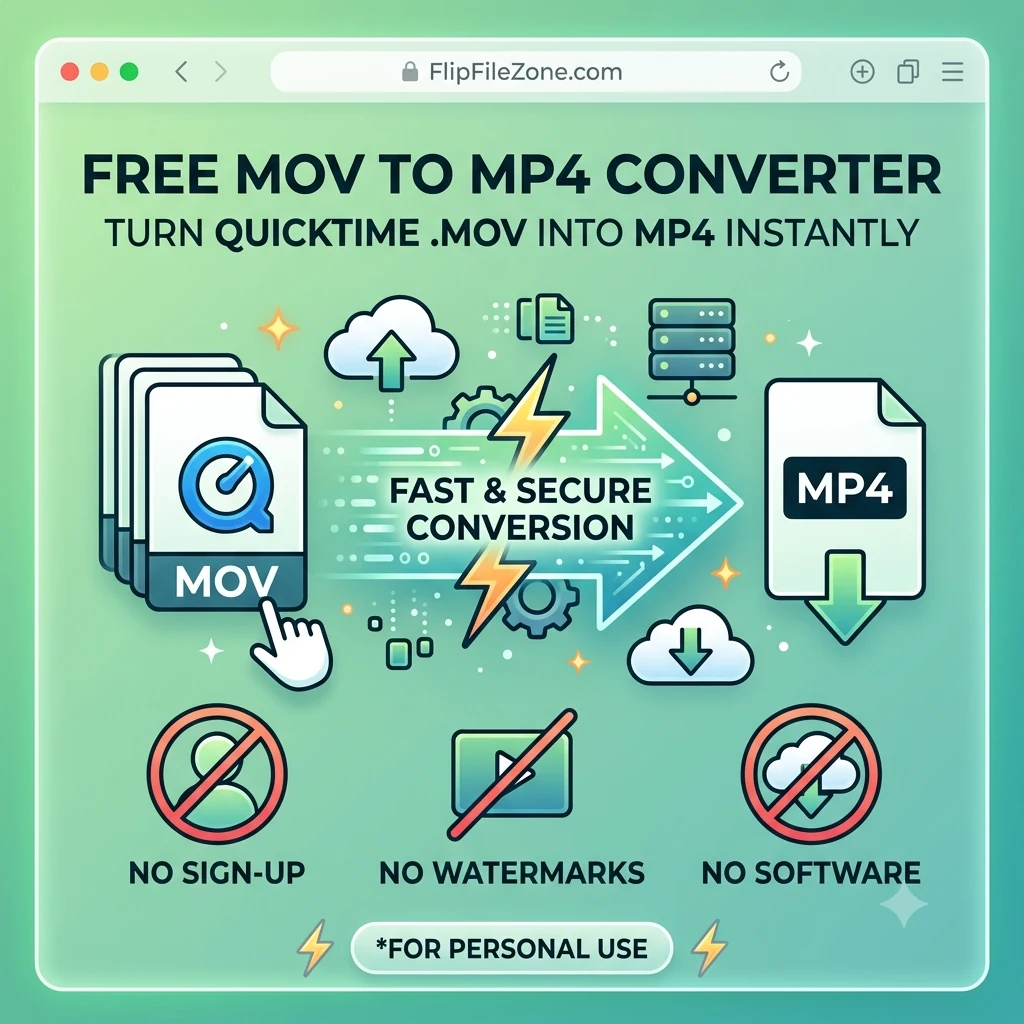 TECH GUIDESConvert MOV to MP4 Online Free — Convert iPhone Videos in SecondsFlipFileZone · Read Fullopen_in_new
chatPost a comment
Comments
0