 TECH GUIDESConvert XLS to XLSX Online Free — Upgrade Old Excel Files in SecondsFlipFileZone · Read Fullopen_in_new
Convert WebP to PNG Online Free — Change WebP Images to PNG in Seconds
Convert WebP to PNG free with FlipFileZone. Turn any WebP image into a lossless PNG instantly — no sign-up, no watermarks, no software needed.
FlipFileZone · TECH GUIDES
shareShare this post


Convert WebP to PNG Online Free — Change WebP Images to PNG in Seconds
You saved a logo from a website and it downloaded as a .webp file with a transparent background. You need that transparency preserved so it sits cleanly on a coloured slide, a dark website background, or a layered design file. You open the WebP in your image editor and it either does not import at all or flattens the transparency to white, destroying the whole point of saving it in the first place.
Or you downloaded a graphic from a client portal as WebP and need to hand it off to a print studio or a developer who requires PNG format. Or your design tool — an older version of Photoshop, a web builder, a presentation app — handles PNG natively but chokes on WebP. Or you simply need the lossless, highest-fidelity version of the image for archive or further editing, and PNG is the right format for that job.
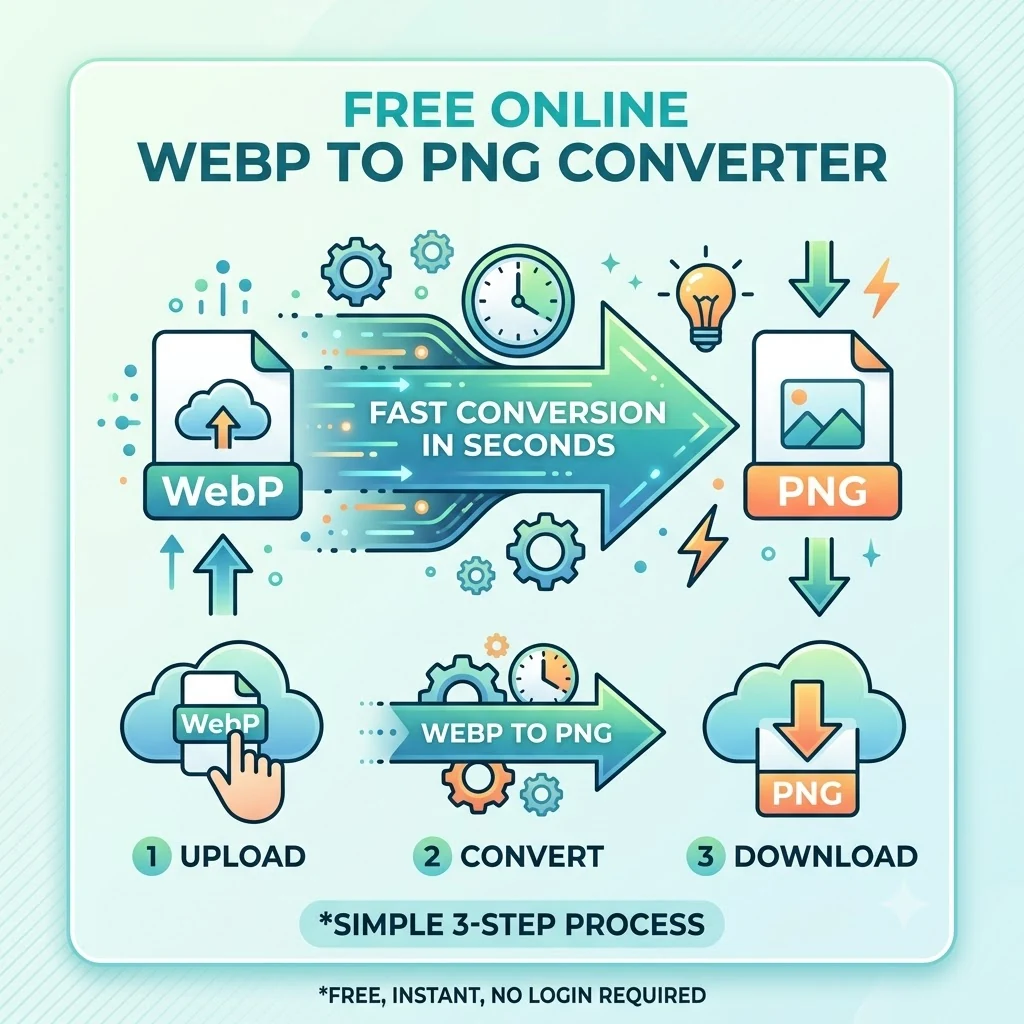
In all of these cases, converting WebP to PNG is the right move — and FlipFileZone's free WebP to PNG converter makes it instant. Upload your WebP file, convert, and download a clean PNG with full transparency, lossless quality, and universal compatibility. No account. No watermark. No file stored anywhere after your session ends.
⚡ Quick Answer
— Visit flipfilezone.com/webp-to-png, upload your WebP file, click Convert to PNG, and download your image instantly. Free, private, and watermark-free.
WebP vs PNG — Why PNG Is Sometimes the Better Destination
Both WebP and PNG are capable of storing high-quality images, and both support transparency. The key differences lie in how they handle compression, compatibility, and workflow integration.
WebP uses both lossy and lossless compression modes and was designed primarily for web delivery. It achieves excellent file sizes in browsers but has inconsistent support outside of web contexts. Many image editors, design tools, print services, and upload platforms either do not support WebP or support it poorly.
PNG uses lossless compression exclusively. Every pixel is stored exactly as encoded, with no data discarded. PNG has been a universally supported image format across every operating system, design tool, development framework, and professional workflow for over 25 years. It is the de facto standard for logos, icons, UI assets, graphics requiring transparency, and any image that needs to maintain absolute quality through editing and re-saving cycles.
When to convert WebP to PNG rather than JPG: choose PNG when the image has a transparent background you need to preserve, when you are importing into a layered design workflow requiring lossless source assets, when you need the image to remain fully editable without quality degradation through multiple saves, or when the destination platform or tool explicitly requires PNG format.
Top Reasons to Convert WebP to PNG
- Preserve transparency — WebP supports alpha channel transparency, and so does PNG. Converting WebP to PNG is the only way to carry that transparency through to a format compatible with design tools, presentation apps, and web platforms without filling it with a white background.
- Import into design tools — Photoshop, Illustrator, Figma, Sketch, InDesign, Affinity Designer, and Canva all handle PNG natively. Converting WebP to PNG removes the format barrier before any design work begins.
- Lossless quality for editing — PNG is lossless. Converting WebP to PNG produces a source file that can be edited, resized, and re-saved repeatedly without any further quality degradation through the editing pipeline.
- Use in presentations and documents — Microsoft PowerPoint, Google Slides, Apple Keynote, Google Docs, and Microsoft Word all insert PNG images cleanly. WebP support in these applications is unreliable.
- Deliver assets to clients and developers — PNG is the universally expected format for logo files, icon sets, UI asset deliverables, and design handoffs. Delivering WebP files in these contexts creates unnecessary friction for recipients.
- Print studio compatibility — Print service bureaus and professional printers accept PNG as a standard image input. WebP is not part of the professional print workflow and is rejected by most print software.
- Archive at maximum quality — PNG's lossless compression makes it the preferred archival format for images that need to remain pixel-perfect over long periods without quality degradation from repeated access or editing.
- Compatibility with legacy systems — Older CMS platforms, web frameworks, and application backends may not handle WebP at all. PNG works universally across every generation of software.
How to Convert WebP to PNG — Step by Step
Step 1 — Open the FlipFileZone WebP to PNG Converter
Go to flipfilezone.com/webp-to-png in any browser on any device. No account creation, no subscription gate, no onboarding sequence. The converter loads and is ready to use immediately.
Step 2 — Upload Your WebP File
Click the upload area or drag and drop your .webp image onto the page. FlipFileZone accepts WebP files of any size and any content type — photographs, graphics, logos, screenshots, or any other WebP image from any source. All uploads travel over an encrypted HTTPS connection.
Step 3 — Click Convert to PNG
Hit the Convert to PNG button. FlipFileZone decodes your WebP image and re-encodes it as a PNG using lossless compression. If the source WebP contains a transparent background, that transparency is preserved exactly in the PNG output. Processing completes in seconds for virtually any file size.
Step 4 — Download Your PNG
Click the download button to save your converted PNG. Open it in your image editor or design tool to verify the transparency and quality before using it. FlipFileZone permanently and automatically deletes your uploaded WebP and the converted PNG from its servers once your session ends.
✓ Pro Tip
— PNG files produced from WebP sources are typically larger than the original WebP — sometimes significantly so — because PNG uses lossless compression while WebP is highly optimised for size. If you plan to use the PNG on a website and file size is a concern, consider running it through FlipFileZone's free image compressor after conversion to reduce the PNG file size with lossless optimisation before uploading. This gives you the compatibility and transparency of PNG at a smaller footprint.
What Changes and What Stays the Same
Converting WebP to PNG is a faithful format translation. Here is exactly what happens to your image during the process:
- Transparency — Alpha channel transparency present in the WebP source is fully preserved in the PNG output. Logos, icons, and graphics with transparent backgrounds retain their transparency exactly.
- Image dimensions — Pixel width and height are preserved exactly. No cropping, scaling, or padding is applied.
- Colour accuracy — RGB colour values from the WebP source are faithfully carried into the PNG. No colour shift, contrast adjustment, or tonal change is applied.
- Visual quality — PNG is lossless. The output is a pixel-accurate representation of the decoded WebP image, with no additional compression artifacts introduced by the conversion.
- File size — The PNG will typically be larger than the WebP source. PNG's lossless compression is less aggressive than WebP's algorithms. This is normal and expected behaviour.
Common Use Cases — When WebP to PNG Conversion Is the Right Choice
Designers Pulling Assets From the Web
A UI designer needs the logo from a client's website for use in a redesign mockup. The logo loads as a WebP in the browser with a transparent background. Downloaded and brought into Figma or Photoshop, the WebP either fails to import or loses the transparency. Converting to PNG preserves the transparent background exactly and produces a file that drops cleanly into any design application as a properly masked, layer-ready asset.
Developers Preparing Icon and Asset Libraries
A front-end developer building a design system or component library standardises on PNG for all icon assets, logo files, and UI graphics — the accepted convention for version-controlled asset libraries. WebP images pulled from reference sources or client-supplied files need to be converted to PNG before they can be committed to the asset directory and used across the application consistently.
Marketing Teams Creating Branded Materials
A marketing manager needs the brand logo in PNG format for use in a PowerPoint template, a Google Slides deck, an email signature, and a printed brochure header. The logo exists on the company website as a WebP file. Converting to PNG produces the transparent-background logo file that inserts cleanly into every one of these contexts without a white rectangle appearing around it.
Print and Publishing Workflows
A graphic designer preparing files for a commercial printer needs images in formats the print software recognises. WebP is not a print industry format. PNG is. Converting client-supplied or web-sourced WebP images to PNG before placing them in InDesign or Illustrator layouts ensures the files process correctly through pre-press and RIP workflows without format errors.
Web Developers Migrating or Rebuilding Sites
A developer migrating a website from one platform to another finds that the destination CMS, framework, or CDN has inconsistent WebP support in its media processing pipeline. Converting the site's image assets from WebP to PNG during the migration ensures every image processes, stores, and displays correctly on the new platform without format-related rendering failures.
FlipFileZone vs Other WebP to PNG Tools
| Feature | FlipFileZone | CloudConvert | Convertio | Squoosh |
|---|---|---|---|---|
| Free to use | ✓ Always | ⚠ Limited free | ⚠ Limited free | ✓ Yes |
| No account needed | ✓ Yes | ✗ Required for more | ✓ Yes | ✓ Yes |
| Files deleted after use | ✓ Auto-deleted | ⚠ Stored temporarily | ⚠ Stored temporarily | ✓ Local only |
| Preserves transparency | ✓ Yes | ✓ Yes | ✓ Yes | ✓ Yes |
| No watermarks | ✓ Never | ✓ No watermark | ✓ No watermark | ✓ No watermark |
| Part of full file toolkit | ✓ Yes | ⚠ Partial | ⚠ Partial | ✗ Image only |
Frequently Asked Questions
| Is FlipFileZone's WebP to PNG converter really free? |
| Yes — completely free with no usage limits, no trial periods, and no subscription required. Convert as many WebP files as you need, whenever you need, at zero cost. |
| Will the transparent background be preserved in the PNG? |
| Yes. If your WebP image contains alpha channel transparency, it is fully preserved in the PNG output. The converted PNG will have the same transparent areas as the original WebP — no white fill, no background added. |
| Why is the PNG larger than the original WebP? |
| PNG uses lossless compression, which stores more data per pixel than WebP's optimised algorithms. A larger PNG file size is expected and normal — it reflects lossless encoding rather than a problem with the conversion. If size is a concern, compress the PNG after converting using FlipFileZone's image compressor. |
| Should I convert to PNG or JPG? |
| Choose PNG when you need to preserve transparency, maintain lossless quality for further editing, or deliver assets to design and development workflows. Choose JPG when you need the smallest possible file size, maximum platform compatibility for photographs, or a format for upload portals that require JPEG. Both converters are free on FlipFileZone. |
| Are my files safe when I upload them? |
| Yes. All uploads are encrypted via HTTPS. Your WebP file and the converted PNG are permanently and automatically deleted from FlipFileZone servers once your session ends. Your images are never stored, shared, or accessed for any other purpose. |
| Can I convert multiple WebP files at once? |
| Yes. FlipFileZone supports batch conversion — upload and convert multiple WebP images in a single session without repeating the process for each file individually. |
| Does it work on my phone? |
| Yes. FlipFileZone is fully mobile-responsive. Open the converter in your phone browser, upload a WebP image from your files app, and download the converted PNG directly to your device — no app installation required. |
| What if I need JPG instead of PNG? |
| Use FlipFileZone's free WebP to JPG converter when you need the smallest file size and maximum photographic compatibility rather than lossless quality and transparency support. Both are free and account-free. |
A WebP file with a transparent background that loses its transparency on conversion is no longer the asset you needed. A WebP graphic that will not import into your design tool is a graphic you cannot use. These are not difficult problems — they are format problems, and the right format conversion resolves them completely in under 30 seconds.
FlipFileZone makes the conversion instant and free. Upload your WebP, convert, download your PNG. No account to create, no watermark on your output, no file stored anywhere after your session ends. Just a lossless, transparent, universally compatible PNG ready to go into every design tool, presentation, and workflow that needs it.
🚀 Ready to Convert WebP to PNG?
— Try FlipFileZone Now! Visit flipfilezone.com/webp-to-png and convert your WebP image to PNG free — no account needed, no software to install, no watermarks ever.
More Free Tools on FlipFileZone
- WebP to JPG Converter — Convert WebP to JPG for smaller file sizes and maximum platform compatibility.
- PNG to JPG Converter — Convert PNG images to JPG for web sharing and email attachments.
- Compress Image — Reduce PNG file size with lossless compression after converting from WebP.
- Image Resizer — Resize your converted PNG to exact pixel dimensions instantly and free.
- JPG to PDF Converter — Turn any image into a professional PDF document in seconds.
tagTags
shareShare this post
recommendYou may also like
TECH GUIDESConvert XLS to XLSX Online Free — Upgrade Old Excel Files in SecondsFlipFileZone · Read Fullopen_in_new TECH GUIDESConvert PNG to ICO Online Free — Create Favicons and Windows Icons in SecondsFlipFileZone · Read Fullopen_in_new
 TECH GUIDESConvert Markdown to PDF Online Free — Turn .md Files Into PDF in SecondsFlipFileZone · Read Fullopen_in_new
 TECH GUIDESConvert SVG to PNG Online Free — Export Vector Graphics as Images in SecondsFlipFileZone · Read Fullopen_in_new
 TECH GUIDESConvert GIF to MP4 Online Free — Turn Animated GIFs Into Video in SecondsFlipFileZone · Read Fullopen_in_new
 TECH GUIDESConvert WAV to MP3 Online Free — Compress Audio Files in SecondsFlipFileZone · Read Fullopen_in_new
 TECH GUIDESConvert MOV to MP4 Online Free — Convert iPhone Videos in SecondsFlipFileZone · Read Fullopen_in_new
chatPost a comment
Comments
0