 TECH GUIDESConvert XLS to XLSX Online Free — Upgrade Old Excel Files in SecondsFlipFileZone · Read Fullopen_in_new
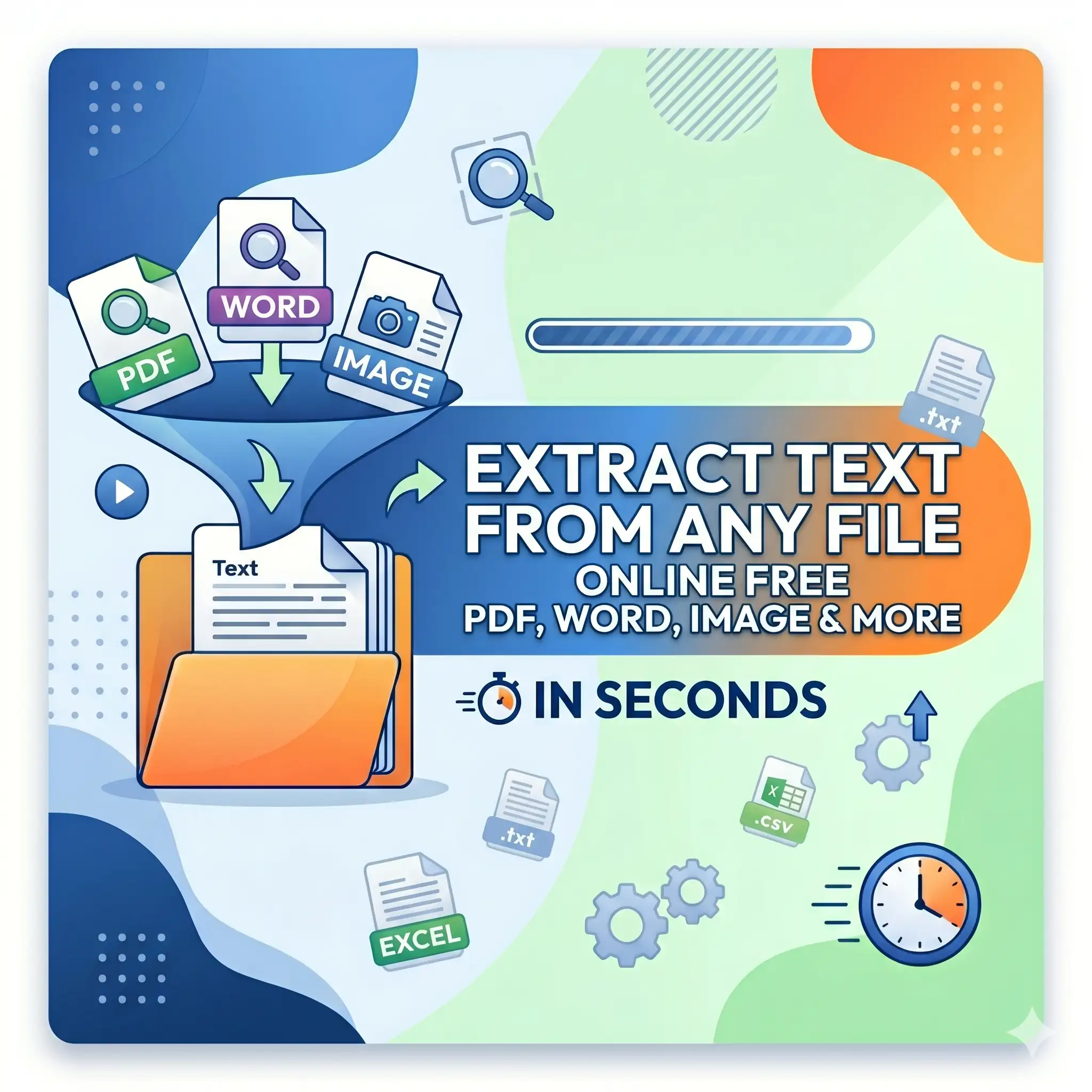
Extract Text From Any File Online Free — PDF, Word, Image & More
Extract text from PDF, Word, image, and other files free with FlipFileZone. Copy, save, or download plain text from any document instantly — no sign-up, no watermarks, no software needed.
FlipFileZone · TECH GUIDES
shareShare this post






Extract Text From Any File Online Free — PDF, Word, Image & More
You have a scanned contract and you need one specific clause. A PDF report full of data tables you want to paste into a spreadsheet. An image of a printed form with text you need to copy but cannot select. A Word document someone sent you that you cannot open because you do not have Microsoft Office installed. In every one of these situations, the content you need is trapped inside a file format that will not let you simply select and copy it.
Text extraction solves this instantly. Instead of retyping content by hand, squinting at a scanned page, or hunting for the right software to open an unfamiliar file format, you upload the file and get back the plain text — clean, selectable, copyable, and ready to use wherever you need it. No reformatting. No manual transcription. No software installation.
FlipFileZone's free text extractor handles the full range of file types you encounter in real work: PDFs, Word documents, images, scanned files, and more. Upload any supported file, and the tool pulls out all readable text in seconds — free, private, and without leaving a watermark anywhere near your content. No account required.
⚡ Quick Answer
— Visit flipfilezone.com/extract, upload your file, and get the extracted plain text in seconds. Copy it directly or download it as a .txt file. Free, private, and completely account-free.
What Is Text Extraction — and Why Can't You Just Copy-Paste?
Most people's first instinct when they need text from a file is to open it and select-all, then copy. That works perfectly for a native digital document — a Word file you created yourself, a born-digital PDF exported from a text editor. But it fails in several very common situations that come up constantly in real document workflows.
Scanned PDFs look like documents but are actually images of pages. There is no selectable text layer — just pixels arranged to look like letters. A standard copy-paste attempt returns nothing. Image files containing printed or handwritten text have the same problem — the text exists visually but not as machine-readable characters. Locked or secured PDFs may have a text layer but have copy protection enabled, preventing selection entirely. Unfamiliar file formats — older document types, proprietary formats, files from legacy systems — may simply not open on your current device without the right software.
Text extraction bypasses all of these barriers. FlipFileZone's extractor uses OCR (Optical Character Recognition) for image-based and scanned content, and direct text parsing for native document formats. The result is the same either way: readable, usable plain text delivered to your screen in seconds.
File Types Supported — Extract Text From Almost Anything
FlipFileZone's extractor is built to handle the variety of file formats that appear in everyday document workflows — not just the obvious ones:
- PDF files (.pdf) — Both native digital PDFs (with a selectable text layer) and scanned PDFs (image-only pages) are supported. OCR is applied automatically where needed.
- Word documents (.doc, .docx) — Extract all body text, headings, and paragraph content from Microsoft Word files without needing Word installed on your device.
- Images (.jpg, .jpeg, .png) — OCR technology reads printed text from photographs, screenshots, scanned pages, and any other image containing readable characters.
- Plain text and rich text files (.txt, .rtf) — Straightforward extraction of all text content from standard text-based formats.
- And more — FlipFileZone continues expanding supported formats. If your file type is not listed, upload it and the extractor will identify what it can retrieve.
Whether your file is a born-digital report, a photographed receipt, a scanned legal agreement, or a legacy Word document from a decade ago, the extraction process is the same: upload, extract, copy or download.
Top Reasons Professionals Extract Text From Files
- Copy content from scanned PDFs — Scanned contracts, invoices, court documents, and archived reports contain text that cannot be selected without OCR. Extraction makes it copyable in seconds.
- Pull data into spreadsheets — Tables and lists buried in PDF reports or Word documents are far easier to work with once extracted to plain text that can be pasted into Excel or Google Sheets.
- Open files without the original software — Extract the text content from a .docx file without Microsoft Word, or from a legacy format without hunting down a compatibility app.
- Read text from images and screenshots — Photographed whiteboards, screenshots of articles, images of printed forms — OCR extraction makes the text in any image accessible and usable.
- Feed content into AI tools and writing apps — Large language models, summarisation tools, and writing assistants work on plain text. Extracting from a PDF or Word file before pasting saves reformatting time.
- Translate document content — Translation tools work on plain text. Extracting first lets you paste directly into Google Translate, DeepL, or any other translation service without copy-protection errors.
- Index and search document content — Plain text extracted from files can be indexed, searched, or fed into document management systems that do not natively read binary file formats.
- Repurpose and reformat content — Blog posts, reports, and long-form documents need to be reformatted for different platforms regularly. Extraction gives you the raw text as a clean starting point for reuse.
Extract Text in Under 60 Seconds — Here's How
Step 1 — Open the FlipFileZone Text Extractor
Navigate to flipfilezone.com/extract in any browser on any device. The tool is ready immediately with no account creation screen, no subscription prompt, and no onboarding flow standing between you and your extracted text. Open the page and you are already there.
Step 2 — Upload Your File
Click the upload area or drag and drop your file onto the page. FlipFileZone accepts PDF, Word, image, and other supported formats. Upload from your desktop, a downloads folder, or directly from your mobile device. All file transfers are encrypted in transit via HTTPS — your documents are protected from the moment they leave your device.
Step 3 — Extract the Text
Click the Extract Text button. For native digital files, the text layer is parsed directly and delivered almost instantly. For scanned PDFs and image files, OCR processing runs automatically — accurately reading printed characters from the image data. Most files are fully processed in under 20 seconds, even multi-page documents.
Step 4 — Copy or Download Your Text
Your extracted text appears on screen, fully selectable and ready to copy. Highlight the sections you need and paste them wherever you are working — a spreadsheet, a document editor, an AI tool, a translation service. Or click the download button to save the complete extracted text as a clean .txt file. FlipFileZone automatically and permanently deletes your uploaded file and all extracted output from its servers once your session ends.
✅ Pro Tip
— For the most accurate OCR results from scanned documents and photos, use a high-contrast, well-lit image where the text is sharp and the background is clean. Blurry, low-resolution, or skewed scans reduce OCR accuracy. If your scan looks crisp when you zoom in, the extraction will be accurate. If it looks blurry at 100% zoom, consider rescanning at a higher resolution first.
What Gets Extracted — and What to Expect From OCR
For native digital PDFs and Word documents, extraction is highly accurate. The text layer is read directly, preserving the exact characters, words, and paragraphs as they appear in the source file. Formatting like bold, italic, and headings is stripped in the plain text output — you receive the content itself, ready for pasting and reuse without markup carrying over.
For scanned PDFs and image files, OCR accuracy depends on the quality of the source. Well-scanned, high-contrast printed text on a clean background achieves very high recognition accuracy — typically 95–99% for standard printed fonts. Handwriting, decorative fonts, very small text, and heavily degraded scans will produce lower accuracy and may require manual correction of individual characters. For most real-world document workflows — scanned contracts, photographed forms, printed receipts — the output is accurate enough to use directly with minimal review.
What extraction does not preserve: complex layout formatting, tables as structured grids, columns, or images embedded in the document. The output is plain text — the words and sentences from your file, in reading order, stripped of all visual styling. For most use cases — copying content, feeding into other tools, translating, or retyping into a new document — plain text is exactly what you need.
Common Use Cases — When Text Extraction Saves the Day
Legal and Compliance Teams
Contracts, court filings, regulatory documents, and compliance reports are frequently stored as scanned PDFs — especially older documents archived before digital-first workflows became standard. When a specific clause, definition, or data point needs to be quoted, referenced, or compared across documents, extracting the text is dramatically faster than retyping from a scanned page. Extracted text can be searched, copied into briefs, or fed into document comparison tools in seconds.
Researchers and Academics
Academic papers downloaded as PDFs, government datasets published as scanned reports, and archival documents digitised from physical records all contain data and text that researchers need to work with. Extracting the text enables full-text search, citation copying, content analysis, and direct pasting into research notes and writing tools — without the friction of copy-protection errors or manual transcription.
Data Analysts and Finance Professionals
Financial reports, audit files, and data exports are frequently distributed as PDFs. Tables of figures that should be in a spreadsheet are instead locked inside a formatted document. Extracting the text pulls those numbers and labels out as copyable content that can be pasted into Excel or Google Sheets and cleaned up far faster than manual re-entry — especially for multi-page reports with dozens of data points.
Writers, Editors, and Content Teams
Repurposing long-form content — transforming a PDF white paper into a blog post, adapting a Word document into a social media script, feeding a report into an AI summarisation tool — all start with plain text. Extracting first gives writers and editors a clean, reformattable starting point without inheriting the original file's formatting quirks, font choices, or structural constraints.
Administrative and Operations Staff
Offices that receive scanned invoices, photographed delivery notes, image-based purchase orders, and legacy documents from suppliers face a constant stream of files with text that cannot be selected. Extracting text from these files enables faster data entry, easier filing, and direct input into ERP, accounting, or workflow management systems that expect typed or pasted text rather than uploaded binary files.
FlipFileZone vs. Other Text Extraction Tools
| Feature | FlipFileZone | Adobe Acrobat Online | Google Drive OCR | Smallpdf |
|---|---|---|---|---|
| Free to use | ✅ Always | ⚠️ Limited free | ✅ Yes | ⚠️ 2 tasks/day |
| No account needed | ✅ Yes | ❌ Required | ❌ Google account required | ❌ Required for more |
| Supports scanned PDFs (OCR) | ✅ Yes | ✅ Yes | ✅ Yes | ⚠️ Paid only |
| Supports image files (OCR) | ✅ Yes | ⚠️ Limited | ✅ Yes | ⚠️ Paid only |
| Files deleted after use | ✅ Auto-deleted | ⚠️ Stored in account | ⚠️ Stored in Drive | ⚠️ Stored temporarily |
| Works on mobile | ✅ Yes | ✅ Yes | ✅ Yes | ✅ Yes |
Got Questions About Text Extraction? We Have Answers
| Is FlipFileZone's text extractor really free? |
|---|
| Yes — 100% free with no usage limits, no trial expiry, and no hidden fees. Extract text from as many files as you need, whenever you need, at zero cost. |
| Can it extract text from a scanned PDF? |
|---|
| Yes. FlipFileZone automatically applies OCR to scanned PDFs and image-only pages, converting the visual text in the scan into selectable, copyable characters. For best accuracy, use a high-resolution, well-lit scan. |
| Can it extract text from an image or photo? |
|---|
| Yes. Upload any JPG or PNG containing printed text and OCR will read and extract the characters from the image. This works for photographs of documents, screenshots, scanned pages, and printed forms. |
| How accurate is the OCR for scanned documents? |
|---|
| For standard printed text on a clean background, accuracy is typically 95–99%. Accuracy decreases for handwriting, decorative fonts, very small text, and poor-quality scans. Starting with a sharp, high-contrast scan produces the best results. |
| Does extraction preserve formatting like bold, headings, and tables? |
|---|
| The output is plain text — the words and sentences from your file, in reading order, without formatting markup. Bold, italic, headings, and table structures are stripped. For most use cases — pasting into another tool, translating, or reusing content — plain text is exactly what you need. |
| Is my file safe when I upload it? |
|---|
| Yes. All uploads are encrypted via HTTPS. Your file and all extracted output are permanently and automatically deleted from FlipFileZone's servers after your session ends. Your documents are never stored, shared, or accessed for any other purpose. |
| Can I extract text from a Word document without Microsoft Word? |
|---|
| Yes. Upload your .doc or .docx file and FlipFileZone extracts all the text content without requiring Word to be installed on your device. The output is clean plain text ready to copy or download. |
| Can I download the extracted text as a file? |
|---|
| Yes. After extraction, click the download button to save the complete extracted text as a .txt file. This is useful for archiving the text content, processing it in another application, or feeding it into tools that accept file uploads rather than pasted text. |
Text trapped inside a file format is text you cannot use. Locked inside a scanned PDF, hidden behind a copy-protection setting, embedded in an image, or sitting in a file format you cannot open — the content exists, but it is not accessible. Text extraction changes that in seconds.
FlipFileZone's extractor handles the full range of file types and content sources you encounter in real work. Native PDFs, scanned documents, Word files, images — upload any of them and get back the plain text, clean and ready to use, in under 30 seconds. No account. No watermark. No file left sitting on a server after you are done.
And when the extracted text needs to go back into a document, get combined with other files, or be converted to a different format — FlipFileZone's full toolkit is right there, free, instant, and always account-free.
🚀 Ready to Extract Text From Your File?
— Try FlipFileZone Now!Visit flipfilezone.com/extract and extract text from any file free — no account needed, no software to install, instant results.
More Free Tools on FlipFileZone
- JPG to PDF Converter — Turn images into a professional, shareable PDF document instantly.
- Compress PDF — Reduce PDF file size without losing quality — perfect for email and uploads.
- Merge PDF — Combine multiple PDF files into one clean, unified document in seconds.
- Word to PDF Converter — Convert any Word document to a perfectly formatted PDF for free.
- Image Resizer — Resize any JPG or PNG to exact pixel dimensions instantly and for free.
tagTags
shareShare this post
recommendYou may also like
TECH GUIDESConvert XLS to XLSX Online Free — Upgrade Old Excel Files in SecondsFlipFileZone · Read Fullopen_in_new TECH GUIDESConvert PNG to ICO Online Free — Create Favicons and Windows Icons in SecondsFlipFileZone · Read Fullopen_in_new
 TECH GUIDESConvert Markdown to PDF Online Free — Turn .md Files Into PDF in SecondsFlipFileZone · Read Fullopen_in_new
 TECH GUIDESConvert SVG to PNG Online Free — Export Vector Graphics as Images in SecondsFlipFileZone · Read Fullopen_in_new
 TECH GUIDESConvert GIF to MP4 Online Free — Turn Animated GIFs Into Video in SecondsFlipFileZone · Read Fullopen_in_new
 TECH GUIDESConvert WAV to MP3 Online Free — Compress Audio Files in SecondsFlipFileZone · Read Fullopen_in_new
 TECH GUIDESConvert MOV to MP4 Online Free — Convert iPhone Videos in SecondsFlipFileZone · Read Fullopen_in_new
chatPost a comment
Comments
0