 TECH GUIDESConvert XLS to XLSX Online Free — Upgrade Old Excel Files in SecondsFlipFileZone · Read Fullopen_in_new
How to Convert APNG to GIF Online Free — Complete Guide
Convert APNG to GIF online free with FlipFileZone. Step-by-step guide covering quality, transparency, and compatibility fixes.
FlipFileZone · TECH GUIDES
shareShare this post


How to Convert APNG to GIF Online Free — Complete Guide
By the FlipFileZone Team · 12 min read
You downloaded a sleek animated icon, a loading spinner, or a tiny looping logo — and it's an APNG file. Then you tried to drop it into a CMS, a messaging app, or an old presentation tool, and it either refused to animate or refused to open at all. If you've run into that wall, you're not alone.
APNG (Animated PNG) is technically the better format — smoother color, real transparency, no banding — but "technically better" doesn't help when the platform in front of you was built years before APNG support existed. Designers, developers, marketers building email campaigns, and anyone maintaining an older content system all hit this same compatibility gap eventually.
This guide covers exactly how to convert an APNG file to GIF for free, what actually happens to your animation during the conversion, and how to make sure the result still looks right. You can convert your file right now at flipfilezone.com/apng-to-gif while you read, or follow along with the steps below.
⚡ Quick Answer
— Go to flipfilezone.com/apng-to-gif, upload your APNG file, click Convert, and download your GIF. It takes under a minute, works in any browser, and there's no signup or watermark.
Go to flipfilezone.com/apng-to-gif, upload your APNG file, click Convert, and download your GIF. It takes under a minute, works in any browser, and there's no signup or watermark.
APNG to GIF — What Actually Changes / How It Works
APNG and GIF both store animation as a sequence of frames, but they encode color and transparency completely differently. APNG supports 24-bit color (over 16 million colors) plus a full alpha channel, meaning it can render soft shadows, glows, and smooth fades exactly as designed. GIF is limited to a 256-color palette per frame and only supports binary transparency — a pixel is either fully visible or fully invisible, with nothing in between.
The core tradeoff is this: converting APNG to GIF trades some color fidelity and transparency smoothness for universal compatibility. A properly built converter doesn't just resave the file — it extracts every individual frame from the APNG, converts each frame's full-color data into an optimized indexed palette, and reassembles the frames into a standard GIF with the original timing preserved.
The quality of that palette optimization step is what separates a good conversion from a muddy one. A converter that picks one generic 256-color palette for the whole animation will produce visible banding on gradients. A converter that computes an optimized palette per-frame (or intelligently across the frame sequence) keeps far more of the original detail intact.
There's a second layer to this most people never think about: frame disposal and blend methods. APNG frames can be set to either replace the previous frame entirely or blend on top of it, which is how some APNG animations achieve smoother, more efficient playback than a naive frame-by-frame approach. A good converter has to correctly interpret these disposal instructions before flattening everything into GIF's simpler frame model, or you end up with ghosting artifacts where old frame data lingers on screen when it shouldn't.
Top Reasons Professionals Choose to Convert APNG to GIF
- Universal compatibility — GIF works in literally every browser, messaging app, and CMS ever built, while APNG support is still inconsistent in older software
- Email marketing platforms — most email clients render GIF animations reliably but silently fail or flatten APNG to a static frame
- Legacy content management systems that validate uploads by file signature and reject APNG despite the .png extension
- Messaging apps and forums that auto-animate GIFs but treat APNG as a static image
- Social media schedulers and ad platforms that only accept GIF for animated creative
- Presentation software (older PowerPoint and Keynote versions) that plays GIFs natively but shows APNG as frozen
- Simpler distribution — a single, predictable format across a whole team avoids "it doesn't animate on my machine" support tickets
- Smaller file sizes in some cases, since GIF's simpler encoding can undercut APNG for short, low-color-count animations
Convert APNG to GIF in Under 60 Seconds — Here's How
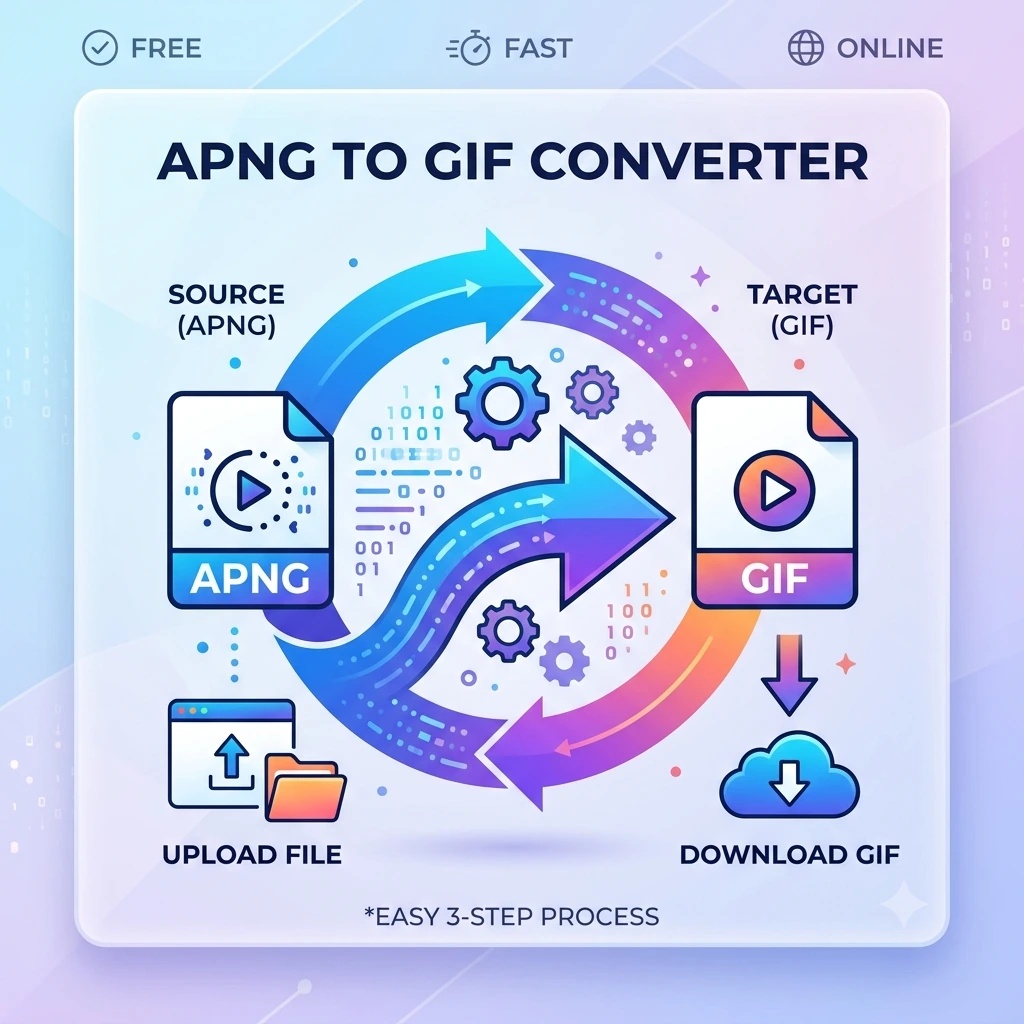
Step 1: Go to the APNG to GIF converter
Open flipfilezone.com/apng-to-gif in any browser — desktop or mobile. No account, no software install.
Step 2: Upload your APNG file
Drag and drop your file onto the upload area, or click to browse. Most real-world APNG files are still named with a .png extension — that's normal and expected, the tool detects the actual animated PNG data automatically.
Step 3: Click Convert
Hit Convert. Your file is processed securely on FlipFileZone's servers, with each frame individually optimized for the GIF palette.
Step 4: Download your GIF
Download your converted GIF immediately. The original file is deleted from the server right after, so nothing lingers.
✅ Pro Tip
— If your APNG has soft, semi-transparent edges (like a glow or drop shadow), check the output closely — GIF can only show a pixel as fully opaque or fully transparent. For animations with heavy semi-transparency, consider converting to a video format like MP4 instead if the destination platform supports it, since MP4 doesn't have GIF's color and transparency limits.
If your APNG has soft, semi-transparent edges (like a glow or drop shadow), check the output closely — GIF can only show a pixel as fully opaque or fully transparent. For animations with heavy semi-transparency, consider converting to a video format like MP4 instead if the destination platform supports it, since MP4 doesn't have GIF's color and transparency limits.
Because the actual frame extraction and palette work happens on FlipFileZone's servers rather than in your browser, even large or high-frame-count APNG files convert quickly without draining your device's battery or freezing your tab — something worth knowing if you're converting from a phone or an older laptop.
Will Your Animation Survive the Conversion? Yes — Here's Why
- Frame count and sequence order are preserved exactly — no frames are dropped or reordered
- Animation timing is copied from the APNG's frame-delay data, so playback speed matches the original
- Loop count (infinite loop or a fixed number of repeats) carries over correctly
- Fully opaque and fully transparent pixels map over cleanly with no artifacts
- Color accuracy stays high for illustrations and icons with a limited color palette to begin with
- Image dimensions stay exactly the same — no unwanted scaling or cropping
- Semi-transparent pixels are resolved intelligently based on their alpha value, not just chopped off
- The output is a standard, spec-compliant GIF that opens correctly everywhere, including apps that are picky about malformed GIF files
Need to Go the Other Direction? FlipFileZone Does That Too
If you're working the opposite way — you have a GIF and need the richer color depth and smooth transparency of APNG for a modern web project — FlipFileZone's GIF to APNG converter handles that conversion too. Keep in mind that converting GIF to APNG can't add back detail the GIF never had — you'll get a valid APNG file, but the color depth is limited by whatever the source GIF already contained.
This is worth knowing before you convert back and forth repeatedly: each round-trip between the two formats can compound small quality losses, so where possible, keep a master copy of your animation in whichever format has the most detail and convert outward from that one file each time, rather than converting a converted file again.
Before You Convert — 7 Things That Make Your GIF Look Flawless
- Check your source APNG for semi-transparent elements before converting — know upfront that GIF will make an all-or-nothing choice for those pixels
- Keep animations short when possible — both file size and visual quality benefit from fewer total frames
- Preview the converted GIF at actual size before publishing — some color shifts are only noticeable at real scale, not zoomed in
- If your APNG uses a lot of unique colors across frames, expect more visible palette compromise than with a simple two- or three-color icon
- Test the GIF on the actual destination platform (email client, CMS, app) before a full rollout — rendering can vary
- If file size matters more than color fidelity, you can often shrink the result further afterward with FlipFileZone's compression tool
- Keep your original APNG file archived — if you ever need to re-convert with different settings, you'll want the full-quality source, not a GIF-to-GIF re-export
Who Uses an APNG to GIF Converter
Students & Academic Submitters
Students working on multimedia projects or digital presentations often need to embed simple animations into platforms that only support GIF uploads, especially learning management systems that predate APNG support.
Corporate Teams & Client-Facing Professionals
Marketing and sales teams building client presentations, email campaigns, or slide decks need animated assets that render identically no matter what software the client opens them in — GIF's universal support removes that risk entirely.
Legal, Compliance & HR Departments
Internal training materials and onboarding content frequently live in older document management systems. Converting animated assets to GIF avoids compatibility tickets and ensures the content displays correctly for every employee, regardless of their device or browser version.
Freelance Writers, Bloggers & Digital Creators
Bloggers embedding animated screenshots, reaction graphics, or tutorial GIFs need a format their CMS and their readers' browsers will both handle without question — GIF remains the safest universal choice for embedded web animation.
Entrepreneurs & Small Business Owners
Small business owners building their own marketing assets — product demos, animated logos, social proof badges — need tools that just work without a design team on standby to troubleshoot format issues.
FlipFileZone vs. Other GIF Converter Tools
| Feature | FlipFileZone | Other Tools |
|---|---|---|
| Free to use | Yes, fully free | Often free with limits or paid tiers |
| No account needed | Yes | Many require signup for larger files |
| Files deleted after use | Yes, automatically | Varies — some retain files for hours |
| No watermarks | Yes, always | Some add branding on free tiers |
| Works on mobile | Yes, fully responsive | Varies by tool |
| Batch conversion | Yes, multiple files at once | Often a paid feature |
Got Questions About APNG to GIF Conversion? We Have Answers
| Is the APNG to GIF converter free? |
| Yes — FlipFileZone is 100% free with no account required, no credits, and no hidden charges. |
| Will my animation lose quality? |
| Some color compression is unavoidable since GIF uses a smaller color palette than APNG, but frame timing, loop count, and overall visual fidelity are preserved as closely as the GIF format allows. |
| Why is my APNG file named .png instead of .apng? |
| That's completely normal. APNG was designed to be backward-compatible, so almost every real-world APNG file uses a standard .png extension — FlipFileZone detects the actual animated content automatically. |
| Is there a file size limit? |
| There's no hard file size limit. Very large animations may take slightly longer to process depending on frame count and your connection speed. |
| Can I convert multiple APNG files to GIF at once? |
| Yes. Drop multiple files into the converter and they'll all be converted simultaneously, downloadable together as a ZIP. |
| Is a reverse GIF to APNG conversion available? |
| Yes — use FlipFileZone's GIF to APNG converter for the opposite direction. |
| Does this work on mobile? |
| Yes. FlipFileZone runs entirely in your browser on iOS, Android, and desktop — no app required. |
| Are my files kept private? |
| Your files are uploaded over an encrypted HTTPS connection and automatically deleted from FlipFileZone's servers after you download the result. |
APNG will likely keep gaining browser support over time, but for now, GIF remains the format that just works everywhere — every CMS, every messaging app, every email client, every piece of software built in the last two decades. Converting your APNG to GIF isn't a downgrade so much as a compatibility insurance policy for content you need to actually reach people.
FlipFileZone's converter handles the technical work — frame extraction, palette optimization, timing preservation — automatically, so you get a clean, standard GIF without needing to understand the encoding details yourself. And if you ever need to go the other direction, the GIF to APNG converter is right there too.
Whether you're troubleshooting a broken upload, prepping assets for a client, or just future-proofing your content library, converting between these two formats takes under a minute and costs nothing.
🚀 Ready to Convert APNG to GIF?
— Try FlipFileZone Now! Visit <a href="http://flipfilezone.com/apng-to-gif">flipfilezone.com/apng-to-gif</a> and convert free — no account needed, no software to install.
Visit flipfilezone.com/apng-to-gif and convert free — no account needed, no software to install.
More Free Tools on FlipFileZone
- Compress Files – shrink PDFs, images, video, and audio without losing meaningful quality
- Merge Files – combine PDFs, images, video clips, and audio tracks into one file
- MP4 to GIF Converter – turn video clips into looping GIF animations
- Resize Images – adjust image dimensions without stretching or distortion
- Extract Text (OCR) – pull text out of scanned documents and images
shareShare this post
recommendYou may also like
TECH GUIDESConvert XLS to XLSX Online Free — Upgrade Old Excel Files in SecondsFlipFileZone · Read Fullopen_in_new TECH GUIDESConvert PNG to ICO Online Free — Create Favicons and Windows Icons in SecondsFlipFileZone · Read Fullopen_in_new
 TECH GUIDESConvert Markdown to PDF Online Free — Turn .md Files Into PDF in SecondsFlipFileZone · Read Fullopen_in_new
 TECH GUIDESConvert SVG to PNG Online Free — Export Vector Graphics as Images in SecondsFlipFileZone · Read Fullopen_in_new
 TECH GUIDESConvert GIF to MP4 Online Free — Turn Animated GIFs Into Video in SecondsFlipFileZone · Read Fullopen_in_new
 TECH GUIDESConvert WAV to MP3 Online Free — Compress Audio Files in SecondsFlipFileZone · Read Fullopen_in_new
 TECH GUIDESConvert MOV to MP4 Online Free — Convert iPhone Videos in SecondsFlipFileZone · Read Fullopen_in_new
chatPost a comment
Comments
0