 TECH GUIDESConvert XLS to XLSX Online Free — Upgrade Old Excel Files in SecondsFlipFileZone · Read Fullopen_in_new
Split PDF Online Free — Extract Pages From Any PDF in Seconds
Split PDF files free with FlipFileZone. Extract specific pages, divide a large PDF into smaller files, or separate bundled documents instantly — no sign-up, no watermarks, no software needed.
FlipFileZone · TECH GUIDES
shareShare this post






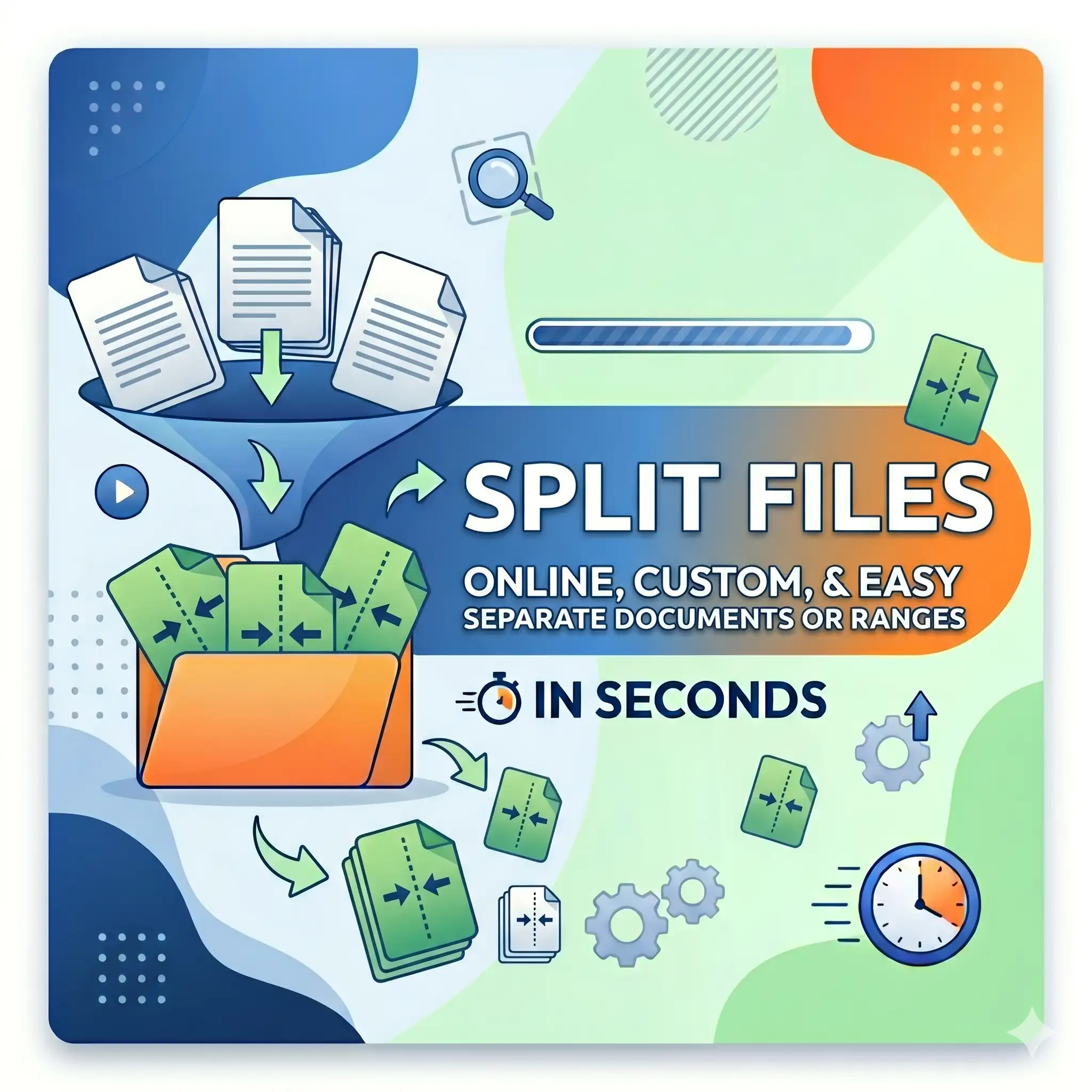
Split PDF Online Free — Extract Pages From Any PDF in Seconds
You receive a 60-page company report but the client only needs slides 12 through 19. You have a scanned legal bundle with four separate agreements stitched into one PDF that your filing system needs stored individually. You downloaded a product manual that nobody will read end-to-end, and you want to break it into chapters that are each easy to share and open on a phone without scrolling past irrelevant sections.
These situations come up constantly in professional, legal, academic, and administrative work — and they all have the same solution. Split the PDF. Pull out the pages you need, separate the documents that were bundled together, or divide a large file into smaller, more manageable pieces. The result is always the same: the right content, in the right file, at the right scope — ready to send, file, or upload without carrying along pages that do not belong.
FlipFileZone's free PDF splitter handles all of this in your browser in under a minute. Upload your PDF, select your page range, and download the output. No account to create. No watermark on your split files. No document sitting on a server after your session ends. Just the pages you need, in a clean standalone PDF, ready to go.
⚡ Quick Answer
— Go to flipfilezone.com/split, upload your PDF, select the pages or range you want to extract, click Split PDF, and download your output files instantly. Free, private, and watermark-free.
What Splitting a PDF Actually Does
A PDF is a single container file that holds any number of pages. Splitting means taking some or all of those pages and placing them into one or more new, separate PDF files. The pages themselves are never altered — no re-compression, no re-rendering, no quality loss. Every split output file is a fully valid, standalone PDF that opens in any reader exactly as those pages looked in the source document.
Most PDF splitting needs fall into one of three patterns, and FlipFileZone handles all of them cleanly:
- Extract a specific page range — Select pages 5 through 12 and receive a new PDF containing only those eight pages. Perfect for pulling out a section, a chapter, or a specific document from a larger bundle.
- Split into individual pages — Every page becomes its own standalone one-page PDF. Ideal for scanned documents where each page is a separate form, receipt, or certificate that needs to be stored or processed independently.
- Divide into equal sections — Break a 40-page document into four 10-page parts, or two 20-page halves. Useful for distributing chapters, training modules, or report sections to different recipients.
Regardless of which approach you use, every output file is a properly structured PDF — not a flattened image, not a degraded copy. Text is selectable, links are clickable, images are sharp, and the layout is pixel-for-pixel identical to the source pages.
Why Professionals Split PDFs Every Day
- Send only what is relevant — A 90-page internal report should not reach a client who needs two pages of findings. Splitting extracts exactly what is needed and nothing else.
- Separate bundled documents for independent filing — Scanned packages and combined exports often contain multiple distinct documents. Splitting separates them into individual files that can be named, filed, and retrieved on their own terms.
- Clear upload size limits — Many portals cap file uploads at 5 to 10 MB. Splitting a large PDF into smaller sections brings each part under the limit without losing any content.
- Distribute chapters and modules independently — Training packs, course materials, and long manuals are easier to work with when each section is its own file — shareable with the right audience, updatable without replacing the whole document.
- Remove pages before sharing — Extract the non-confidential sections into a new PDF, leaving sensitive pages out, before forwarding to external recipients.
- Prepare pages for further processing — Before merging specific pages with other documents or compressing individual sections, splitting gives you precise control over exactly what gets processed.
- Build focused reference documents — The appendix, the pricing table, the technical spec, or the terms and conditions each become standalone files that can be referenced, updated, and shared independently of the master document.
- Organise scanned archives — Large scan batches bundled into one PDF become individually manageable once split into named files, each containing one discrete document.
How to Split a PDF — Step by Step
Step 1 — Open the FlipFileZone PDF Splitter
Go to flipfilezone.com/split in any browser on any device. No account creation, no subscription prompt, no onboarding sequence. The tool is ready the moment the page loads.
Step 2 — Upload Your PDF
Click the upload area or drag and drop your PDF directly onto the page. FlipFileZone accepts PDFs of any length — scanned documents, digital exports, downloaded files, or design outputs. After uploading, the total page count is displayed so you can confirm the range you want before proceeding. All uploads travel over an encrypted HTTPS connection.
Step 3 — Choose Your Pages
Enter your target page range, select individual pages to extract, or choose to split the document into separate single-page files. Take a moment to verify your selection — particularly for long documents where precise page numbers matter for the filing or sharing workflow that follows.
✓ Pro Tip
— Note that printed page numbers inside a document footer may not match the actual PDF page position. A document with a cover page, table of contents, or blank separator pages will have an offset between the numbers printed on the pages and the position of those pages in the PDF file. Always count from the beginning of the uploaded file itself when entering your range, not from the numbers printed inside the document.
Step 4 — Click Split PDF
Hit the Split PDF button. The tool processes your selection and generates the output files. For most documents — including large multi-page PDFs — splitting completes in under 15 seconds. Each output is a clean, standalone PDF containing only the pages you selected.
Step 5 — Download Your Output
Download each split file individually or as a zip archive if multiple outputs were generated. Open each file to verify the content and page range before forwarding, filing, or uploading. FlipFileZone permanently and automatically deletes your source document and all split output files from its servers once your session ends.
What Is Preserved in Every Split Output File
Splitting is a structural operation — pages are reorganised into new containers without any re-processing of their content. Every output file carries the following from the source document intact:
- All text — Every word, heading, number, and paragraph on each extracted page is fully preserved, selectable, and searchable in the output PDF.
- Images and graphics — Photos, diagrams, charts, logos, and illustrations are carried through at original resolution with no re-compression applied.
- Clickable hyperlinks — Links on extracted pages remain fully functional in the split output files.
- Fonts and typography — All embedded font data is preserved so extracted pages render correctly on any device without substitution.
- Page layout and margins — The visual structure of every extracted page is identical to how it appeared in the source.
- Form fields — Interactive fillable fields, checkboxes, and dropdown menus on extracted pages remain functional in the output.
- Page orientation — Portrait and landscape pages from the source are each preserved at their original orientation in the split files.
Real-World Use Cases Where Splitting PDFs Is Essential
Legal and Contract Management
A combined PDF arrives containing a main agreement, three schedules, and two annexures — 47 pages total, all bundled together for transmission. Each component needs to be filed separately, reviewed by different team members, and stored in different matter folders within a document management system. Splitting the bundle into its six constituent documents takes under a minute and produces properly scoped files that slot naturally into legal workflows built around discrete, individually named records.
Academic and Research Work
A journal issue downloaded as a single PDF needs one specific paper extracted for citation, annotation, or sharing with a research group. A dissertation with appendices bundled at the end requires those appendices separated for independent submission or external review. Splitting delivers the specific pages a researcher needs without the overhead — and the file size — of the full surrounding document.
HR and Employee Documentation
Onboarding batches are sometimes exported or scanned as combined PDFs — multiple employees, multiple documents, all in one file. HR teams that need to file each employee record individually, upload documents to an HRIS platform, or share specific pages with individual staff members use splitting to extract each person's pages into their own standalone file. Clean, correctly scoped, and ready for filing without manual re-scanning.
Finance and Audit Workflows
Bank statements, audit files, and financial packs routinely arrive as multi-month or multi-entity bundles. Accountants and auditors who need to work with individual periods, entities, or cost centres split the bundle before processing — distributing the right pages to the right team members and uploading specific sections to financial platforms that expect one period or one entity per file rather than a combined archive.
Training and Learning Content
A 120-page training manual covering six modules is impractical to share as a single file with participants who only need Module 3 this week. L&D teams split the manual into module-specific PDFs — each distributed to the right learner group, each updatable without replacing the full document, and each small enough to open quickly on a phone or tablet without scrolling through content that has nothing to do with the immediate learning objective.
FlipFileZone vs Other PDF Splitting Tools
| Feature | FlipFileZone | Smallpdf | iLovePDF | Adobe Acrobat Online |
|---|---|---|---|---|
| Free to use | ✓ Always | ⚠ 2 tasks/day | ⚠ Limited free | ⚠ Limited free |
| No account needed | ✓ Yes | ✗ Required for more | ✗ Required for more | ✗ Required |
| Files deleted after use | ✓ Auto-deleted | ⚠ Stored temporarily | ⚠ Stored temporarily | ⚠ Stored temporarily |
| No watermarks | ✓ Never | ✗ On free tier | ✓ No watermark | ✗ On free tier |
| Custom page range extraction | ✓ Yes | ✓ Yes | ✓ Yes | ✓ Yes |
| Works on mobile | ✓ Yes | ✓ Yes | ✓ Yes | ✓ Yes |
Frequently Asked Questions
| Is FlipFileZone's PDF splitter really free? |
| Yes — completely free with no usage limits, no trial periods, and no subscription required. Split as many PDFs as you need, as often as you need, at no cost. |
| Can I extract just a single page from a PDF? |
| Yes. Select a single page number and FlipFileZone extracts it as a standalone one-page PDF. You can also extract multiple non-consecutive individual pages in a single operation. |
| Does splitting reduce the quality of my pages? |
| No. Splitting is a structural operation — it moves pages into new files without re-processing or re-compressing any content. Every extracted page is identical in quality to how it appeared in the source document. |
| Can I split a password-protected PDF? |
| Password-protected PDFs need to be unlocked before splitting. Open the protected file in your PDF viewer, remove the password protection, save an unprotected copy, and then upload that copy for splitting. |
| Are my documents safe when I upload them? |
| Yes. All uploads are encrypted via HTTPS. Your source file and all split output PDFs are permanently and automatically deleted from FlipFileZone servers once your session ends. Your documents are never stored, shared, or accessed for any other purpose. |
| Can I split a PDF on my phone? |
| Yes. FlipFileZone is fully mobile-responsive. Open the tool in your phone browser, upload your PDF from your files app, choose your page range, and download the split output directly to your device — no desktop or app installation needed. |
| What if I want to combine pages from different PDFs after splitting? |
| Use FlipFileZone's free PDF merger after splitting. Extract the pages you need from each source document, then merge the resulting files into one combined PDF — giving you complete control over exactly which pages appear and in what order. |
| Is there a page limit for splitting? |
| No. FlipFileZone handles PDFs of any length. Whether you are extracting 2 pages from a 10-page document or 50 pages from a 500-page archive, the splitter processes your selection without restriction. |
A PDF that contains more than you need is a PDF working against you. Too many pages for the recipient to navigate. Too large for the upload portal. Too bundled for individual filing. Too wide in scope for a reader who only needs one section. Splitting removes every one of those problems in under a minute — and the output is always a clean, focused PDF that is exactly the right size and scope for what comes next.
FlipFileZone makes it fast, free, and friction-free. Upload your PDF, select your pages, split, download. No account to create, no watermark on your output, no file lingering on a server after you are done. Just the pages you need, in a properly formatted PDF, ready to send wherever they need to go.
And when those split files need to be compressed for email, merged with other documents, or converted to a different format — the rest of FlipFileZone's toolkit is right there, equally free, equally instant, and always account-free.
🚀 Ready to Split Your PDF?
— Try FlipFileZone Now!Visit flipfilezone.com/split and extract the exact pages you need — free, no account required, no watermarks ever.
More Free Tools on FlipFileZone
- Merge PDF — Combine split PDF files or multiple documents into one unified file in seconds.
- Compress PDF — Reduce the file size of your split PDFs for easy email and upload.
- Word to PDF Converter — Convert any Word document to a perfectly formatted PDF for free.
- Extract Text — Pull plain text from any PDF, Word file, or image instantly and free.
- JPG to PDF Converter — Turn images into a professional shareable PDF document instantly.
shareShare this post
recommendYou may also like
TECH GUIDESConvert XLS to XLSX Online Free — Upgrade Old Excel Files in SecondsFlipFileZone · Read Fullopen_in_new TECH GUIDESConvert PNG to ICO Online Free — Create Favicons and Windows Icons in SecondsFlipFileZone · Read Fullopen_in_new
 TECH GUIDESConvert Markdown to PDF Online Free — Turn .md Files Into PDF in SecondsFlipFileZone · Read Fullopen_in_new
 TECH GUIDESConvert SVG to PNG Online Free — Export Vector Graphics as Images in SecondsFlipFileZone · Read Fullopen_in_new
 TECH GUIDESConvert GIF to MP4 Online Free — Turn Animated GIFs Into Video in SecondsFlipFileZone · Read Fullopen_in_new
 TECH GUIDESConvert WAV to MP3 Online Free — Compress Audio Files in SecondsFlipFileZone · Read Fullopen_in_new
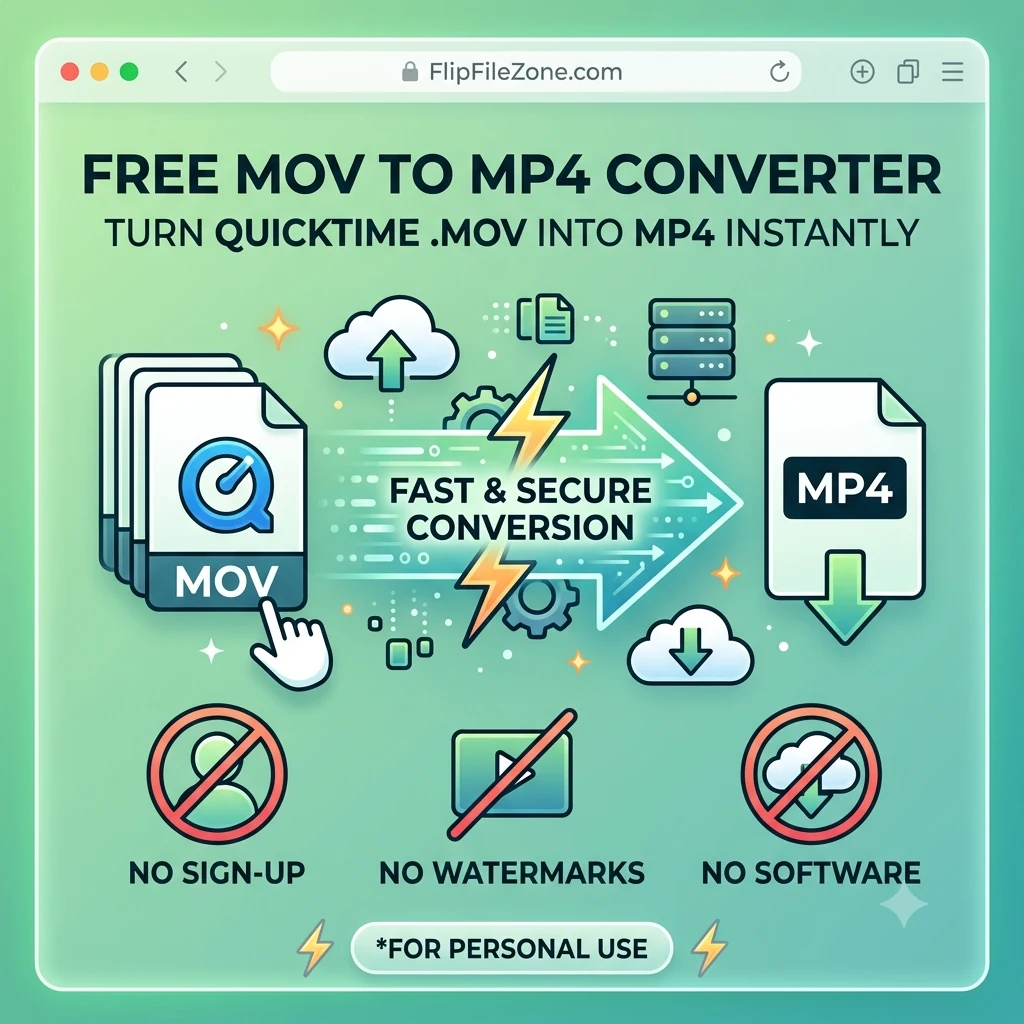 TECH GUIDESConvert MOV to MP4 Online Free — Convert iPhone Videos in SecondsFlipFileZone · Read Fullopen_in_new
chatPost a comment
Comments
0