 TECH GUIDESConvert XLS to XLSX Online Free — Upgrade Old Excel Files in SecondsFlipFileZone · Read Fullopen_in_new
Why Won't My WebP Image Open? How to Convert It Free
WebP file won't open? Convert it to JPG or PNG free with FlipFileZone — fix compatibility issues in seconds, no signup needed.
FlipFileZone · TECH GUIDES
shareShare this post


Why Won't My WebP Image Open? How to Convert It Free
By the FlipFileZone Team · 12 min read
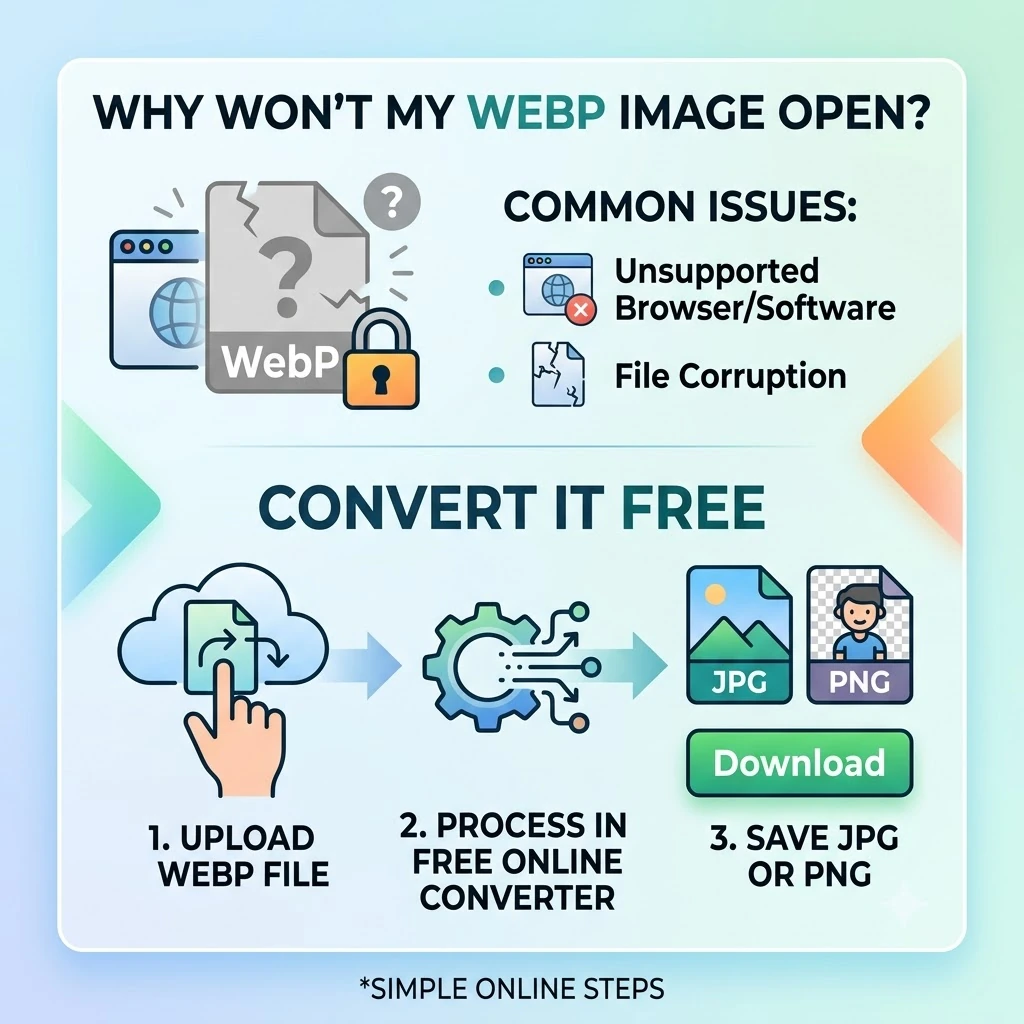
You saved an image from a website, or a client sent you graphics for a project, and when you try to open it — nothing. Some programs show a blank thumbnail, others throw an "unsupported file type" error, and older software just refuses to touch it. Check the file extension and there's your answer: it's a .webp file, and whatever you're trying to open it with doesn't know what to do with it.
WebP is a genuinely good image format — Google built it specifically to be smaller than JPG and PNG at equivalent quality, and most modern browsers handle it fine. The problem is everything else: older versions of Photoshop, many email clients, some presentation software, and plenty of content management systems still don't support it natively. If your workflow touches any of those, WebP becomes a compatibility headache instead of a space-saver.
This guide explains why WebP causes so many compatibility issues, what actually happens when you convert it to JPG or PNG, and how to do that conversion for free using flipfilezone.com/webp-to-jpg — no software, no signup, under a minute.
⚡ Quick Answer
— Go to flipfilezone.com/webp-to-jpg, upload your WebP file, click Convert, and download a standard JPG that opens everywhere. Need PNG for transparency instead? FlipFileZone converts to PNG too.
Go to flipfilezone.com/webp-to-jpg, upload your WebP file, click Convert, and download a standard JPG that opens everywhere. Need PNG for transparency instead? FlipFileZone converts to PNG too.
Why WebP Won't Open Everywhere — What's Actually Going On
WebP was released by Google in 2010 as a modern replacement for JPG and PNG, using more efficient compression algorithms to produce noticeably smaller files at similar visual quality. It also supports both lossy and lossless compression in the same format, plus transparency and animation — essentially combining what JPG, PNG, and GIF each do separately into one flexible format.
The catch is adoption timing. Because WebP is relatively new compared to JPG (which dates back to 1992) and PNG (1996), a huge amount of existing software — especially older versions of design tools, legacy content management systems, and many email clients — was built and locked in before WebP existed or before support was widely added. Some platforms have simply chosen not to support it at all, since JPG and PNG remain universally safe defaults.
This creates a real practical problem: an image can be technically excellent and still be functionally useless the moment it lands somewhere that can't decode it. Converting back to JPG or PNG trades away some of WebP's efficiency in exchange for guaranteed compatibility — a trade that's almost always worth making whenever you're not certain the destination supports WebP natively.
It's worth knowing that WebP's growing use isn't a mistake or an accident — many websites and content management systems now serve WebP automatically to reduce page load times and bandwidth, often without the visitor even realizing the format changed. That's great for browsing speed, but it means anyone who right-clicks "save image" on a modern website is increasingly likely to end up with a WebP file whether they intended to or not, which is exactly why this compatibility gap comes up so often for people who never deliberately chose the format in the first place.
Top Reasons People Convert WebP to JPG or PNG
- Older versions of Photoshop, GIMP, and other design software that don't open WebP files without a plugin
- Email clients that fail to render WebP attachments or inline images correctly
- Legacy content management systems and website builders that reject WebP uploads entirely
- Print shops and professional printing workflows that expect standard JPG or PNG input
- Presentation software (PowerPoint, Keynote) that may not display WebP images reliably
- Sharing images with someone whose device or software you're unsure supports WebP
- Stock photo sites, marketplaces, and submission portals that only accept JPG or PNG uploads
Convert WebP to JPG in Under 60 Seconds — Here's How
Step 1: Go to the WebP to JPG converter
Open flipfilezone.com/webp-to-jpg in any browser, on desktop or mobile.
Step 2: Upload your WebP file
Drag and drop your file onto the upload area, or click to browse and select it manually.
Step 3: Click Convert
FlipFileZone decodes the WebP image and re-encodes it as a standard JPG, preserving resolution and visual quality.
Step 4: Download your JPG
Download the converted file and use it anywhere — every piece of software from the last three decades can open a JPG. Your original file is deleted from FlipFileZone's servers immediately after.
✅ Pro Tip
— If your WebP image has transparency (a see-through background), converting to JPG will fill that transparent area with a solid color, since JPG doesn't support transparency at all. Convert to PNG instead if you need to keep the transparent background intact.
If your WebP image has transparency (a see-through background), converting to JPG will fill that transparent area with a solid color, since JPG doesn't support transparency at all. Convert to PNG instead if you need to keep the transparent background intact.
Because the decoding and re-encoding happen on FlipFileZone's servers rather than in your browser, even batches of WebP files convert quickly without slowing down your device.
This matters more than it might seem for anyone dealing with a large image library. If you've been saving images from the web for months or years, you may have accumulated dozens or hundreds of WebP files without ever noticing, since most browsers display them just fine — the problem only surfaces later when you try to use one of those files somewhere less forgiving. Batch converting a whole folder at once is far more practical than discovering the incompatibility one file at a time, right when you need a specific image to work.
Will Your Image Quality Hold Up? Here's What to Expect
- Resolution and dimensions stay exactly the same — no unwanted scaling or cropping
- Color accuracy remains high, since JPG and PNG both support the full color range WebP does
- Photographic images convert to JPG with minimal visible quality difference at normal viewing sizes
- Images with sharp lines, text, or flat colors (like logos and graphics) are better suited to PNG, which avoids JPG's compression artifacts on hard edges
- Animated WebP files convert to GIF rather than a static JPG or PNG, preserving the animation
- Metadata like orientation is preserved so your image doesn't appear sideways or flipped after conversion
- The output is a fully standard file that opens correctly in absolutely everything, including decades-old software
JPG or PNG? Choosing the Right Format to Convert To
If your WebP image is a photograph with no transparency, JPG is usually the better choice — smaller file size, universally supported, and visually near-identical for photographic content. If your image has a transparent background (common with logos, icons, and graphics), convert to PNG instead, since PNG preserves that transparency while JPG would replace it with a solid background color. FlipFileZone supports converting WebP to either format, so you can pick based on what your specific image actually needs.
Before You Convert — 5 Things Worth Checking
- Check whether your WebP image has a transparent background before choosing JPG, since that transparency will be lost — use PNG instead if you need to keep it
- If the WebP file is animated, expect the conversion to produce a GIF rather than a static image
- Keep your original WebP file if file size matters for your own storage, and only convert copies you need for compatibility elsewhere
- If you're converting many images for a bulk upload, batch conversion saves significant time over doing them one at a time
- After converting, you can further shrink the resulting JPG or PNG with FlipFileZone's compression tool if file size is still a concern
Who Needs to Convert WebP Files
Students & Academic Submitters
Students downloading images from the web for assignments or presentations often run into WebP files that won't insert cleanly into older versions of PowerPoint or Word.
Corporate Teams & Client-Facing Professionals
Marketing teams receiving brand assets or stock imagery in WebP format need to convert to JPG or PNG for compatibility with legacy design tools, print vendors, and client systems that don't accept WebP uploads.
Legal, Compliance & HR Departments
HR and compliance teams handling scanned documents or graphics for official filings often need universally compatible formats, since submission portals frequently reject anything other than JPG or PNG.
Freelance Writers, Bloggers & Digital Creators
Bloggers pulling images from modern websites (which increasingly serve WebP by default) often need to convert them to JPG or PNG before uploading to older or more restrictive content management systems.
Entrepreneurs & Small Business Owners
Small business owners building their own marketing materials need image formats that work reliably across every platform — website, print shop, social media — without troubleshooting compatibility one platform at a time.
FlipFileZone vs. Other WebP Converters
| Feature | FlipFileZone | Other Tools |
|---|---|---|
| Free to use | Yes, fully free | Often free with limits or paid tiers |
| No account needed | Yes | Many require signup for larger files |
| Files deleted after use | Yes, automatically | Varies — some retain files for hours |
| No watermarks | Yes, always | Some add branding on free tiers |
| Both JPG and PNG output supported | Yes | Some tools only offer one format |
| Batch conversion | Yes, multiple files at once | Often a paid feature |
Got Questions About WebP Conversion? We Have Answers
| Is the WebP to JPG converter free? |
| Yes — FlipFileZone is 100% free with no account required, no credits, and no hidden charges. |
| Will I lose quality converting WebP to JPG? |
| For most photographic images, the visual difference is minimal at normal viewing sizes. JPG uses its own compression, so extremely fine detail may see a small change, but it's rarely noticeable. |
| What happens to transparency when I convert to JPG? |
| JPG doesn't support transparency, so any transparent areas will be filled with a solid background color. Convert to PNG instead if you need to keep transparency. |
| Can I convert an animated WebP file? |
| Yes. Animated WebP files convert to GIF, preserving the animation, since a static JPG or PNG can't hold multiple frames. |
| Is there a file size limit? |
| There's no hard file size limit. Very large images may take slightly longer to process. |
| Can I convert multiple WebP files at once? |
| Yes. Drop multiple files into the converter and they'll all be converted simultaneously, downloadable together as a ZIP. |
| Does this work on mobile? |
| Yes. FlipFileZone runs entirely in your browser on iOS, Android, and desktop — no app required. |
| Are my files kept private? |
| Your files are uploaded over an encrypted HTTPS connection and automatically deleted from FlipFileZone's servers after you download the result. |
WebP is a genuinely better format on paper, but "better" doesn't help when the software in front of you can't open it. Converting to JPG or PNG trades a bit of WebP's efficiency for something more valuable in most real-world situations: guaranteed compatibility with literally everything, from decades-old design software to the strictest upload portal.
FlipFileZone's converter handles that conversion cleanly, letting you choose JPG for photographic images or PNG when you need to preserve transparency — no software to install, no account, no watermark. And if the resulting file needs to be smaller, the compression tool is right there too.
Whether you're fixing a broken upload, prepping assets for a client, or just future-proofing an image, converting away from WebP takes under a minute and costs nothing.
🚀 Ready to Convert Your WebP File?
— Try FlipFileZone Now! Visit flipfilezone.com/webp-to-jpg and convert free — no account needed, no software to install.
Visit flipfilezone.com/webp-to-jpg and convert free — no account needed, no software to install.
More Free Tools on FlipFileZone
- Compress Files – shrink PDFs, images, video, and audio without losing meaningful quality
- Merge Files – combine PDFs, images, video clips, and audio tracks into one file
- Resize Images – adjust image dimensions without stretching or distortion
- APNG to GIF Converter – convert animated PNGs into universally compatible GIFs
- Extract Text (OCR) – pull text out of scanned documents and images
shareShare this post
recommendYou may also like
TECH GUIDESConvert XLS to XLSX Online Free — Upgrade Old Excel Files in SecondsFlipFileZone · Read Fullopen_in_new TECH GUIDESConvert PNG to ICO Online Free — Create Favicons and Windows Icons in SecondsFlipFileZone · Read Fullopen_in_new
 TECH GUIDESConvert Markdown to PDF Online Free — Turn .md Files Into PDF in SecondsFlipFileZone · Read Fullopen_in_new
 TECH GUIDESConvert SVG to PNG Online Free — Export Vector Graphics as Images in SecondsFlipFileZone · Read Fullopen_in_new
 TECH GUIDESConvert GIF to MP4 Online Free — Turn Animated GIFs Into Video in SecondsFlipFileZone · Read Fullopen_in_new
 TECH GUIDESConvert WAV to MP3 Online Free — Compress Audio Files in SecondsFlipFileZone · Read Fullopen_in_new
 TECH GUIDESConvert MOV to MP4 Online Free — Convert iPhone Videos in SecondsFlipFileZone · Read Fullopen_in_new
chatPost a comment
Comments
0