 TECH GUIDESConvert XLS to XLSX Online Free — Upgrade Old Excel Files in SecondsFlipFileZone · Read Fullopen_in_new
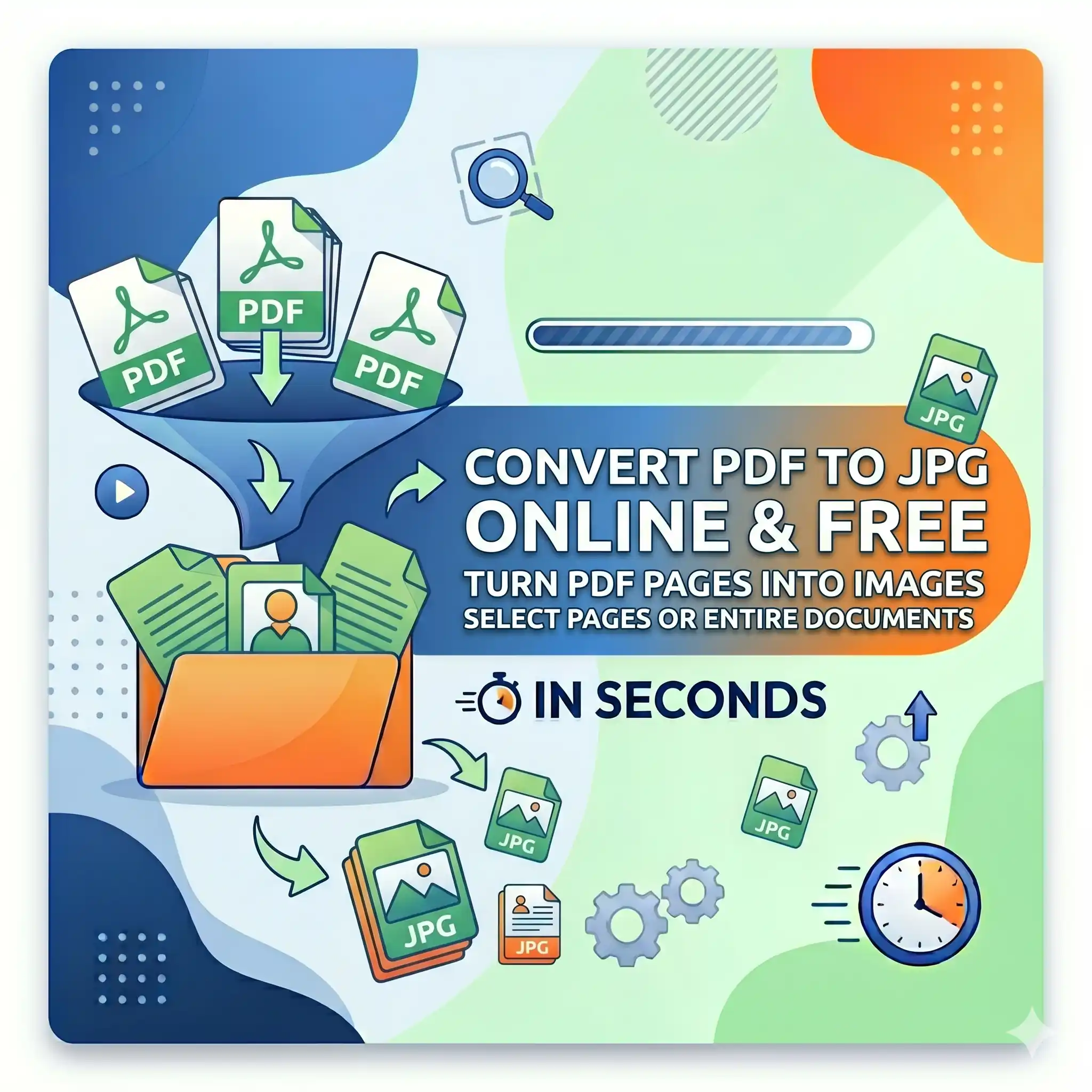
Convert PDF to JPG Online Free — Turn PDF Pages Into Images in Seconds
Convert PDF to JPG free with FlipFileZone. Extract every page as a high-quality image instantly — no sign-up, no watermarks, no software needed.
FlipFileZone · TECH GUIDES
shareShare this post






Convert PDF to JPG Online Free — Turn PDF Pages Into Images in Seconds
You have a PDF presentation and need to post individual slides as images to Instagram. A client sent a PDF portfolio and you need the pages as JPGs to drop into a design mockup. A scanned document is locked in PDF format but a content platform you are uploading to only accepts image files. A developer needs each page of a report rendered as a flat image for a web viewer that cannot embed PDFs.
These are not edge cases. They come up constantly for designers, marketers, developers, educators, and content creators who work across tools and platforms that handle images natively but do not always play nicely with PDF files. The solution in every situation is the same: convert the PDF pages to JPG images — clean, high-resolution, universally compatible image files that open anywhere, upload everywhere, and work in every design tool, CMS, or social platform without friction.
FlipFileZone's free PDF to JPG converter handles the conversion in your browser in seconds. Upload your PDF, select which pages you want as images, and download high-quality JPGs — one per page, ready to use. No account. No watermark on your output. No file stored on a server after you are done.
⚡ Quick Answer
— Visit flipfilezone.com/pdf-to-jpg, upload your PDF, choose your pages, click Convert to JPG, and download your images instantly. Free, private, and watermark-free.
Why Convert PDF to JPG — and When It Makes Sense
PDF is the right format for documents: fixed layout, universally readable, print-ready, and reliably formatted across devices. But PDF is the wrong format for a surprising number of common tasks. Social media platforms do not accept PDF uploads. Presentation tools import images, not PDFs. Website builders and CMSs handle JPG natively but struggle with PDF embeds. Graphic design applications work with image files, not document files. E-learning platforms and LMSs often require image assets rather than PDF pages.
Converting PDF to JPG bridges the gap between the document world and the image world. Each page of your PDF becomes a standalone JPG image — fully rendered at high resolution, exactly as the page appeared in the original document. Text, graphics, photographs, charts, and layout are all captured in the image output with no missing elements and no reformatting required.
The resulting JPG files work in every context where images are native: social posts, design files, web pages, presentations, email newsletters, print layouts, and anywhere else that a flat, universally compatible image is what the workflow actually needs.
Top Reasons Professionals Convert PDF to JPG
- Social media content — Infographic slides, quote cards, and presentation pages converted to JPG can be posted directly to Instagram, LinkedIn, Facebook, X, and Pinterest without any platform workaround.
- Website and blog visuals — PDF diagrams, charts, and illustrated pages become embeddable web images when converted to JPG, loading faster and displaying more reliably than PDF embeds in any browser.
- Design and mockup work — Designers importing PDF pages into Figma, Canva, Adobe XD, or Photoshop as image assets avoid compatibility issues by converting to JPG first.
- Presentation building — Slides from a PDF deck converted to JPG can be inserted into PowerPoint, Google Slides, or Keynote presentations as image slides, preserving the original visual design.
- Email newsletter images — Email clients render JPG images reliably. Converting a PDF flyer or infographic to JPG before inserting it into an email campaign avoids rendering failures across clients.
- E-learning and LMS content — Course platforms that accept image uploads but not PDF embeds can receive converted JPG pages as individual lesson slides or reference images.
- Archiving with image previews — Document management systems that generate image thumbnails for PDF archives need page-level JPG previews. Converting produces those preview assets directly.
- Sharing on image-first platforms — Platforms like WhatsApp, iMessage, and Telegram display JPG images inline in the conversation. A PDF shared the same way requires the recipient to open a separate viewer.
How to Convert PDF to JPG — Step by Step
Step 1 — Open the FlipFileZone PDF to JPG Converter
Navigate to flipfilezone.com/pdf-to-jpg in any browser on any device. The converter loads immediately with no account creation screen, no subscription prompt, and no pop-up blocking your path. Open the page and the tool is ready.
Step 2 — Upload Your PDF
Click the upload area or drag and drop your PDF onto the page. FlipFileZone accepts PDFs of any length — presentations, reports, scanned documents, exported design files, or downloaded PDFs from any source. The total page count is shown after upload. All uploads travel over an encrypted HTTPS connection.
Step 3 — Select Your Pages
Choose whether to convert all pages or a specific range. For a 30-page report where you only need slides 4 through 8, select that range and only those pages are rendered as JPG output. For a full conversion of every page, select all and the tool processes the entire document in one operation.
Step 4 — Click Convert to JPG
Hit the Convert to JPG button. FlipFileZone renders each selected PDF page as a high-resolution JPG image. Processing typically completes in under 20 seconds even for multi-page documents. Each page becomes one JPG file, named and numbered in sequence.
Step 5 — Download Your Images
Download each JPG individually or grab all of them as a zip archive in one click. Open the images to verify quality and content before using them. FlipFileZone permanently and automatically deletes your uploaded PDF and all output images from its servers the moment your session ends.
✓ Pro Tip
— For the sharpest JPG output — particularly if you plan to print or display the images at large sizes — choose the highest available resolution setting before converting. Screen-resolution output (72 DPI) is fine for web and social media use. Print-quality output (150 to 300 DPI) is what you need for anything that will be physically printed or displayed on a high-density screen at large dimensions.
What Gets Captured in the JPG Output
Each JPG produced by FlipFileZone is a full render of the corresponding PDF page — not a low-quality screenshot, not a compressed thumbnail. Every visual element present on the page is captured in the image output:
- All text — Headings, body copy, captions, footnotes, and labels are rendered into the image at full sharpness. Text in the JPG is not selectable, but it is visually accurate and legible at the output resolution.
- Images and photographs — Photos, illustrations, and graphics embedded in the PDF are captured at their original rendered quality within the page composition.
- Charts and diagrams — Data visualisations, flowcharts, graphs, and technical diagrams are rendered pixel-for-pixel as they appear in the source PDF.
- Colours and backgrounds — Page background colours, colour fills, gradients, and brand colours are all preserved accurately in the JPG output.
- Page layout — Margins, columns, spacing, and the overall visual structure of each page are captured exactly as they appeared in the source document.
- Logos and brand elements — Watermarks, letterheads, logos, and branded design elements embedded in the PDF appear in the converted images.
What the JPG output does not carry: interactive elements such as clickable hyperlinks, fillable form fields, and embedded video or audio. These are document-layer features that exist in PDF but have no equivalent in a flat image format. The visual representation of those elements — a blue underlined link, a form field box — does appear in the image, but the interactivity does not transfer.
Common Use Cases Where PDF to JPG Conversion Is Essential
Marketing and Social Media Teams
A graphic designer produces a campaign deck as a PDF. The social media manager needs individual slides as images to schedule across platforms that day. Converting the PDF to JPG produces a ready-to-post image for each slide in under a minute — no screen-grabbing, no manual cropping, no quality loss from screenshot compression. Each image is properly rendered at the full resolution of the original page, ready to upload directly to any platform.
Educators and Course Creators
A course creator builds lesson content in a PDF design tool and needs to upload individual lesson panels to an e-learning platform that accepts image uploads but not PDF embeds. Converting each page to JPG produces the per-slide image assets the platform requires without rebuilding the content from scratch in a different tool. The visual design, layout, and typography are preserved exactly in the image output.
Developers and Product Teams
A developer building a document viewer, a report preview feature, or a PDF thumbnail generator needs page-level image renders of PDFs to display in a web interface. Converting PDF pages to JPG produces flat image assets that load in any img tag, display in any browser, and require no PDF rendering library on the client side. For prototyping and lightweight implementations, pre-converted JPGs are the practical solution.
Real Estate and Property Marketing
Floor plans, property brochures, and site maps are frequently stored and distributed as PDFs. When a property listing platform, a social post, or a messaging thread needs those visuals as images, converting the relevant PDF pages to JPG produces platform-ready image assets without re-exporting from the original design software — particularly useful when the original source files are not accessible.
Publishers and Content Repurposers
Book covers, magazine layouts, report covers, and editorial pages stored as PDFs are regularly needed as image assets for promotional use — website headers, email banners, social thumbnails, press kits. Converting the relevant PDF pages to JPG pulls those visual assets out of the document format and into the image format where they can be used freely across every digital channel without compatibility friction.
FlipFileZone vs Other PDF to JPG Tools
| Feature | FlipFileZone | Smallpdf | iLovePDF | Adobe Acrobat Online |
|---|---|---|---|---|
| Free to use | ✓ Always | ⚠ 2 tasks/day | ⚠ Limited free | ⚠ Limited free |
| No account needed | ✓ Yes | ✗ Required for more | ✗ Required for more | ✗ Required |
| Files deleted after use | ✓ Auto-deleted | ⚠ Stored temporarily | ⚠ Stored temporarily | ⚠ Stored temporarily |
| No watermarks on output | ✓ Never | ✗ On free tier | ✓ No watermark | ✗ On free tier |
| Select specific page range | ✓ Yes | ✓ Yes | ✓ Yes | ✓ Yes |
| Works on mobile | ✓ Yes | ✓ Yes | ✓ Yes | ✓ Yes |
Frequently Asked Questions
| Is FlipFileZone's PDF to JPG converter really free? |
| Yes — completely free with no usage limits, no trial periods, and no subscription required. Convert as many PDF pages as you need, as often as you need, at zero cost. |
| Will the image quality be good enough to print? |
| Yes, if you select the appropriate resolution setting before converting. Choose a higher DPI output for print use. For screen, web, and social media use, standard resolution output is sharp and fully suitable. |
| Can I convert just one page instead of the whole PDF? |
| Yes. Select a specific page or page range before converting and only those pages are processed. You are not required to convert the entire document if you only need one or two pages as images. |
| Can I convert a PDF to PNG instead of JPG? |
| FlipFileZone's converter produces JPG output, which is the most universally compatible image format for web, social, email, and design use. If you specifically need PNG — for transparency support or lossless quality — check FlipFileZone for a dedicated PDF to PNG tool. |
| Are my files safe when I upload them? |
| Yes. All uploads are encrypted via HTTPS. Your PDF and all output JPG images are permanently and automatically deleted from FlipFileZone servers once your session ends. Your files are never stored, shared, or used for any other purpose. |
| Can I do this on my phone? |
| Yes. FlipFileZone is fully mobile-responsive. Open the tool in your phone browser, upload a PDF from your files app, and download the output JPG images directly to your camera roll or files — no desktop or additional app required. |
| Will hyperlinks and form fields appear in the JPG? |
| The visual appearance of interactive elements — a blue underlined link, a form field box — will appear in the image, but the interactivity does not transfer to a flat JPG. If you need an editable or interactive format, use a PDF editor rather than an image converter. |
| Can I convert the JPG back to PDF later? |
| Yes. Use FlipFileZone's free JPG to PDF converter to turn any JPG image back into a PDF document whenever you need it. Both directions of conversion are free and account-free. |
A PDF page and a JPG image contain the same visual content — but they live in completely different worlds. The PDF world is documents, readers, and print workflows. The image world is social platforms, design tools, web pages, and every other context where a flat, universally compatible image is what the workflow actually requires.
FlipFileZone's PDF to JPG converter moves your content from one world to the other in seconds. Upload, convert, download. No account to create, no watermark on your images, no file sitting on a server after you are finished. Just high-quality JPG images of your PDF pages, ready to use in any tool, platform, or workflow that handles images.
And when you need to go the other direction — turning images back into a PDF document — FlipFileZone's JPG to PDF converter completes the round trip just as quickly and just as freely.
🚀 Ready to Convert PDF to JPG?
— Try FlipFileZone Now!Visit flipfilezone.com/pdf-to-jpg and turn your PDF pages into high-quality images — free, no account required, no watermarks ever.
More Free Tools on FlipFileZone
- JPG to PDF Converter — Turn JPG images back into a professional PDF document in seconds.
- Compress PDF — Reduce PDF file size without losing quality before converting to images.
- Split PDF — Extract specific pages from any PDF before converting them to JPG.
- Image Resizer — Resize your converted JPG images to exact pixel dimensions instantly and free.
- Merge PDF — Combine multiple PDF files into one unified document in seconds.
tagTags
shareShare this post
recommendYou may also like
TECH GUIDESConvert XLS to XLSX Online Free — Upgrade Old Excel Files in SecondsFlipFileZone · Read Fullopen_in_new TECH GUIDESConvert PNG to ICO Online Free — Create Favicons and Windows Icons in SecondsFlipFileZone · Read Fullopen_in_new
 TECH GUIDESConvert Markdown to PDF Online Free — Turn .md Files Into PDF in SecondsFlipFileZone · Read Fullopen_in_new
 TECH GUIDESConvert SVG to PNG Online Free — Export Vector Graphics as Images in SecondsFlipFileZone · Read Fullopen_in_new
 TECH GUIDESConvert GIF to MP4 Online Free — Turn Animated GIFs Into Video in SecondsFlipFileZone · Read Fullopen_in_new
 TECH GUIDESConvert WAV to MP3 Online Free — Compress Audio Files in SecondsFlipFileZone · Read Fullopen_in_new
 TECH GUIDESConvert MOV to MP4 Online Free — Convert iPhone Videos in SecondsFlipFileZone · Read Fullopen_in_new
chatPost a comment
Comments
0